ZIP to PDF
Convert every supported file inside a .zip at once. Get one merged PDF in the right order, or a folder of separate ones.
- Keeps your layout
- Works on any device
- Deleted after processing
- Every supported file converted
- One merged PDF, in order
- Or a folder of separate files
- Sorted by name or date
.zip
Upload a .zip to turn everything inside it into PDF
Word, Excel, PowerPoint, OpenDocument, images, text, CSV and PDFs · deleted as soon as the result is built
Drag & drop file here
or choose a file from your device
Everything ZIP to PDF can do
Convert everything inside a .zip to PDF in one go, free and online, with no account.
What it converts
- Word, Excel and PowerPoint files inside the archive
- OpenDocument .odt, .ods and .odp
- JPEG, PNG, WebP, GIF, BMP and TIFF images
- .txt, .md, .log and .csv
- PDFs already in the archive, taken as they are
One document, in order
- Everything joined into a single PDF, by default
- Or a PDF for each file, handed back in a new .zip
- Sorted by file name numerically, so page2 comes before page10
- Or sorted by the date each file carries in the archive
Pages match the source
- A scanned image keeps its own page size, not a fixed A4 sheet
- A .csv inside is rendered as a real table with a header row
- Office files convert with fit-to-one-page-wide already set
- Finder and Windows housekeeping files are skipped for you
What you get back
- Counts of files converted and pages produced, shown with the result
- The merged PDF named after your archive
- Separate PDFs come back zipped, each keeping its own name
How it works
ZIP to PDF in three steps
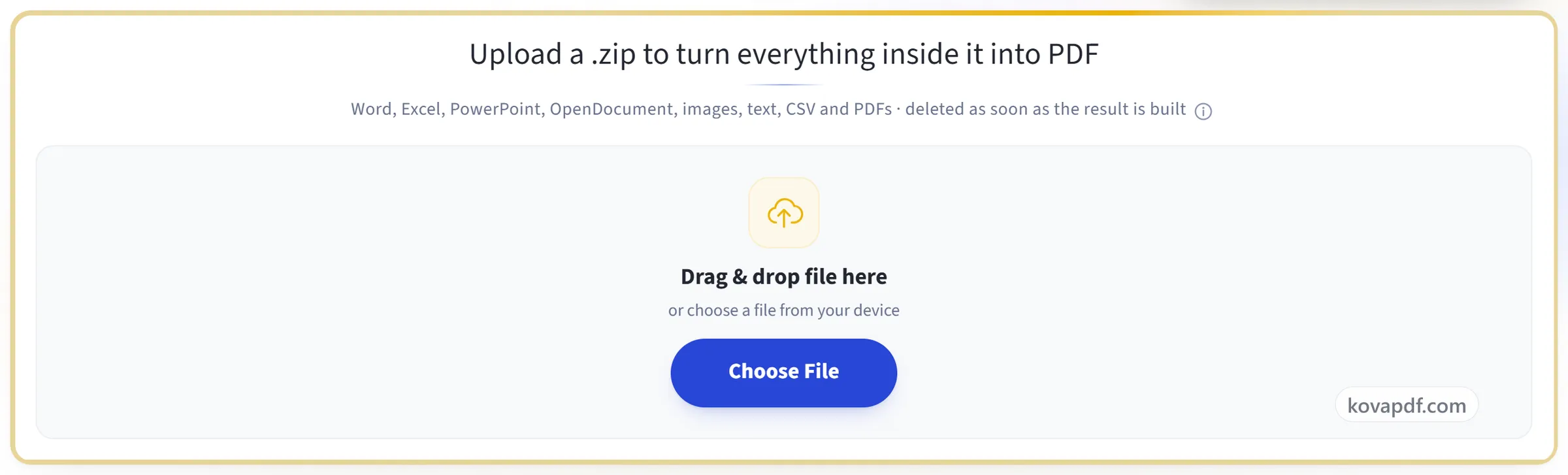
Upload your archive
Drag a .zip onto the panel, or click it to pick one. Documents, spreadsheets, slides, images, text and any PDFs already inside are all converted.
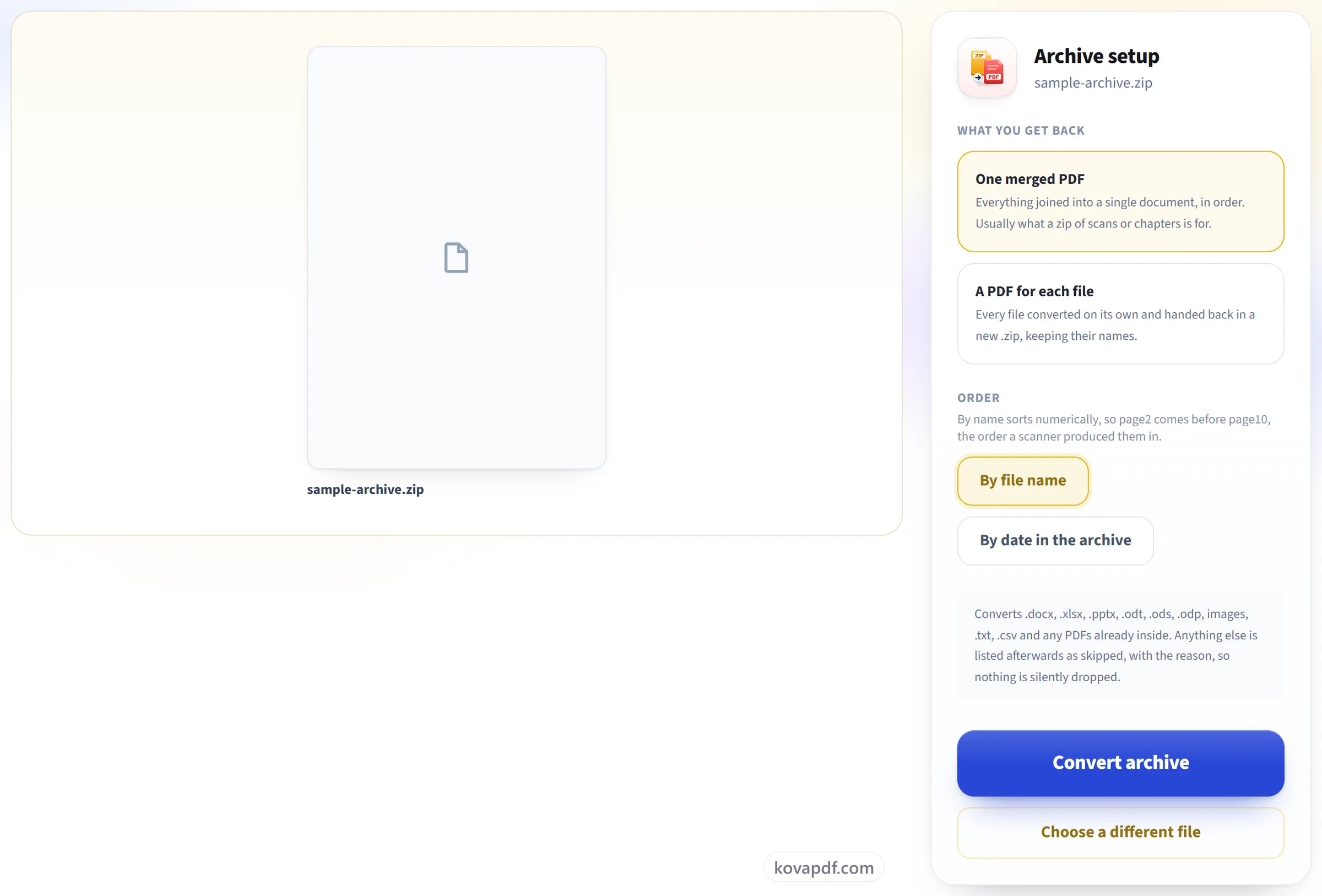
Choose what you get back
One merged PDF is the default, because that is usually what an archive of scans or chapters was for. Files are ordered by name, numerically, so page2 comes before page10. Or order them by date if you prefer.
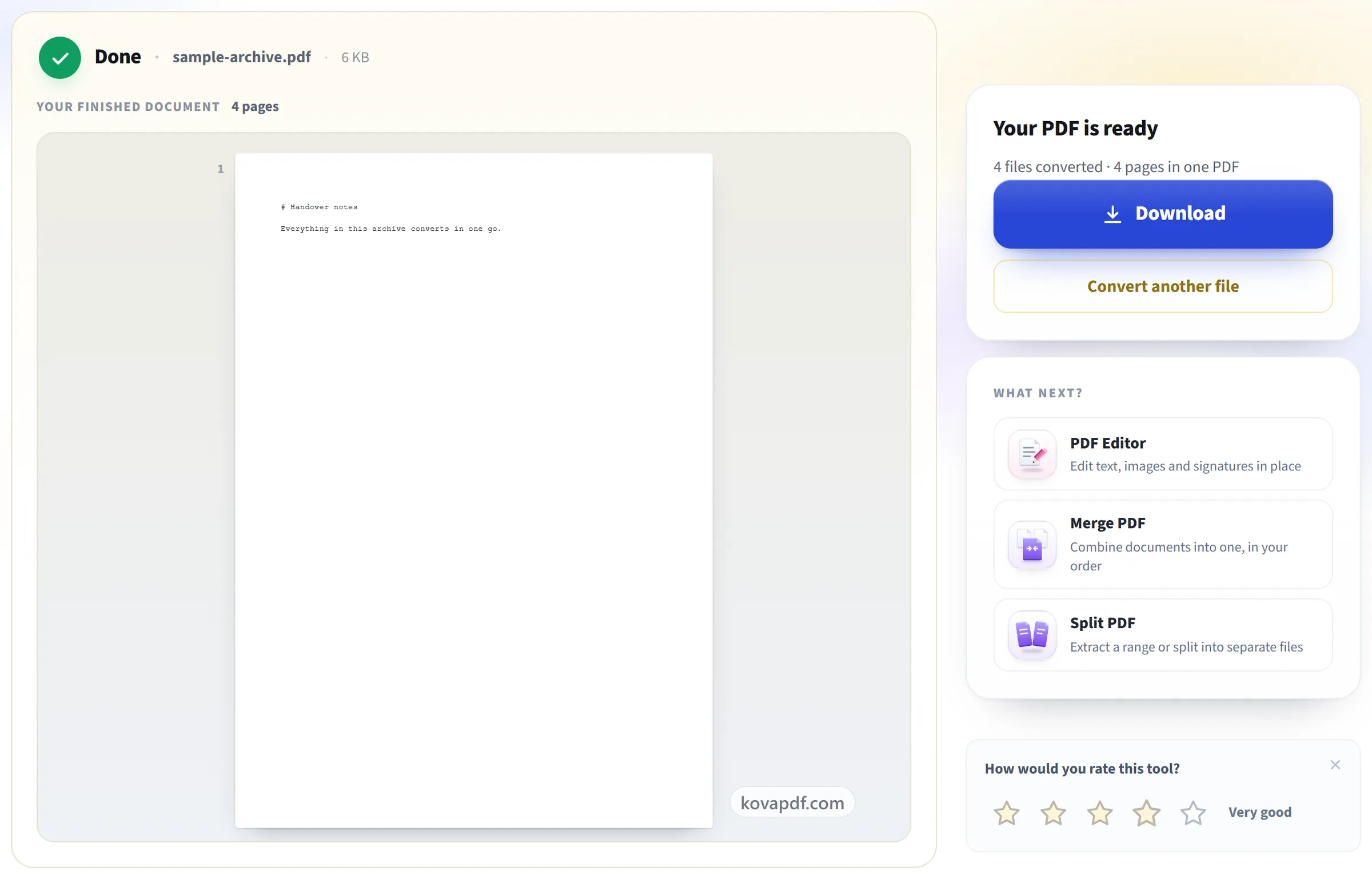
Download your PDF
Anything that could not be converted is listed by name with the reason, so nothing disappears without being mentioned.
ZIP to PDF: a visual walkthrough
One merged document in the right order, or a folder of separate ones.
Upload your archive
Drag a .zip onto the panel, or click it to pick one. Documents, spreadsheets, slides, images, text and any PDFs already inside are all converted.
Choose what you get back
One merged PDF is the default, because that is usually what an archive of scans or chapters was for. Files are ordered by name, numerically, so page2 comes before page10. Or order them by date if you prefer.
Download your PDF
Anything that could not be converted is listed by name with the reason, so nothing disappears without being mentioned.
Frequently asked questions about ZIP to PDF
How do I convert a ZIP file to PDF?
Upload the .zip and press Convert archive. Every file inside that can be turned into pages is converted, and by default they are merged into one PDF in name order. You can ask for a separate PDF for each file instead, returned in a new .zip.
Do I get one PDF or many?
You choose. One merged PDF is the default. Choose 'a PDF for each file' to get them separately in a new .zip.
What order will the files be in?
By name, with numbers in number order, so page2 comes before page10. You can sort by the date in the archive instead.
Are files inside folders included?
Yes. Files in folders at any depth are converted, sorted by their full path so each folder's files stay together. System files such as __MACOSX, .DS_Store and Thumbs.db are ignored.
What if some files in the archive can't be converted?
The rest still convert. Every file that was left out is listed by name on the result screen, with the reason.
Which files inside the zip are supported?
.docx, .doc, .rtf, .odt, .xlsx, .xls, .ods, .pptx, .ppt, .odp, JPG, PNG, WebP, GIF and TIFF images, .txt, .csv, .md and any PDFs already inside. Up to 100 files per archive.
How big can the ZIP file be?
The upload can be up to 80 MB and hold up to 100 files, and its contents may unpack to 250 MB in total, with no single file over 100 MB. The finished PDF can have up to 200 pages.
Can it open a password-protected zip?
No. Unzip it first, then zip it again without a password.
Is it free?
Yes. Every tool works without paying and without an account. Files can be up to 200 pages and 80 MB, and a run that fails costs you nothing.
Do I need to create an account?
No. All tools work without signing in. An account raises your hourly allowance and lets you see what you have processed.
What happens to my file?
Your file stays on our server only for a short time while it is processed, then it is deleted. It is sent over an encrypted connection. We keep a record that the tool was used, but not the file name or what is in the file.
ZIP to PDF guides and articles
Related tools
All PDF tools · 15 step-by-step guides · How your files are handled