ODS to PDF
Turn a LibreOffice or OpenOffice Calc spreadsheet (.ods) into a PDF, fitted one page wide so every column stays on the sheet it belongs to.
- Keeps your layout
- Works on any device
- Deleted after processing
- Every column on the page
- Not sliced across extra sheets
- From LibreOffice or OpenOffice
- Rows flow onto further pages
.ods
Upload an OpenDocument spreadsheet to turn it into a PDF
.ods · your file is deleted as soon as the PDF is built
Drag & drop file here
or choose a file from your device
Everything ODS to PDF can do
Convert an OpenDocument spreadsheet into a PDF, free and online, with no account.
Accurate conversion
- .ods converted with full support for the format
- Cell fills, fonts and borders printed as the sheet stores them
- Charts and embedded drawings rendered by the office engine
- The workbook's own print settings decide where pages break
- Complex scripts and right-to-left text set by the engine
Paper and margins
- Fit to one page wide, on before you touch anything
- Page size: the sheet's own, A4, Letter, Legal or A3
- Portrait, landscape, or the orientation already stored
- Wide, Normal, Narrow or no margins
What comes out
- One PDF, named after your .ods
- Every sheet in the workbook converted in one pass
- Read the finished PDF in the browser before saving it
- How many pages it came to, stated with the result
Right after
- Compress the result without leaving the tool
- Merge it with other PDFs
- Open it in the PDF Editor
How it works
ODS to PDF in three steps
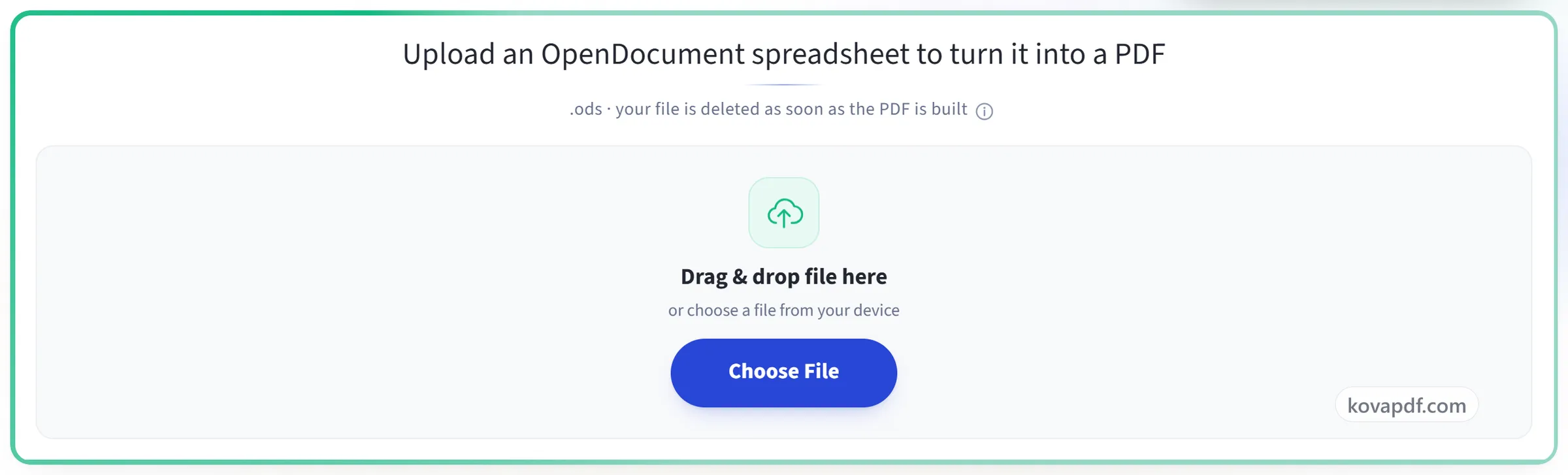
Upload your spreadsheet
Drag an .ods onto the panel, or click it to pick one. Your file is deleted as soon as the PDF is built.
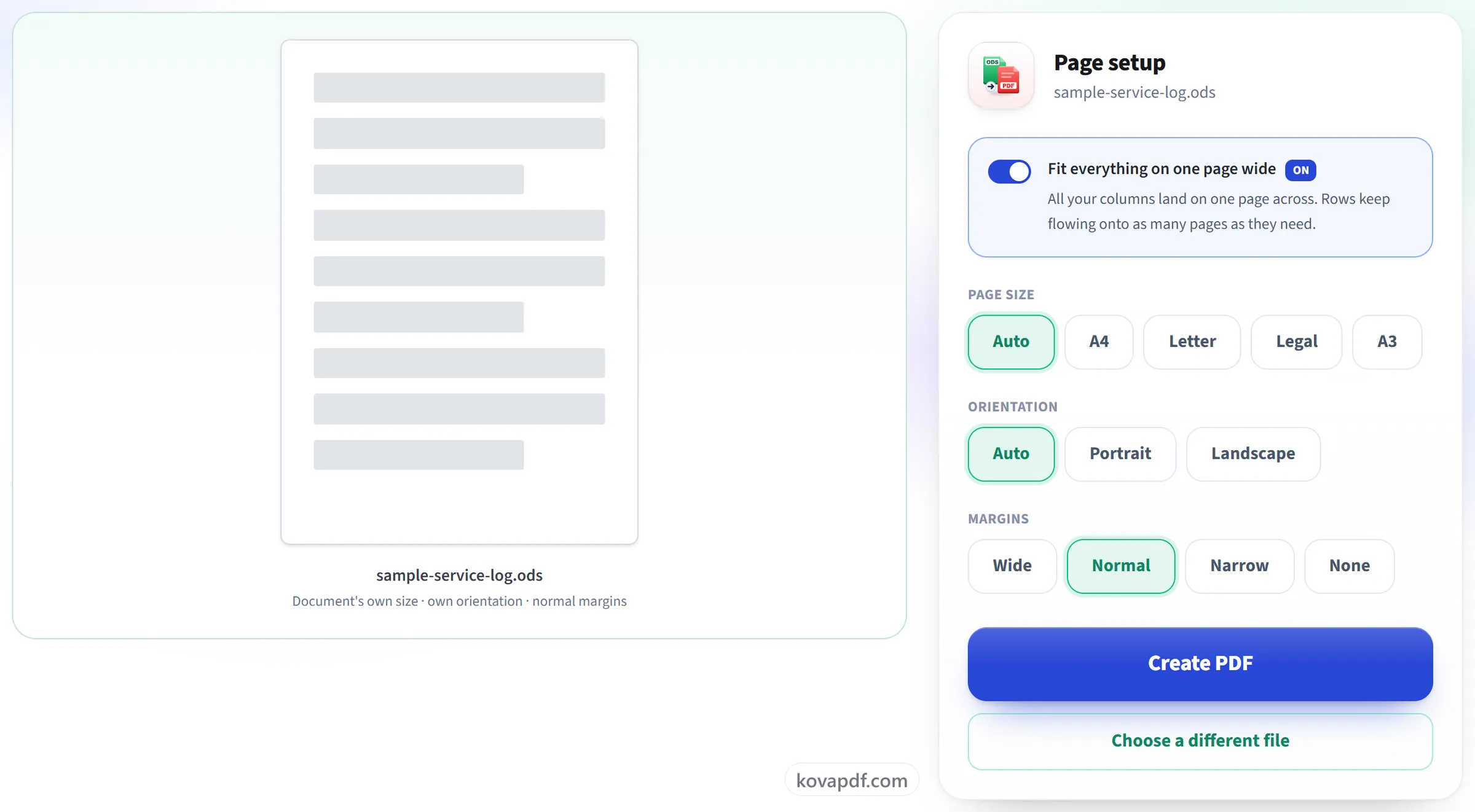
Check the page setup
'Fit everything on one page wide' is already on, which is what stops a wide sheet being sliced across extra pages. Only the width is fitted, so the type stays readable.
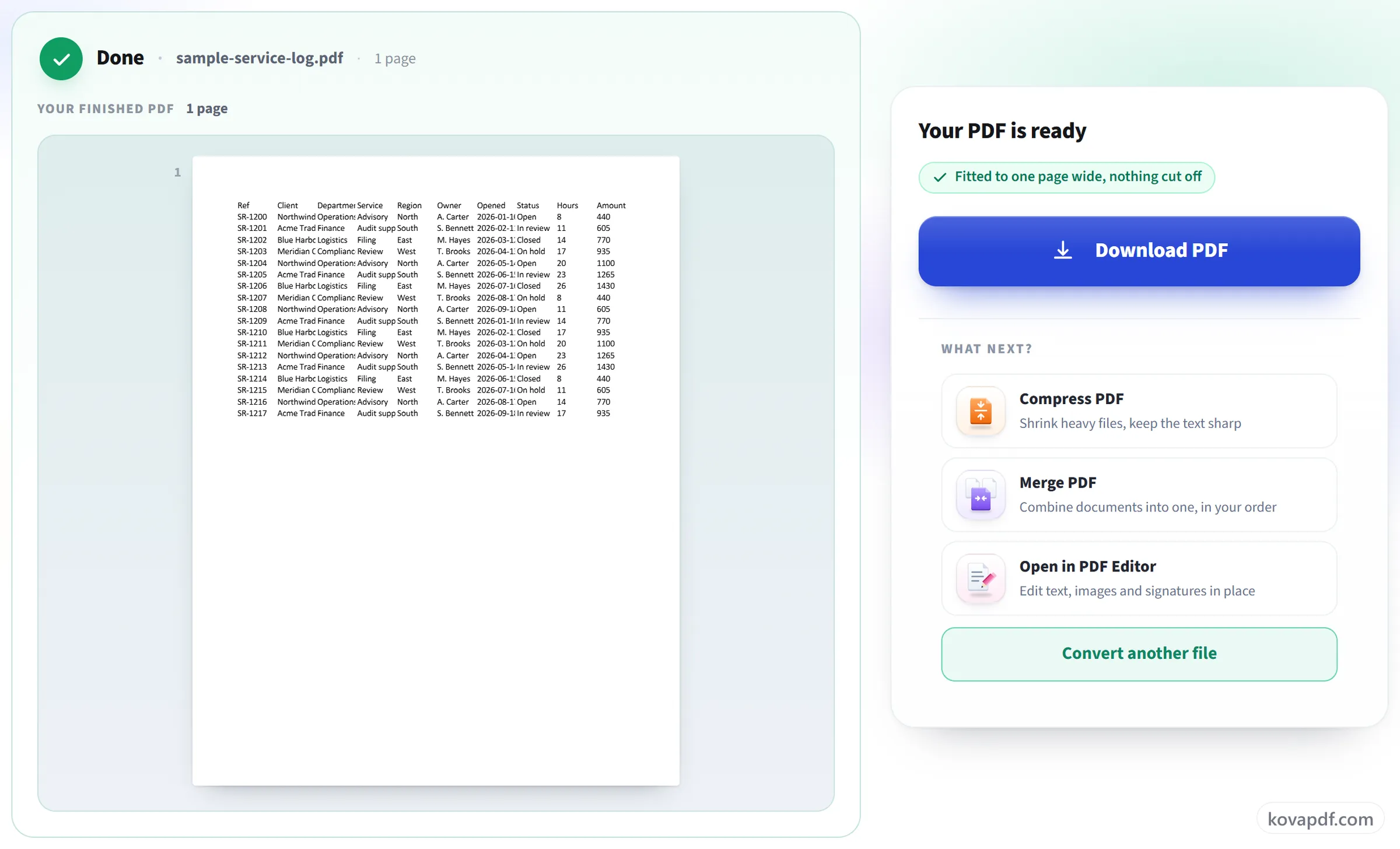
Download your PDF
Every column is on the page, and only the height runs onto further pages.
ODS to PDF: a visual walkthrough
Every column on the page across, rows flowing down as far as they need.
Upload your spreadsheet
Drag an .ods onto the panel, or click it to pick one. Your file is deleted as soon as the PDF is built.
Check the page setup
'Fit everything on one page wide' is already on, which is what stops a wide sheet being sliced across extra pages. Only the width is fitted, so the type stays readable.
Download your PDF
Every column is on the page, and only the height runs onto further pages.
Frequently asked questions about ODS to PDF
How do I convert an ODS spreadsheet to PDF?
Choose your .ods file, check the paper and margin settings, and press Create PDF. By default every column is fitted onto the page across, and rows continue onto as many pages as they need. The conversion runs on our server, so there is nothing to install.
Will my columns get cut off?
No. 'Fit everything on one page wide' is on by default, which puts every column on the page across and lets rows carry on down as many pages as they need.
Will it squash hundreds of rows onto one page?
No. Only the width is fitted. Rows carry on over as many pages as they need, so the text stays readable.
Are all the sheets converted?
Yes. Every sheet goes into the one PDF, in the order of the tabs, each starting on a new page. Hidden sheets are left out, and a sheet with a print range set prints only that range. To convert a single sheet, save a copy that contains only that sheet.
Can I choose landscape, the paper size or the margins?
Yes: A4, Letter, Legal or A3, portrait or landscape, and wide, normal, narrow or no margins. A wide sheet usually reads best in landscape, because its columns then need less shrinking to fit across the page.
Can I convert several files at once?
One at a time here. To convert many in one go, put them in a .zip and use ZIP to PDF, which can merge them into one PDF or return a separate PDF for each.
Can I convert a password-protected file?
No. A document that needs a password to open cannot be converted. Open it in LibreOffice, save a copy without the password, and convert that.
Which files can I upload?
.ods. For .xlsx or .csv, use Excel to PDF or CSV to PDF.
Is it free?
Yes. Every tool works without paying and without an account. Files can be up to 200 pages and 80 MB, and a run that fails costs you nothing.
Do I need to create an account?
No. All tools work without signing in. An account raises your hourly allowance and lets you see what you have processed.
What happens to my file?
Your file stays on our server only for a short time while it is processed, then it is deleted. It is sent over an encrypted connection. We keep a record that the tool was used, but not the file name or what is in the file.
ODS to PDF guides and articles
Related tools
All PDF tools · 15 step-by-step guides · How your files are handled