HTML to PDF
Render a web page, an HTML file or a whole site bundle to PDF with a real browser engine: CSS grid, flexbox and web fonts intact.
- Keeps your layout
- Works on any device
- Deleted after processing
- A real browser engine
- CSS grid and flexbox intact
- Web fonts loaded
- A page, a file or a bundle
URL · .html · .zip
Turn a web page into a PDF
Paste the address of any public page. It is loaded and rendered exactly as a browser would show it.
Pages behind a login can't be reached, and addresses on a private network are refused.
Everything HTML to PDF can do
Render a web page, an HTML file, a site bundle or pasted markup to PDF with a real browser engine.
Four ways in
- Paste the address of any public page
- Upload an .html, .htm or .xhtml file
- Upload a .zip of a whole site with its CSS and images
- Paste markup straight into the box
Rendered by a browser
- Chrome lays the page out, so grid, flexbox and positioning hold
- Web fonts are given time to load before the page is captured
- Background colours and images kept, which printing normally drops
- The entry page is picked out of a site bundle for you
Which layout you get
- Render at Desktop HD, Desktop, Laptop, Tablet or Mobile width
- 1920, 1440, 1200, 768 or 375 pixels across
- A responsive site gives you the layout you picked
The paper
- A4, Letter, Legal, A3 or A5
- Portrait or landscape sheets
- Margins: none, small, normal or big
- One long page as tall as the document, for a screenshot-style capture
How it works
HTML to PDF in three steps
Choose where the page comes from
Paste a web address, upload an .html file, drop in a .zip of a whole site, or paste the markup straight in.
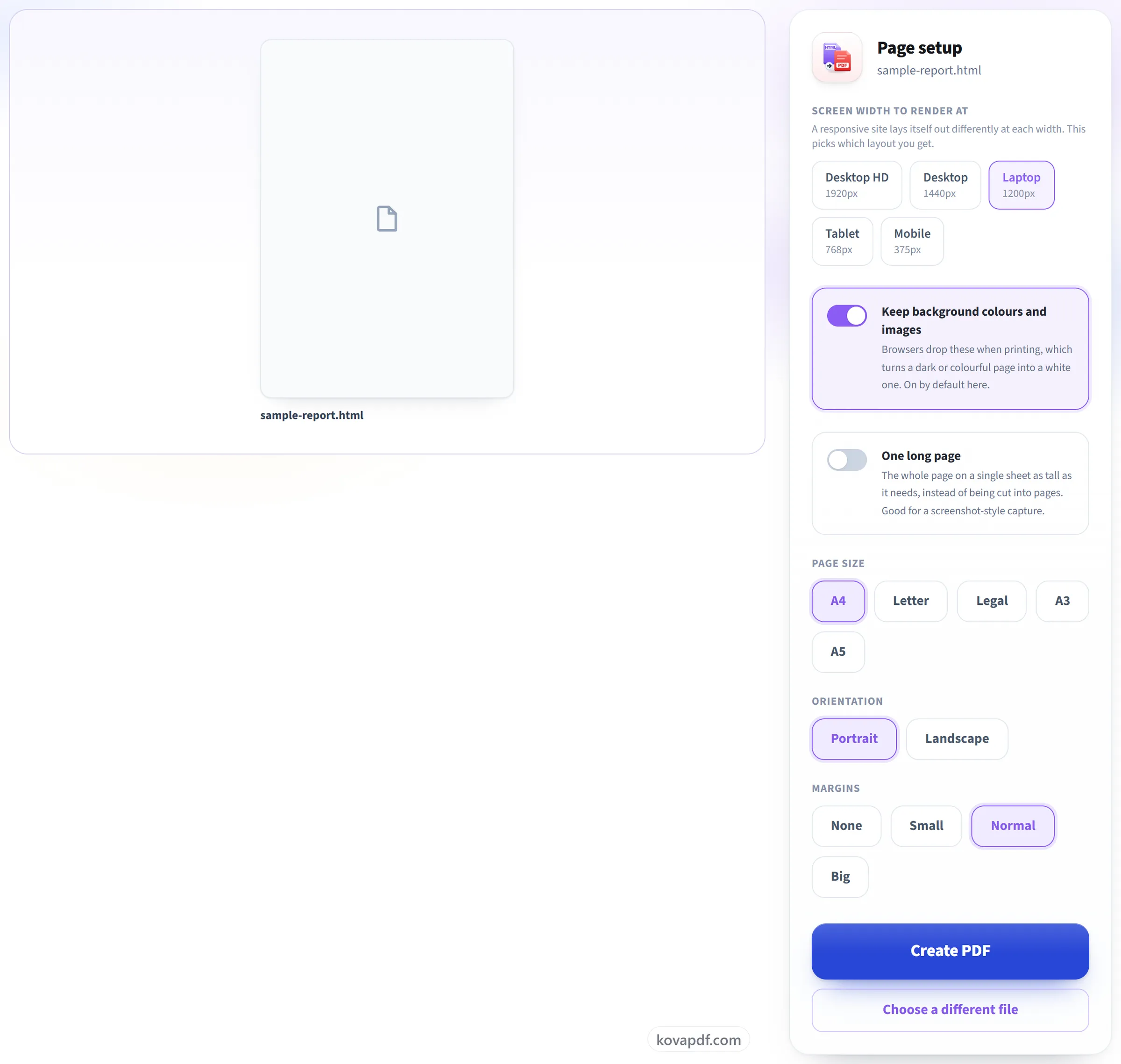
Pick the screen width
A responsive site lays itself out differently at 1920px and at 375px, so this decides which layout you get. Background colours stay on by default. Browsers drop them when printing, and that is what turns a dark page white.
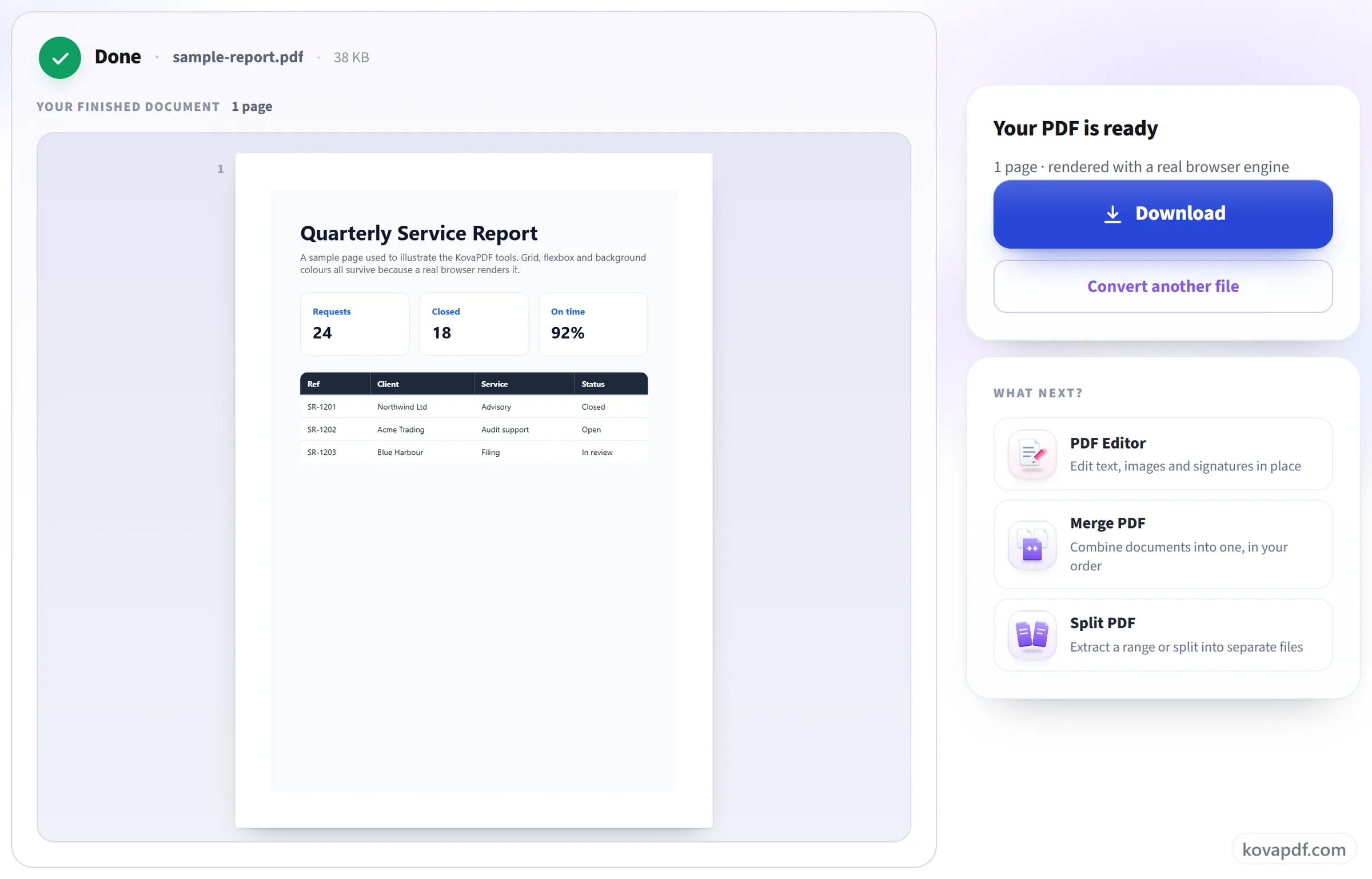
Download your PDF
CSS grid, flexbox and web fonts all survive, because a browser did the rendering rather than an office suite's HTML import.
HTML to PDF: a visual walkthrough
Rendered by a real browser engine, so the page looks like the page.
Choose where the page comes from
Paste a web address, upload an .html file, drop in a .zip of a whole site, or paste the markup straight in.

Pick the screen width
A responsive site lays itself out differently at 1920px and at 375px, so this decides which layout you get. Background colours stay on by default. Browsers drop them when printing, and that is what turns a dark page white.
Download your PDF
CSS grid, flexbox and web fonts all survive, because a browser did the rendering rather than an office suite's HTML import.
Frequently asked questions about HTML to PDF
How do I save a web page as a PDF?
Paste the page's address, or upload the .html file, and press Create PDF. We open the page in a real web browser and save it as a PDF with its styles, images and web fonts. You can choose the paper size, orientation, margins and the screen width it is laid out at.
Will my CSS work?
Yes. We open the page in a real web browser, so its layout, fonts and images come out as they look on screen.
Why is my dark page coming out white?
It shouldn't. Browsers usually leave out background colours and images when printing, but this tool keeps them by default. For a printer-friendly version, switch 'Keep background colours and images' off.
Can I get the whole page on one long PDF page?
Yes. Switch on 'One long page' and the whole web page becomes a single PDF page as tall as it needs, with no page breaks cutting through it. Leave it off to split the page onto sheets of A4, Letter, Legal, A3 or A5.
Are the links in the PDF clickable?
Yes. Links stay clickable, and the text stays selectable and searchable, because the page is printed as real text rather than captured as a picture.
Why are some images missing from my PDF?
Usually because the page loads them only as you scroll. The converter waits for the page to finish loading but does not scroll it, so images that wait for scrolling may never appear. Scrolling to the bottom in your own browser, saving the page, and uploading the .html or a .zip of it often solves this.
Can I convert a page that needs a login?
No. The page is fetched by our server, which has no access to your session or cookies. Save the page from your browser and upload the .html file, or a .zip of it, instead.
What can I upload?
A web address, a single .html file, a .zip containing the page with its CSS and images, or HTML pasted straight in.
Why was my address refused?
Private and local addresses, such as localhost, are blocked for safety. Only http and https addresses are accepted.
Is it free?
Yes. Every tool works without paying and without an account. Files can be up to 200 pages and 80 MB, and a run that fails costs you nothing.
Do I need to create an account?
No. All tools work without signing in. An account raises your hourly allowance and lets you see what you have processed.
What happens to my file?
Your file stays on our server only for a short time while it is processed, then it is deleted. It is sent over an encrypted connection. We keep a record that the tool was used, but not the file name or what is in the file.
HTML to PDF guides and articles
Related tools
All PDF tools · 15 step-by-step guides · How your files are handled