ODP to PDF
Convert an OpenDocument presentation to PDF, one page per slide, at the slide's own size, backgrounds and all.
- Keeps your layout
- Works on any device
- Deleted after processing
- One page per slide
- At the slide's own size
- From LibreOffice or OpenOffice
- Fonts and images kept
.odp
Upload an OpenDocument presentation to turn it into a PDF
.odp · your file is deleted as soon as the PDF is built
Drag & drop file here
or choose a file from your device
Everything ODP to PDF can do
Convert an OpenDocument presentation into a PDF, one page per slide.
Slide for slide
- Every slide becomes one page, in the order the deck has them
- Each page is the slide's own size, or fitted whole to the paper you pick
- Slide backgrounds, gradients and fills printed as designed
- Pictures and drawings keep the place the deck gave them
Impress's own engine
- .odp converted by the suite that defines the format
- Embedded fonts used, so titles set in their own type
- Charts and grouped shapes rendered rather than re-implemented
- Tables on a slide drawn with the borders the deck set
What comes back
- One PDF, named after your .odp
- Leaf through the finished PDF before downloading it
- Page count shown next to the finished file
- Send it straight on to Compress, Merge or the PDF Editor
How it works
ODP to PDF in three steps
Upload your presentation
Drag an .odp onto the panel, or click it to pick one. Your file is deleted as soon as the PDF is built.
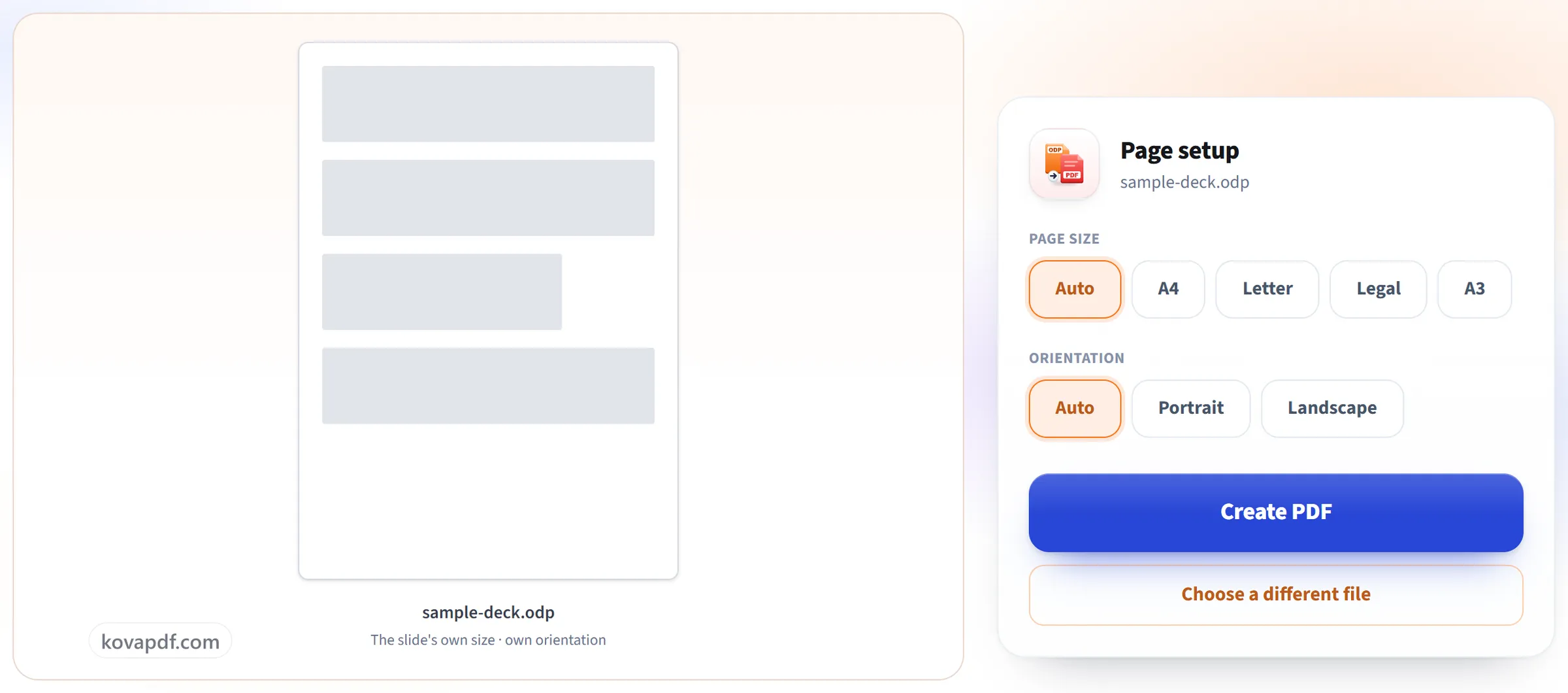
Confirm the page
Each slide becomes one page at the presentation's own slide size, so nothing needs fitting and nothing can run off the edge.
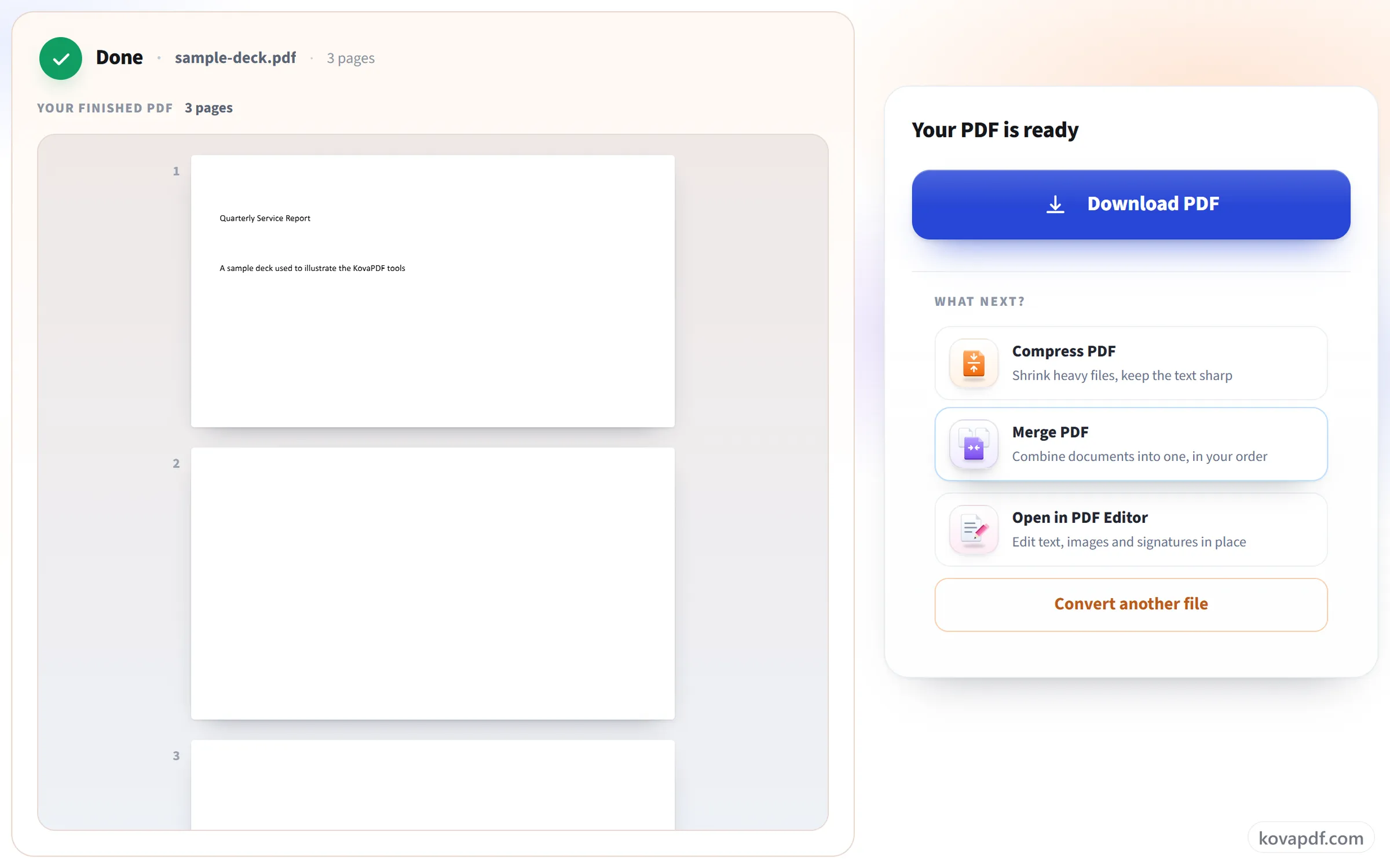
Download your PDF
Backgrounds, images and layout come across as designed, ready to email or print as a handout.
ODP to PDF: a visual walkthrough
One page per slide, at the size you designed them.
Upload your presentation
Drag an .odp onto the panel, or click it to pick one. Your file is deleted as soon as the PDF is built.
Confirm the page
Each slide becomes one page at the presentation's own slide size, so nothing needs fitting and nothing can run off the edge.
Download your PDF
Backgrounds, images and layout come across as designed, ready to email or print as a handout.
Frequently asked questions about ODP to PDF
How do I convert an ODP presentation to PDF?
Choose your .odp file and press Create PDF. Each slide becomes one page of the PDF, at the presentation's own slide size unless you pick a paper size. It runs on our server, so there is nothing to install.
How are slides laid out?
One slide per page, at the presentation's own slide size unless you pick a paper size. Nothing runs off the edge of the page.
Are backgrounds and images kept?
Yes. Each slide looks as it was designed, including background fills, images and shapes.
Are speaker notes included?
No. The PDF contains the slides only, one per page. Speaker notes and hidden slides are left out.
Are animations and transitions kept?
No. A PDF page is static, so each slide is exported as it looks with all of its content showing. Transitions and animations are not carried over.
Can I print the slides on A4 or Letter paper?
Yes. Choose A4, Letter, Legal or A3, in portrait or landscape, and each slide is scaled to fit the sheet and centred on it, so nothing is cut off or stretched. Leave it on Auto to keep the slide size.
Can I convert several files at once?
One at a time here. To convert many in one go, put them in a .zip and use ZIP to PDF, which can merge them into one PDF or return a separate PDF for each.
Which files can I upload?
.odp. For .pptx, use PowerPoint to PDF.
Is it free?
Yes. Every tool works without paying and without an account. Files can be up to 200 pages and 80 MB, and a run that fails costs you nothing.
Do I need to create an account?
No. All tools work without signing in. An account raises your hourly allowance and lets you see what you have processed.
What happens to my file?
Your file stays on our server only for a short time while it is processed, then it is deleted. It is sent over an encrypted connection. We keep a record that the tool was used, but not the file name or what is in the file.
ODP to PDF guides and articles
Related tools
All PDF tools · 15 step-by-step guides · How your files are handled