Create Fillable PDF Forms
Turn any PDF into a form people can fill in, with text boxes, check boxes, choice buttons, dropdowns, dates and signature fields. We find the blank lines and boxes for you, and you decide which become fields.
- Free to use
- Works on any device
- Deleted after processing
- Blank lines and boxes found for you
- Eight kinds of form field
- Try it before you download
- Standard fields PDF apps can fill
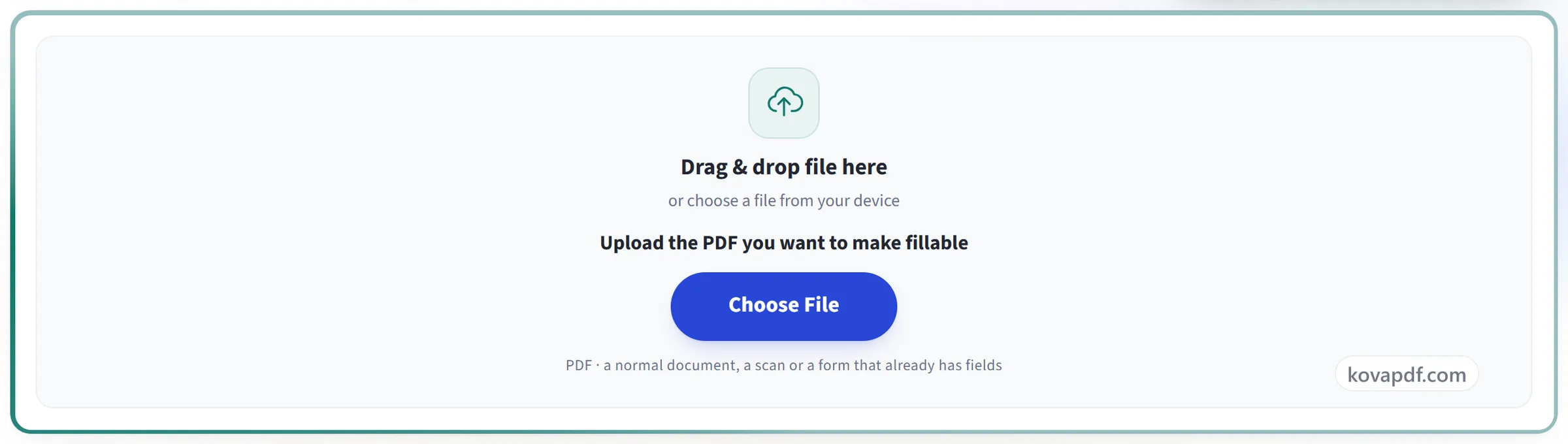
Drag & drop file here
or choose a file from your device
Upload the PDF you want to make fillable
PDF · a normal document, a scan or a form that already has fields
Everything PDF Forms can do
Turn a PDF into a form people can fill in and save in any PDF app.
Fields
- Text boxes, paragraphs, check boxes, choice buttons, dropdowns, lists, dates and signature fields
- Real PDF form fields that work in Acrobat, Chrome, Edge, Firefox and Foxit
- Required and read-only fields, help text and starting values
- Dropdown and list options with their own stored values
- Character limits and one-letter-per-box fields for codes
Finding the fields
- Finds blank lines, empty boxes, check box squares, letter boxes and table cells
- Scanned forms too: lines and boxes are measured on the scan and labels read with OCR
- Names each field from the label beside it
- Nothing is added until you accept it
Placing and arranging
- Click or drag to place a field, drag to move it, pull a corner to resize
- Snap to other fields, align, match sizes and space evenly
- Copy as an independent field or as a linked copy that shares its value
- Set the Tab key order, or keep it row by row
Before you download
- Preview the form and fill it in exactly as your readers will
- Forms already in the PDF are opened for editing, and untouched fields stay as they were
- Undo and redo with Ctrl+Z
How it works
PDF Forms in three steps
Upload your PDF
Drag the .pdf onto the panel, or click it to pick one. A form that already has fields opens with them in place, ready to edit.
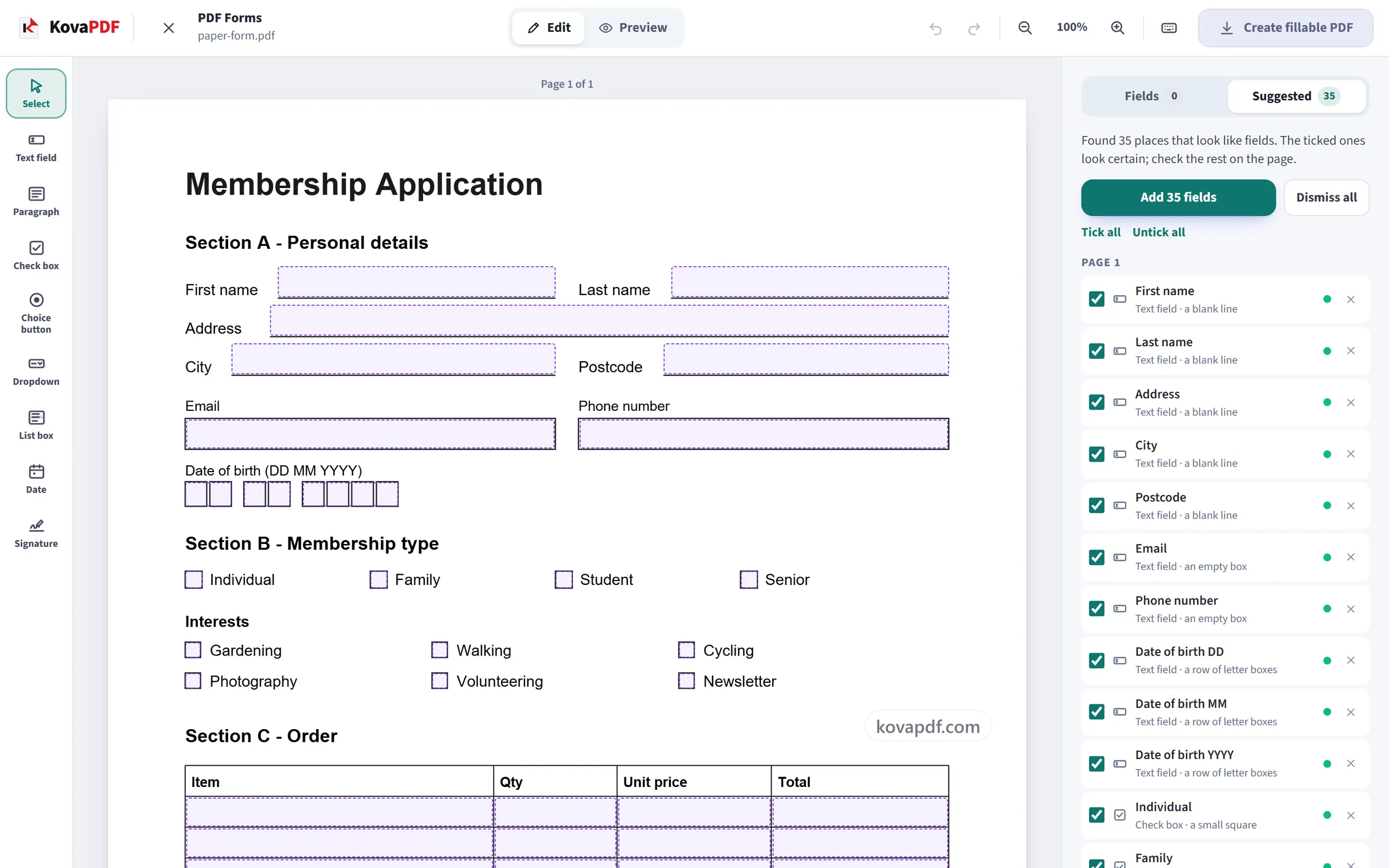
Accept the fields we found, then add your own
Blank lines, empty boxes and check box squares are outlined on the page and listed in the panel. Add the ones you want with one click. Pick a field type on the left and click or drag on the page for anything else, then set its name, options and whether it is required in the panel.
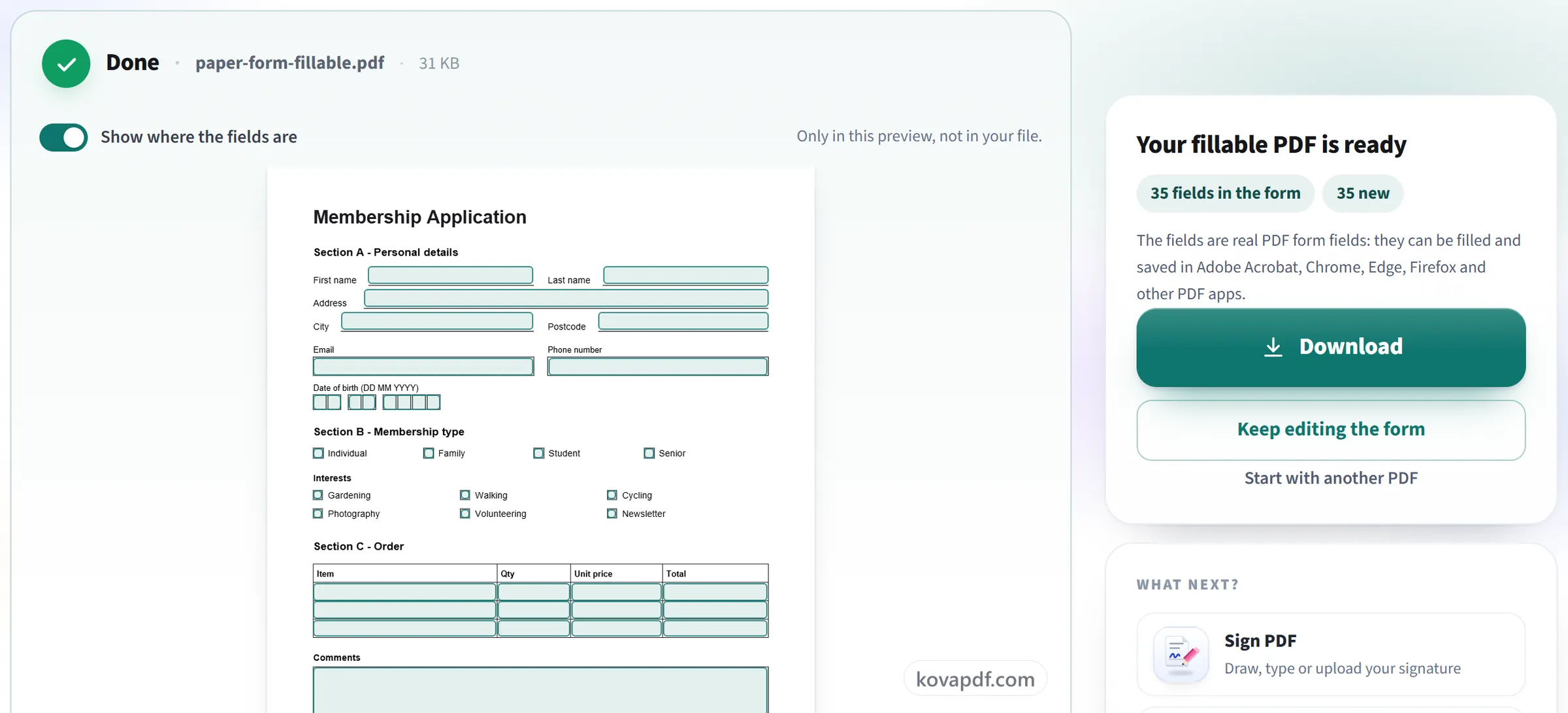
Try it, then download
Preview turns the page into the finished form so you can fill it in and press Tab through the fields. Create fillable PDF writes real form fields into the document, ready for Acrobat, Chrome, Edge, Firefox and other PDF apps.
PDF Forms: a visual walkthrough
Three steps from an ordinary PDF (or a scan) to a form anyone can fill in and save.
Upload your PDF
Drag the .pdf onto the panel, or click it to pick one. A form that already has fields opens with them in place, ready to edit.
Accept the fields we found, then add your own
Blank lines, empty boxes and check box squares are outlined on the page and listed in the panel. Add the ones you want with one click. Pick a field type on the left and click or drag on the page for anything else, then set its name, options and whether it is required in the panel.
Try it, then download
Preview turns the page into the finished form so you can fill it in and press Tab through the fields. Create fillable PDF writes real form fields into the document, ready for Acrobat, Chrome, Edge, Firefox and other PDF apps.
Frequently asked questions about PDF Forms
How do I make a PDF fillable?
Open your PDF and the tool suggests fields wherever the page has blank lines, boxes, check box squares or empty table cells. Accept the ones you want, add or adjust others by hand, and download. The result is a standard fillable PDF form.
Will the form work outside KovaPDF?
Yes. The fields are standard PDF form fields with their own appearance, so they can be filled in and saved in Adobe Acrobat and Reader, Chrome, Edge, Firefox, Foxit and other PDF apps. Required fields, read-only fields and the Tab order go with the file.
Does it find the fields by itself?
It looks for blank lines, empty boxes, check box squares, rows of letter boxes, empty table cells and rows of circles, and names each one from the label beside it. They are shown as suggestions: nothing becomes a field until you accept it, and anything it was not sure about is left unticked.
What kinds of fields can I add?
Text fields, paragraph boxes, check boxes, radio buttons, dropdowns, lists, date fields and signature fields. Any field can be required or read-only, text fields can have a default value or be split into one box per letter, and a date field can insist on a format such as dd/mm/yyyy.
Can I use a scanned form?
Yes. The scan stays exactly as it is; the lines and boxes are measured on the page image and the labels are read with OCR, then the fields are placed on top of the scan. Faint or skewed scans give fewer suggestions, and you can always place fields by hand.
My PDF already has form fields. What happens to them?
They open in place and you can move, restyle, rename or delete them. Fields you do not touch are kept exactly as they were, including their values and any calculations they carry.
What is the difference between a copy and a linked copy?
A copy is a new field with its own name and its own answer. A linked copy has the same name, so whatever is typed in one appears in the other. This is useful for a name that must be repeated on every page.
Can someone sign the form?
A signature field marks where a signature goes, and it can be signed in Acrobat and other PDF apps that support signing. Each field can also note which signer should fill it, so the form is ready to be sent for signature later.
Can I fill in a form with this tool?
It is made for building forms. Preview lets you try the fields the way someone filling them in would, but what you type there is not saved into the PDF. To fill in a form and keep your answers, open it in a PDF reader such as Adobe Acrobat Reader, Chrome or Edge and save it there.
Can the form use Bangla, Arabic, Chinese or other scripts?
Yes. Default values in Bangla, Hindi, Arabic, Thai, Cyrillic and other scripts are saved with a font that can show them. Chinese, Japanese and Korean default values are left for the PDF reader to draw with its own fonts, because embedding those fonts would add several megabytes to the form. What people type later is drawn by their own PDF reader.
Is it free?
Yes. Every tool works without paying and without an account. Files can be up to 200 pages and 80 MB, and a run that fails costs you nothing.
Do I need to create an account?
No. All tools work without signing in. An account raises your hourly allowance and lets you see what you have processed.
What happens to my file?
Your file stays on our server only for a short time while it is processed, then it is deleted. It is sent over an encrypted connection. We keep a record that the tool was used, but not the file name or what is in the file.
PDF Forms guides and articles
Related tools
All PDF tools · 15 step-by-step guides · How your files are handled