Excel to PDF Converter
Convert a spreadsheet to PDF. Sheets in .xlsx, .xlsm and .ods are fitted so every column lands on the page, with no columns cut off and no extra pages holding the leftovers.
- Keeps your layout
- Works on any device
- Deleted after processing
- Every column on the page
- Fitted in .xlsx, .xlsm and .ods
- Rows flow onto further pages
- Every visible sheet included
.xlsx · .xls · .xlsm · .ods · .csv
Upload an Excel spreadsheet to turn it into a PDF
.xlsx, .xls, .xlsm, .csv, .ods · your file is deleted as soon as the PDF is built
Drag & drop file here
or choose a file from your device
Everything Excel to PDF can do
Convert a spreadsheet to PDF with every column on the page.
All columns kept
- Fit to one page wide is on before you touch anything
- Marked one page wide, and as many pages tall as needed
- Rows keep flowing onto as many pages as they need
- Written as the workbook's own print setting, so the renderer obeys it
Files it reads
- .xlsx, .xls, .xlsm, .csv and .ods
- Charts, comments and conditional formats survive the page-setup step
- Every worksheet in the workbook gets the same setup
Paper and margins
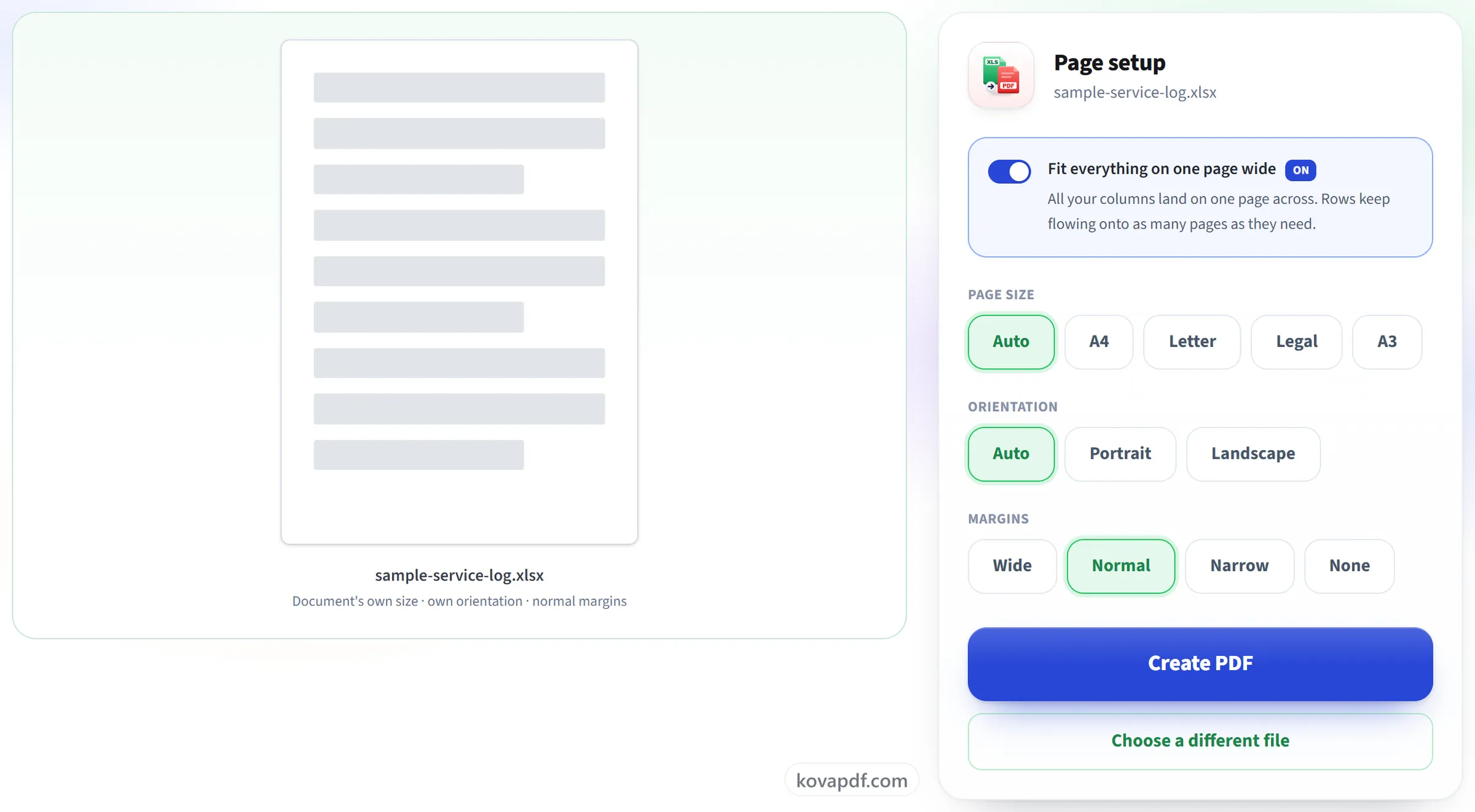
- Page size: the sheet's own, A4, Letter, Legal or A3
- Portrait, landscape, or the orientation already stored
- Wide, Normal, Narrow or no margins
- Offered for .xlsx and .ods: an .xls or .csv keeps the setup it was saved with
Before and after
- A paper preview that redraws as you change the setup
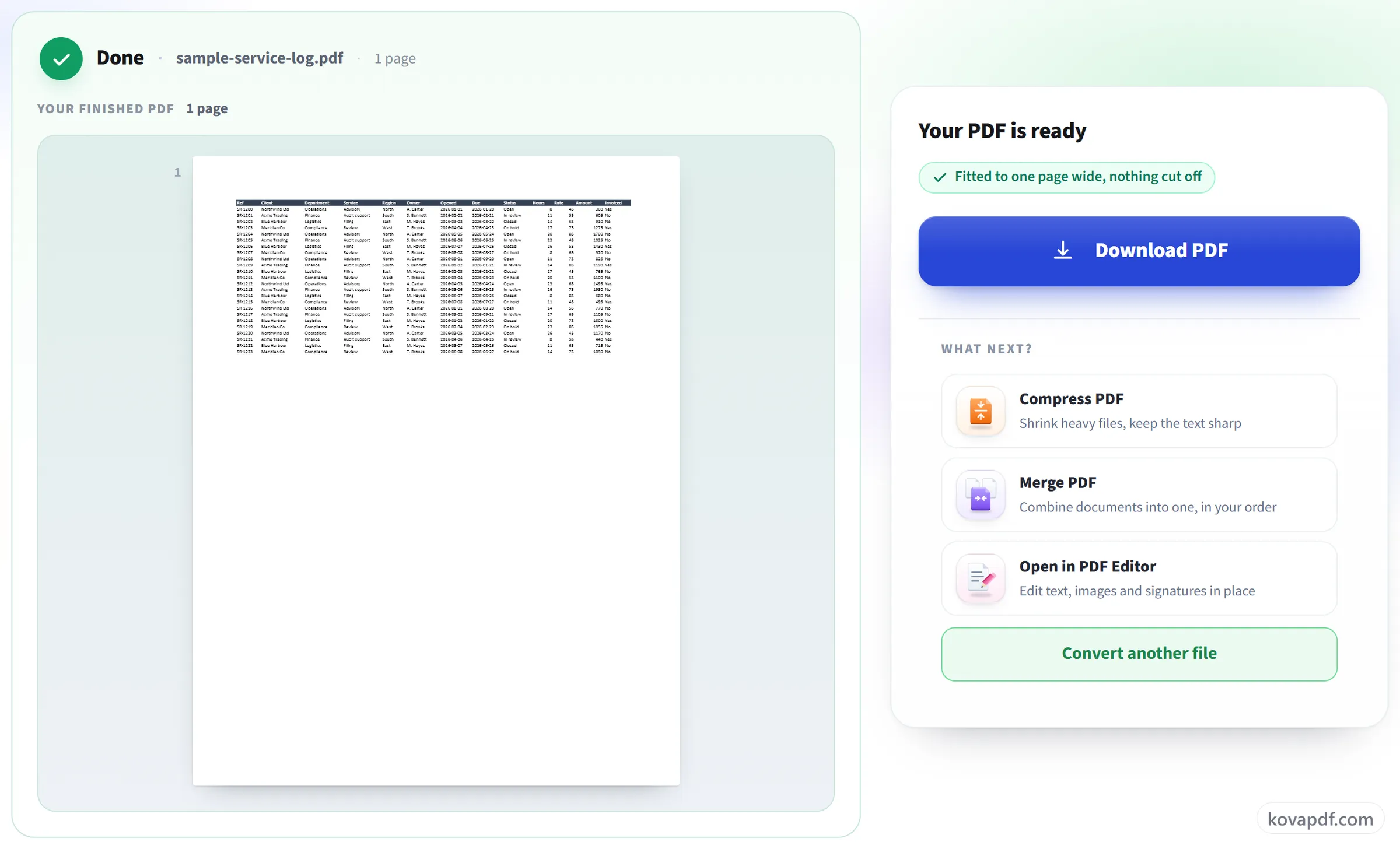
- The result shown page by page, with its page count
- A fitted-to-one-page-wide confirmation on the finished file
How it works
Excel to PDF in three steps
Upload your spreadsheet
Drag an .xlsx (or .xls, .xlsm, .csv, .ods) onto the panel, or click it to pick one. Your file is deleted as soon as the PDF is built.
Check the page setup
For .xlsx, .xlsm and .ods, 'Fit everything on one page wide' is already on, which is what stops a wide sheet being sliced across extra pages, and page size, orientation and margins are yours to change. Older .xls and .csv files keep their own page setup.
Download your PDF
Every column of a fitted sheet is on the page, and only the height runs onto further pages.
Excel to PDF: a visual walkthrough
Every column on the page across, rows flowing down as far as they need.
Upload your spreadsheet
Drag an .xlsx (or .xls, .xlsm, .csv, .ods) onto the panel, or click it to pick one. Your file is deleted as soon as the PDF is built.

Check the page setup
For .xlsx, .xlsm and .ods, 'Fit everything on one page wide' is already on, which is what stops a wide sheet being sliced across extra pages, and page size, orientation and margins are yours to change. Older .xls and .csv files keep their own page setup.
Download your PDF
Every column of a fitted sheet is on the page, and only the height runs onto further pages.
Frequently asked questions about Excel to PDF
How do I convert Excel to PDF on one page?
Leave "Fit everything on one page wide" switched on. Every column is scaled to fit across the page, and a short sheet ends up on a single page. A long sheet carries on down further pages instead of shrinking its text until everything fits on one.
Will my columns get cut off?
Not with the default settings for .xlsx, .xlsm and .ods files: "Fit everything on one page wide" puts every column across the page and lets rows carry on down as many pages as they need. Older .xls files and .csv files convert with their own page setup, so a very wide sheet can still spill onto extra pages. Saving it as .xlsx first avoids that.
Will it squash 500 rows onto one page?
No. Only the width is fitted. Rows carry on over more pages, so the text stays the size you set instead of shrinking until it can't be read.
Can I print it in landscape?
Yes, for .xlsx, .xlsm and .ods files. Choose Landscape and, if you like, a paper size (A4, Letter, Legal or A3) and one of four margin widths. Landscape with fit-to-width is the usual answer for a wide sheet. Auto keeps the workbook's own setting.
Are all my worksheets included?
Every visible sheet is converted, in order, into the one PDF. Hidden sheets are left out, just as they would be when printing from Excel.
Will my formulas show in the PDF?
The PDF shows the results, the values the cells display, not the formulas behind them, just as a printout would. A PDF cannot hold working formulas, so keep the spreadsheet if you need to change the numbers later.
Which files can I upload?
.xlsx, .xls, .xlsm, .csv and .ods.
Is it free?
Yes. Every tool works without paying and without an account. Files can be up to 200 pages and 80 MB, and a run that fails costs you nothing.
Do I need to create an account?
No. All tools work without signing in. An account raises your hourly allowance and lets you see what you have processed.
What happens to my file?
Your file stays on our server only for a short time while it is processed, then it is deleted. It is sent over an encrypted connection. We keep a record that the tool was used, but not the file name or what is in the file.
Excel to PDF guides and articles
Related tools
All PDF tools · 15 step-by-step guides · How your files are handled