Organize PDF Pages
See every page at once, then drag them into order, rotate, delete or duplicate them, and add blank pages or pages from another PDF. Undo anything before you save.
- Free to use
- Works on any device
- Deleted after processing
- Every page on one board
- Drag, or move to a page number
- Undo anything before you save
- Pages from another PDF, too
Drag & drop file here
or choose a file from your device
Upload the PDF whose pages you want to organize
PDF files only
You arrange the pages in your browser. When you save, your file stays on our server only for a short time while it is processed, then it is deleted.
Everything Organize PDF can do
Put the pages of a PDF in the order you want, on one board where you can see them all.
Move pages
- Drag a page, or several selected pages, to a new place
- On a phone, press and hold a page, then drag it
- Move to the beginning, the end, or before or after a page number
- Move the selected pages one place with Alt and the arrow keys
- Reverse the whole document, or only the pages you selected
Change pages
- Rotate left or right. The turn adds to how the page is already turned
- Delete one page or many, with Undo straight away
- Duplicate pages. Each copy goes right after its original
- Add blank pages anywhere, matching the pages around them, or A4 or Letter
- Add the pages of another PDF, then drag them into place
Select
- Click or tap pages to select them; Shift-click for a run
- Select all, odd pages or even pages in one step
- Every page shows its new number and where it came from
- Small, medium or large thumbnails
Before and after you save
- Undo and redo every step, up to 100 steps back
- Nothing is uploaded until you press Save changes
- We check the page count, order and rotation of the new file
- Text stays selectable and images keep their quality
- Links to other pages still go to the right page
How it works
Organize PDF in three steps
Upload your PDF
Drag your PDF onto the panel, or click it to choose one. The pages open in your browser. Nothing is uploaded until you save.
Arrange the pages
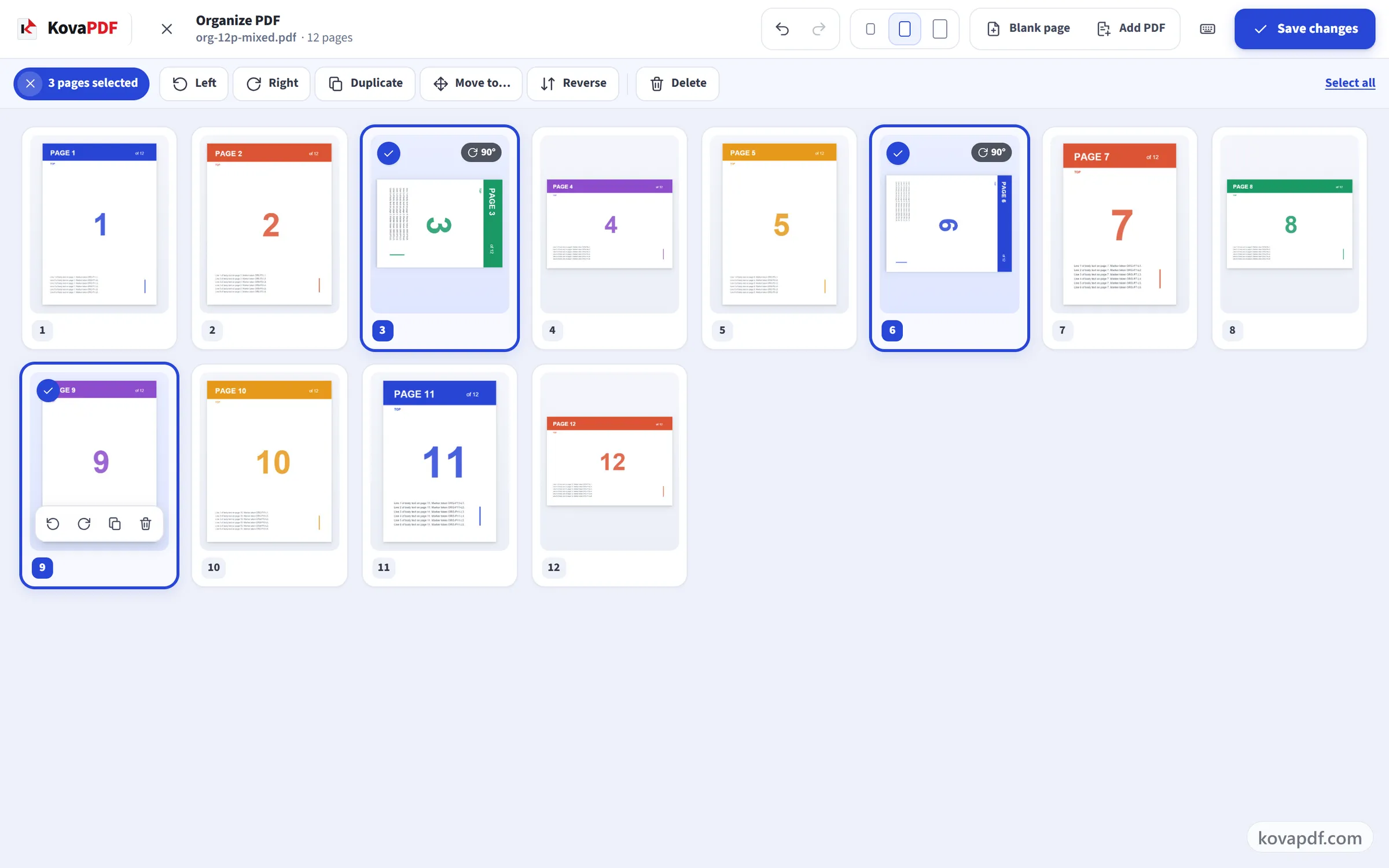
Drag pages into order, or select them and use Move to…. Rotate, duplicate or delete them, and add blank pages or pages from another PDF. Undo anything with Ctrl+Z.
Save and download
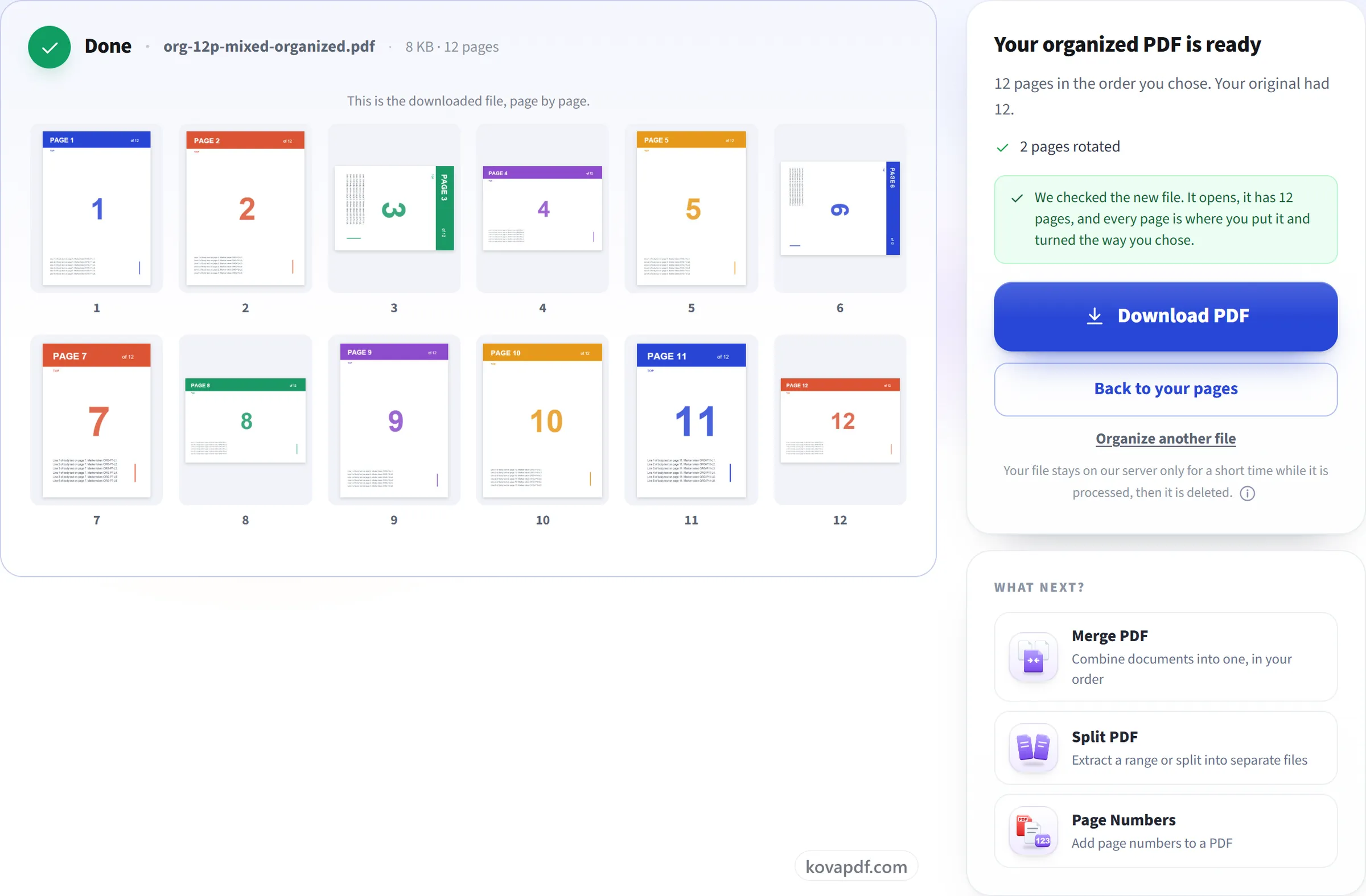
Press Save changes. We build the new file and check every page before you download it.
Organize PDF: a visual walkthrough
Put every page where it belongs, then save one new file.
Upload your PDF
Drag your PDF onto the panel, or click it to choose one. The pages open in your browser. Nothing is uploaded until you save.

Arrange the pages
Drag pages into order, or select them and use Move to…. Rotate, duplicate or delete them, and add blank pages or pages from another PDF. Undo anything with Ctrl+Z.
Save and download
Press Save changes. We build the new file and check every page before you download it.
Frequently asked questions about Organize PDF
How do I reorder the pages of a PDF?
Open your PDF and you will see every page on one board. Drag a page to where you want it. On a phone, press and hold the page first. You can also select pages, choose Move to… and pick the beginning, the end or a page number. When you are done, press Save changes and download the new file.
Can I move several pages at once?
Yes. Select the pages first. Click or tap each one, Shift-click for a run of pages, or use Select all, Odd pages or Even pages. Then drag one of them, or use Move to…. They move together and keep their order.
Can I rotate, delete or duplicate pages here as well?
Yes, one page at a time or all the pages you selected. Rotating adds to the way a page is already turned. A copy goes right after its original, with a small label so you can see where it went. A PDF needs at least one page, so you cannot delete the last one.
Can I add a blank page or pages from another PDF?
Yes. You can add blank pages at the start, at the end, or before or after any page. They can match the pages around them, or be A4 or Letter in portrait or landscape. Add PDF puts the pages of another file after the pages you selected, or at the end, and you can drag them where you want. You can add pages from up to five other PDFs.
What if I make a mistake?
Press Undo, or Ctrl+Z. You can undo and redo up to 100 steps. Your file does not change until you press Save changes, and the file on your device is never changed.
Does organizing change what is on the pages?
No. Pages go into the new file as they are. Text can still be selected and searched, and images keep their quality. Links that jump to another page still go to the right page. The document title and author stay the same. Bookmarks are not kept, because they point to the old page order.
Is there a page limit?
You can open a PDF with up to 200 pages and up to 80 MB. After you duplicate pages or add new ones, the new file can have up to 400 pages.
What happens to my file?
While you arrange the pages, nothing is uploaded. The pages are shown in your browser. When you press Save changes, your file stays on our server only for a short time while it is processed, then it is deleted.
Is it free?
Yes. Every tool works without paying and without an account. Files can be up to 200 pages and 80 MB, and a run that fails costs you nothing.
Do I need to create an account?
No. All tools work without signing in. An account raises your hourly allowance and lets you see what you have processed.
Related tools
All PDF tools · 15 step-by-step guides · How your files are handled