Request Signatures with a Digital Seal
Send a document to others to sign, in order or all at once. See who opened and signed it, remind anyone who hasn't, and everyone gets the signed copy, sealed with a digital timestamp, with a certificate of completion.
- Free to use
- Works on any device
- Nothing to install
- One or many signers
- In order or all at once
- See who opened and signed
- Certificate of completion
Drag & drop files here
or choose a file from your device
Upload the document you want signed
PDF, Word or image files · up to 15 MB each · several make one envelope
Why send it for signature instead of emailing the PDF?
Everything Request Signatures can do
Send a document to other people to sign, free, with no account needed for them, and get back a signed copy sealed with a trusted timestamp and a certificate of completion.
Who signs, and in what order
- Up to 25 recipients, one after another or all at once
- Roles: signer, approver, witness, and people who only get a copy
- A signer can hand their turn to someone else, with the reason recorded
- Host a signer in person on your own device
- Signers need no account and install nothing
What they fill in
- Signature, initials, name, date, text and checkbox fields
- Dropdown lists and radio buttons, with the choices you write
- Ask a signer to attach a file, hashed into the certificate of completion
- Calculated fields worked out from the numbers they type
- Show a field only when an earlier answer calls for it
- Place fields anywhere, for any recipient, on any page
- Send a PDF, or a Word file or photo that is converted first
- Anyone who cannot sign can decline, with a reason
Staying in control
- Access code per recipient
- Automatic and manual reminders
- An expiry date, after which the link stops working
- See who opened and who signed, and cancel or delete at any time
- Your own name, logo and colour on the signing page and the emails
Proof at the end
- Certificate of completion with times, IP addresses and devices
- The finished file is sealed with a trusted timestamp, so later changes show
- Everyone gets the signed copy
- Check the result yourself with our free Verify tool
How it works
Request Signatures in three steps
Upload the document
Drag the .pdf onto the panel or click it to pick one; you sign in only when you send. A Word file or a photo works too. It is turned into a PDF first.
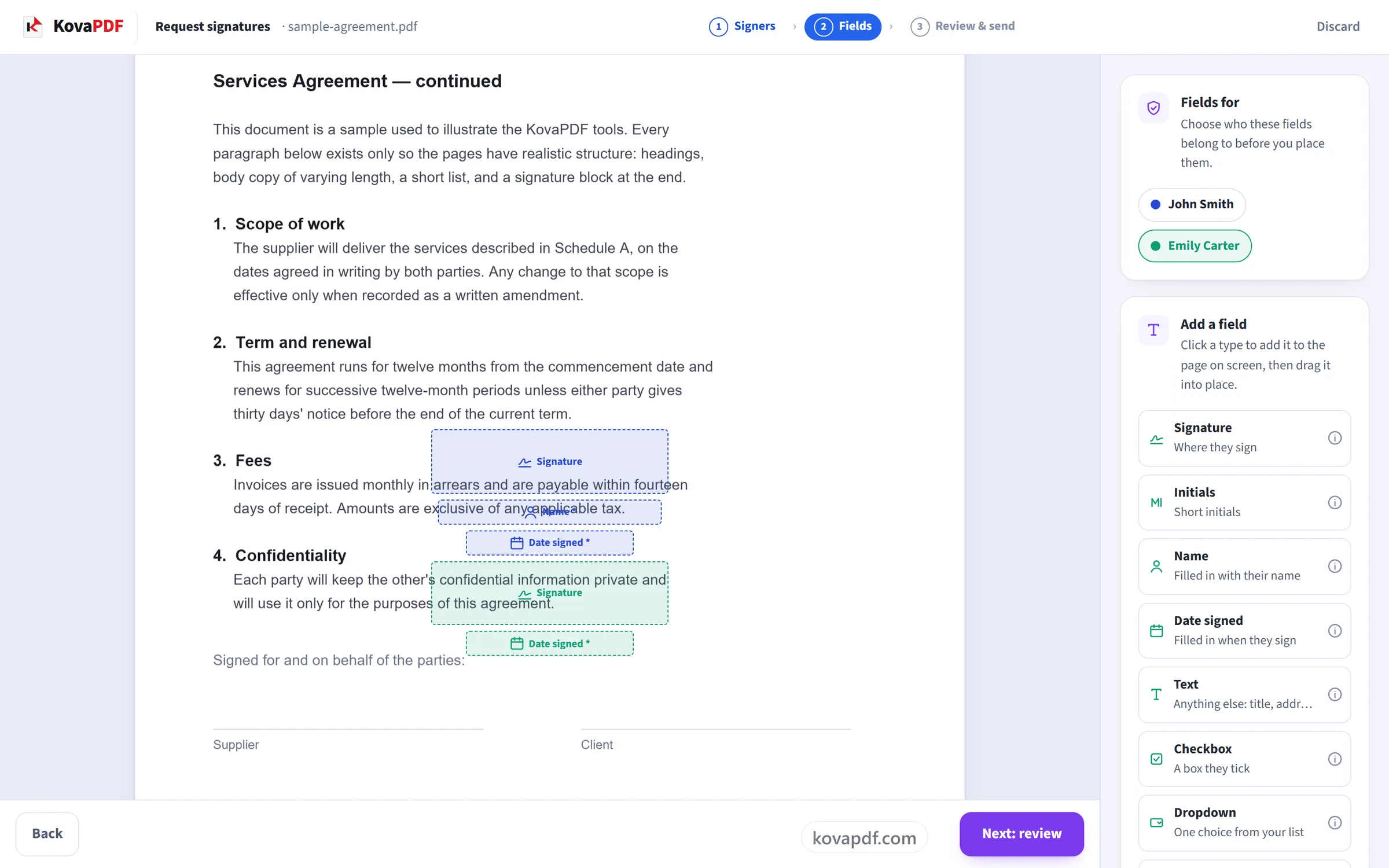
Add the signers and place their fields
Type each signer's name and email, and choose whether they sign in order. Then pick a signer and click Signature, Initials, Name, Date signed, Text or Checkbox to put that field on the page, and drag it into place. Every signer needs at least one signature field.
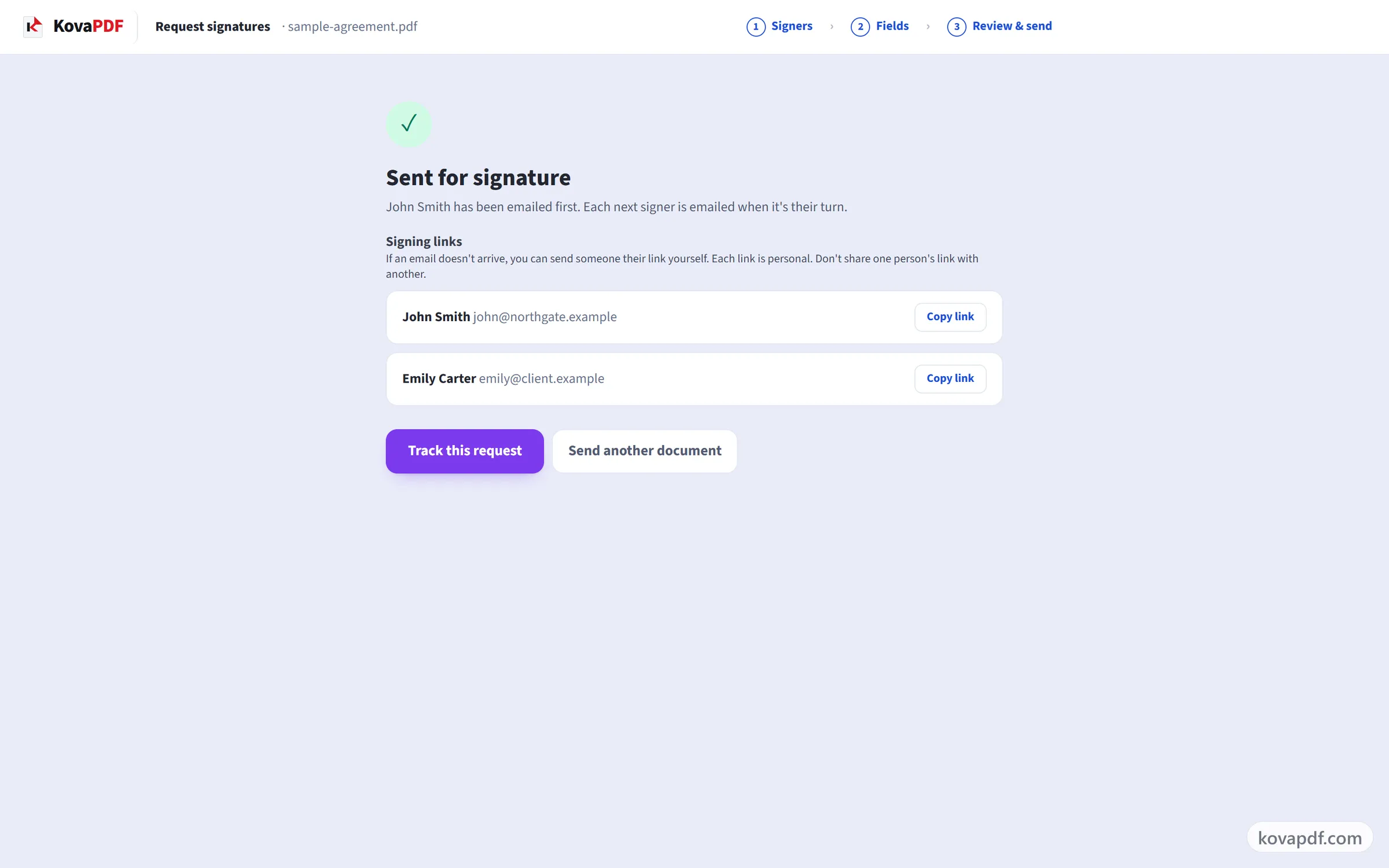
Send it and follow its progress
Add a message, choose when the link expires and whether to send reminders, and send. Each signer gets a private link by email; you can see who has opened and signed it under Sent for signature, and everyone receives the signed PDF when the last person signs.
Request Signatures: a visual walkthrough
One or many signers, in order or all at once, and a signed copy with a certificate of completion for everyone.
Upload the document
Drag the .pdf onto the panel or click it to pick one; you sign in only when you send. A Word file or a photo works too. It is turned into a PDF first.
Add the signers and place their fields
Type each signer's name and email, and choose whether they sign in order. Then pick a signer and click Signature, Initials, Name, Date signed, Text or Checkbox to put that field on the page, and drag it into place. Every signer needs at least one signature field.
Send it and follow its progress
Add a message, choose when the link expires and whether to send reminders, and send. Each signer gets a private link by email; you can see who has opened and signed it under Sent for signature, and everyone receives the signed PDF when the last person signs.
Frequently asked questions about Request Signatures
How does Request Signatures work?
Upload a PDF, add the people who need to sign, and drag their fields onto the pages: signature, initials, name, date, text or a checkbox. Each person gets their own private link by email. When everyone has signed, all of you receive the signed PDF with a certificate of completion.
Do the people I send it to need an account?
No. Signers open their private link, fill in their fields and sign in the browser, on a computer or a phone. Only you, the sender, need a free account, because the request goes out in your name and has to come from a verified email address.
How many people can sign one document?
Up to 25 people per request, counting everyone who signs, approves, witnesses or only receives a copy. You can include yourself, and choose whether they sign in a set order or all at once.
Are these signatures legally binding?
They are electronic signatures, which many countries accept for many everyday agreements. They are not certificate-based digital signatures. Whether an electronic signature is enough for a particular document depends on the law that applies to it. For documents that need a certificate signature, use Digital Signature.
Can people sign in a set order?
Yes. With "Sign in order" on, the next person is emailed only after the one before has signed. Switch it off and everyone is emailed at once and can sign in any order.
How do I know who has opened and signed it?
Open Sent for signature in your account. Each request shows every signer's status (emailed, opened, signed or declined) with the time of each step, and a full timeline of everything that happened.
What if someone forgets to sign?
Send a reminder from the request with one click, or turn on automatic reminders when you send it. You can also copy a signer's link and send it to them yourself, for example in a chat, if an email does not arrive.
What is the certificate of completion?
A page added to the end of the signed PDF that records how it was signed: the document's fingerprint before signing, and for each signer their name, email, when they opened and signed it, and the IP address and browser they used.
How can anyone tell the signed file was not changed afterwards?
When everyone has signed, the finished file is sealed with a trusted timestamp from an independent timestamp authority. Any change after that shows as a broken seal in a PDF signature checker such as Verify PDF Signature or Adobe Acrobat. The request page also shows the file's SHA-256 fingerprint.
Can a signer decline, or can I cancel a request?
Yes to both. A signer can decline, optionally saying why, and you are told straight away. You can cancel a request that is still waiting, after which its links no longer work.
What is an access code?
An optional extra check. If you set one for a signer, they must type it before the document opens. Tell them the code yourself, by phone or message, because it is never emailed with the link.
Do signing links expire?
Yes, after the number of days you choose when sending: 3, 7, 14, 30 or 60, with 14 as the default. After that nobody can open the document from their link, and you send the request again if it is still needed.
Is it free?
Yes. Sending is free with a free account, up to 25 requests in any 24 hours, and signing costs nothing for the people you send to. PDF, Word and image files can be added, up to 15 MB each, with up to 10 documents and 30 MB in one request.
Do I need to create an account?
Only to send. The request goes out in your name, so it has to come from a free account with a verified email address. The people you send it to sign without one.
What happens to my file?
It is kept, because a document waiting for signatures has to be stored until everyone has signed. It stays in your account until you delete the request, which you can do at any time from Sent for signature. The Privacy Policy explains exactly what is kept.
Request Signatures guides and articles
Step-by-step
Related tools
All PDF tools · 15 step-by-step guides · How your files are handled