TXT to PDF
Turn a plain text file, log or code listing into a PDF: monospace by default, with real line wrapping and optional line numbers.
- Keeps your layout
- Works on any device
- Deleted after processing
- Real line wrapping
- Optional line numbers
- Monospace for code and logs
- Tabs become real tab stops
.txt · .log · .md
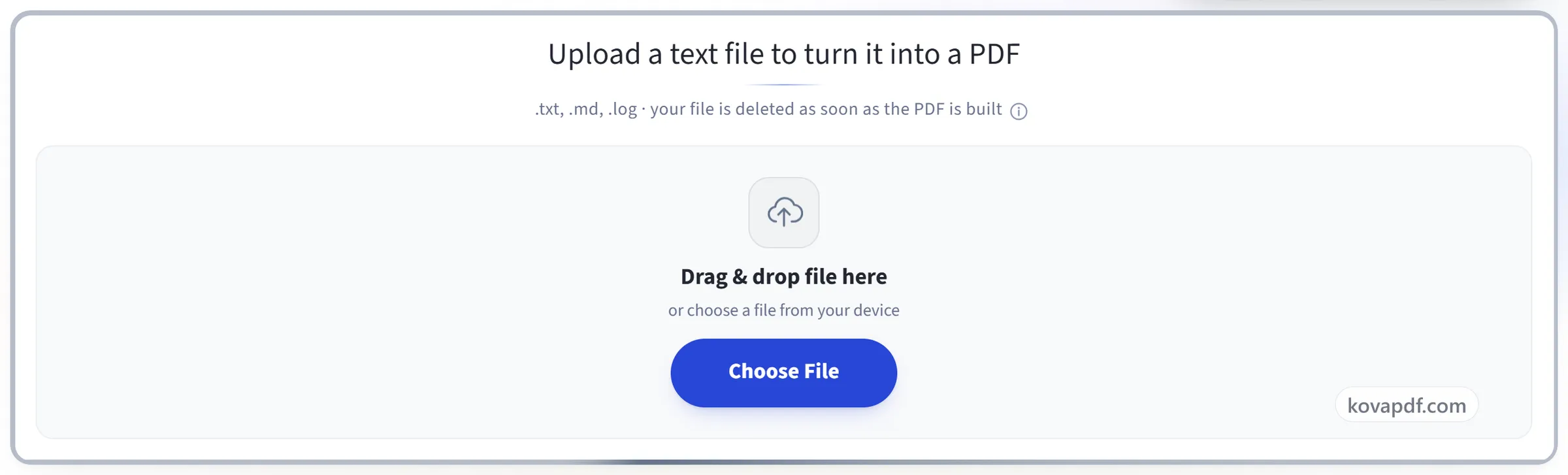
Upload a text file to turn it into a PDF
.txt, .md, .log · your file is deleted as soon as the PDF is built
Drag & drop file here
or choose a file from your device
Everything TXT to PDF can do
Turn a text file, log or code listing into a PDF laid out the way you want it.
Type and size
- Monospace, sans serif or serif
- Monospace by default, so a log's columns stay in line
- Text size from 6 to 20 point, on a slider
Lines as written
- Long lines wrap onto the next line, or leave wrapping off
- Tabs expanded to real tab stops, keeping fixed-width reports aligned
- Line numbers in a narrow gutter, one tap away
- Windows, Mac and Unix line endings all read the same
Scripts and encodings
- Converts .txt, .md and .log
- UTF-8, UTF-16 and BOM-marked files decoded correctly
- Bangla drawn with a real Bengali face, English on the same line
- Curly quotes, dashes and ellipses mapped to type the fonts hold
The page
- Paper size: A4, Letter, Legal or A3
- Portrait, or landscape for wide listings
- Margins set Narrow, Normal or Wide
- Line count and page count reported with the finished file
How it works
TXT to PDF in three steps
Upload your text file
Drag a .txt, .md or .log onto the panel, or click it to pick one. Your file is deleted as soon as the PDF is built.
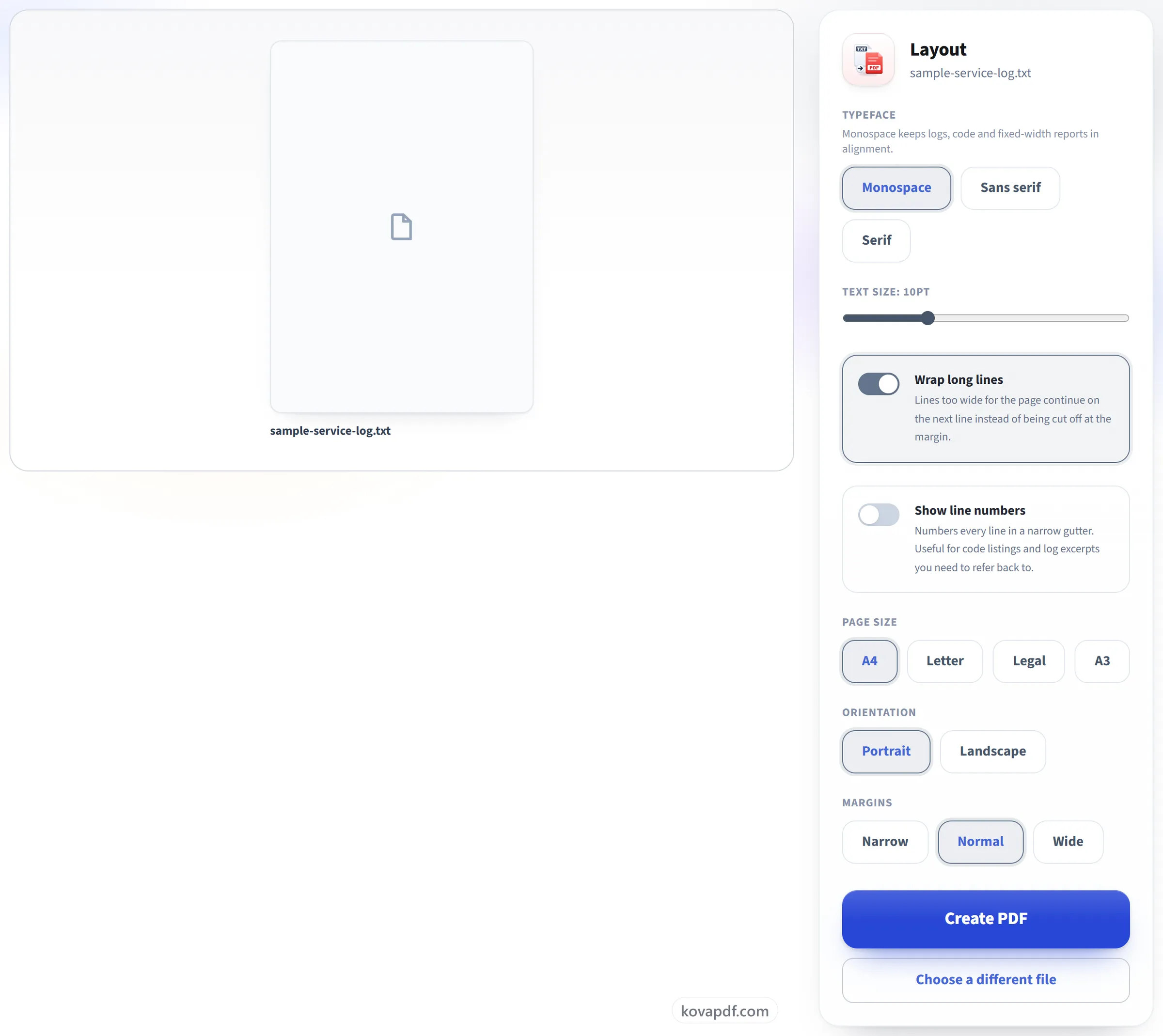
Choose the layout
Monospace keeps a log or a code listing aligned, and tabs become real tab stops rather than single spaces. Long lines wrap by default, and line numbers are one tap away.
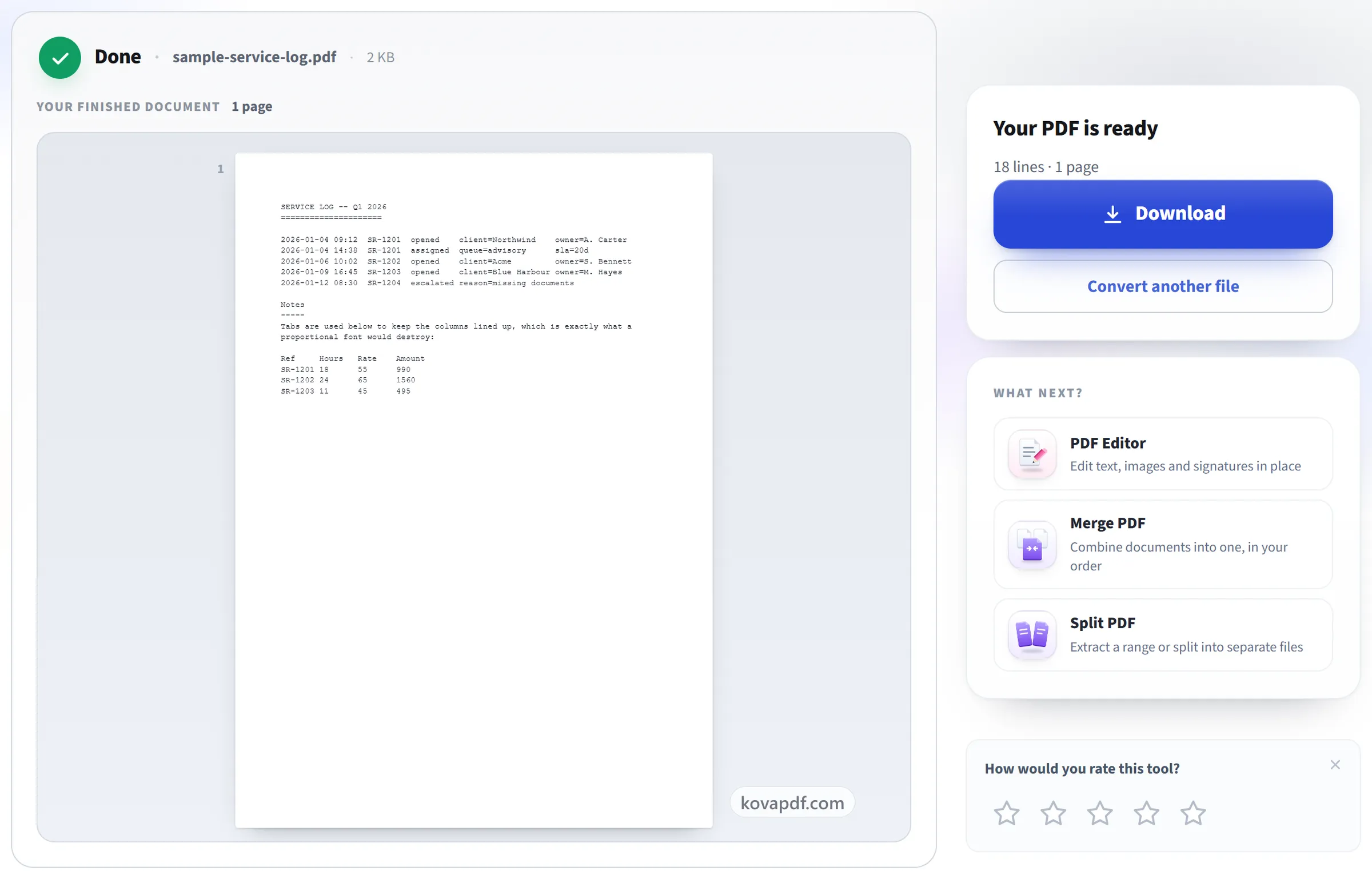
Download your PDF
Bangla, Hindi, Arabic, Thai, Chinese, Japanese, Korean, Greek and Cyrillic text all come out correctly. Each script is drawn with a typeface that has its characters.
TXT to PDF: a visual walkthrough
Monospace by default, so columns and indentation stay lined up.
Upload your text file
Drag a .txt, .md or .log onto the panel, or click it to pick one. Your file is deleted as soon as the PDF is built.
Choose the layout
Monospace keeps a log or a code listing aligned, and tabs become real tab stops rather than single spaces. Long lines wrap by default, and line numbers are one tap away.
Download your PDF
Bangla, Hindi, Arabic, Thai, Chinese, Japanese, Korean, Greek and Cyrillic text all come out correctly. Each script is drawn with a typeface that has its characters.
Frequently asked questions about TXT to PDF
How do I convert a text file to PDF?
Choose your .txt file and press Create PDF. By default the text is set in a monospace font at 10 points on A4, with long lines wrapped, so it looks the way it does in a plain-text editor. You can change the font, size, paper, orientation and margins first.
Will my columns and indentation stay aligned?
Yes. A monospace font is the default, and tabs keep their full width instead of shrinking to one space, so a log file or a fixed-width report stays lined up.
What happens to lines that are too long for the page?
They wrap onto the next line by default, breaking at a space where there is one and mid-word only when a single word is itself wider than the page. You can switch wrapping off if you would rather they were cut at the margin.
Can I change the font and size, or add line numbers?
Yes. Choose a monospace, sans-serif or serif font, a size from 6 to 20 points, and narrow, normal or wide margins on A4, Letter, Legal or A3. Line numbers can be switched on, which helps when you are sharing code or a log.
Does it support Bangla?
Yes. Bangla text is shown in a Bengali font, and English words, numbers and punctuation in the same line use a Latin font, so mixed text comes out correctly instead of as empty boxes.
What about other scripts, like Chinese or Arabic?
Yes. The font is chosen from the characters in your file. Hindi, Arabic and Thai are laid out correctly, and Cyrillic, Greek, Vietnamese, Chinese, Japanese and Korean display properly. One limit: in a file that mixes two of Bangla, Hindi, Arabic and Thai, only one of them comes out correctly.
Will a Markdown file be formatted?
No. A .md file is converted as plain text, exactly as it is written, so its # and * marks appear on the page rather than being turned into headings and bold text.
Which files can I upload?
.txt, .md and .log. UTF-8, UTF-16 and files with a byte-order mark are all read correctly.
Is it free?
Yes. Every tool works without paying and without an account. Files can be up to 200 pages and 80 MB, and a run that fails costs you nothing.
Do I need to create an account?
No. All tools work without signing in. An account raises your hourly allowance and lets you see what you have processed.
What happens to my file?
Your file stays on our server only for a short time while it is processed, then it is deleted. It is sent over an encrypted connection. We keep a record that the tool was used, but not the file name or what is in the file.
TXT to PDF guides and articles
Related tools
All PDF tools · 15 step-by-step guides · How your files are handled