Delete Pages from PDF
Remove exactly the pages you don't need (one page, a range, or a mixed list) and download the trimmed document. Nothing is removed until you confirm.
- Free to use
- Works on any device
- Deleted after processing
- Confirmed before it goes
- A page, a range or a scatter
- The rest stays as it was
- Numbers close up after
Drag & drop file here
or choose a file from your device
Upload a PDF to remove pages from it
PDF files only
Everything Delete Pages can do
Take out exactly the pages you do not need and download the trimmed document. Free, in your browser, with nothing to install.
Choosing what goes
- Remove the page you happen to be looking at
- Type a mixed list such as 10-18, 22, 49, 51
- Single pages, ranges, or the two together
- A range typed backwards, like 7-3, is understood
Seeing it first
- A sentence naming every page you have selected
- The summary redraws while you type
- A confirmation step before anything leaves
Changing your mind
- Bring deleted pages back any time before saving
- Undo and redo the page plan itself
- Reorder, rotate or duplicate pages in the same session
The file you get
- A real PDF with the pages you kept intact
- Read through what remains before downloading
- Keep editing the trimmed document straight away
How it works
Delete Pages in three steps
Upload your PDF
Drag your file onto the upload panel, or click it to pick one from your device. Nothing is sent anywhere until you start the job, and the working copy is deleted the moment it finishes.
Choose the pages to remove
Choose Current Page, or Custom Pages and type a range like 2-5, 9. You confirm before anything is removed, and Restore deleted pages brings them back until you save.
Save and download
Only the pages you kept are written to the new file. Your original is untouched on your own device.
Delete Pages: a visual walkthrough
Remove one page, a range, or a scattered selection, and confirm exactly what goes before it does.
Upload your PDF
Drag your file onto the upload panel, or click it to pick one from your device. Nothing is sent anywhere until you start the job, and the working copy is deleted the moment it finishes.
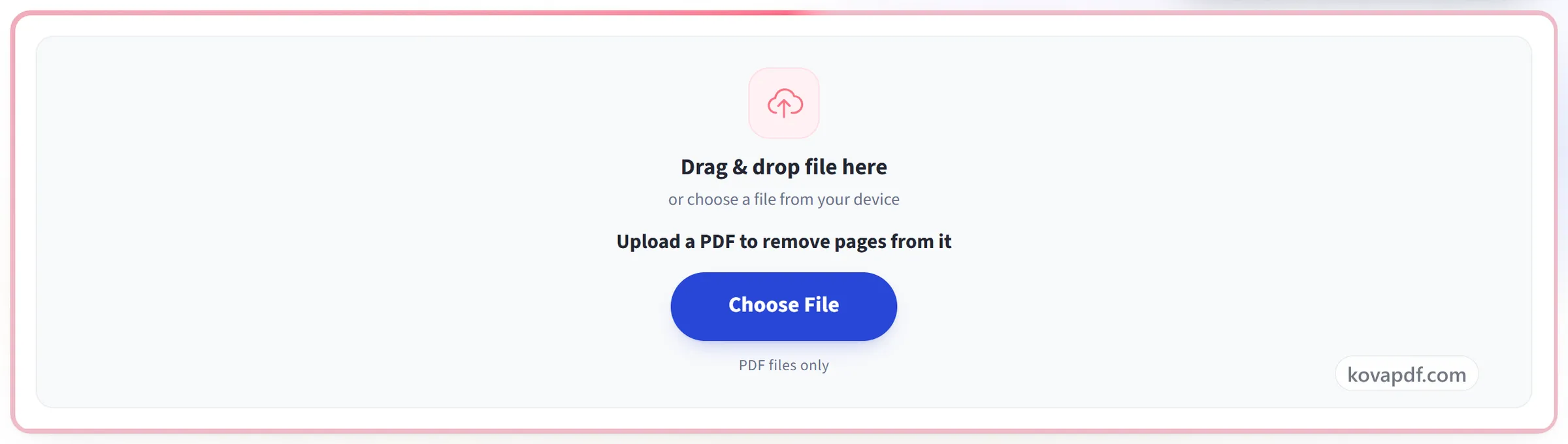
Choose the pages to remove
Choose Current Page, or Custom Pages and type a range like 2-5, 9. You confirm before anything is removed, and Restore deleted pages brings them back until you save.
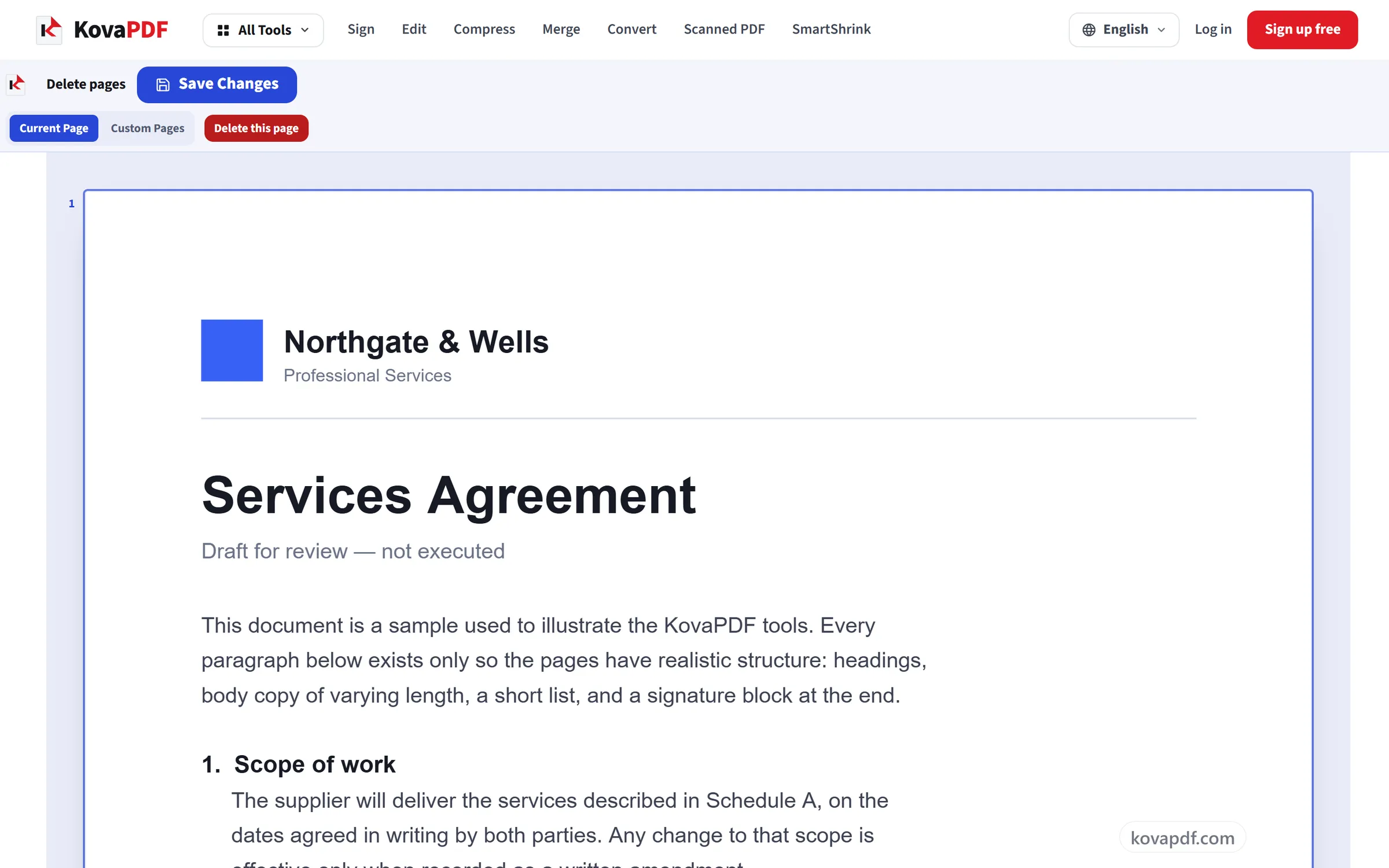
Save and download
Only the pages you kept are written to the new file. Your original is untouched on your own device.
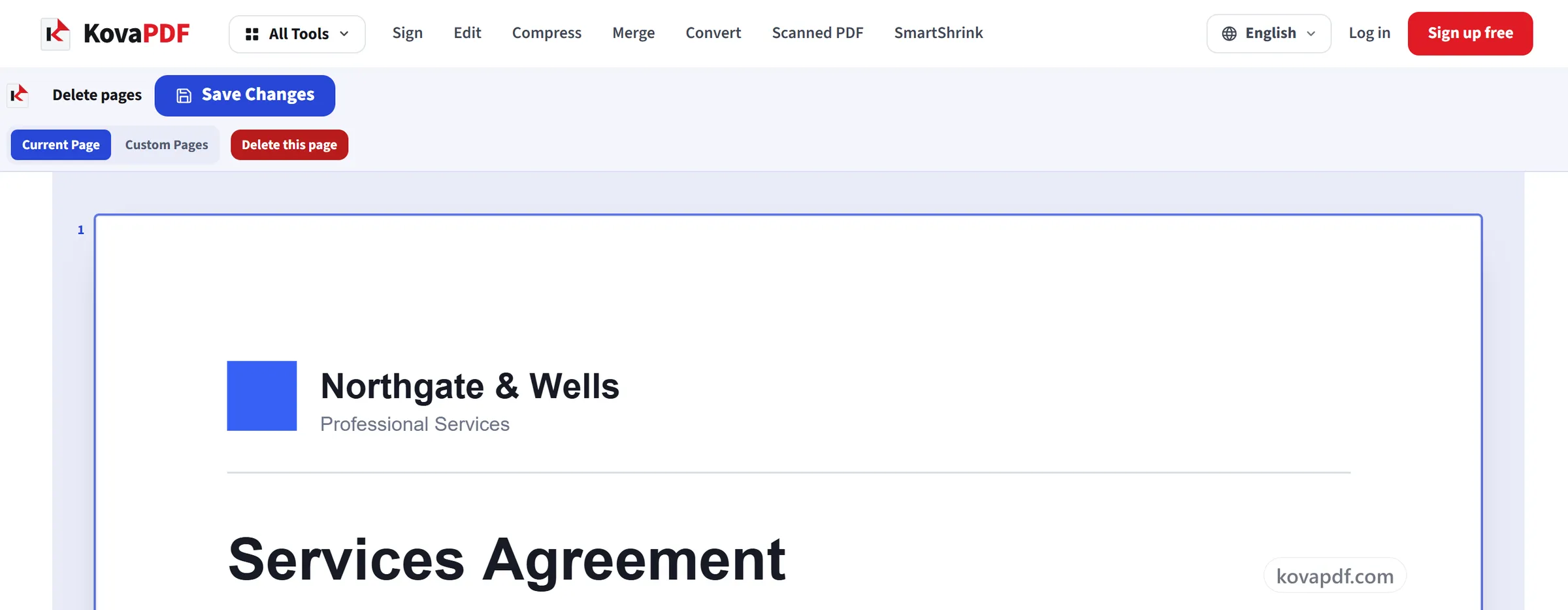
Frequently asked questions about Delete Pages
How do I delete a page from a PDF?
Choose Current Page to remove the page you are looking at, or Custom Pages to type the ones you want gone. Confirm, then save and download. The new PDF has those pages removed and everything else unchanged.
Can I remove a scattered set of pages?
Yes. Choose Custom Pages and type a mixed list such as "2-5, 9, 14". You are shown which pages that covers and asked to confirm before they go.
Can I undo it if I remove the wrong page?
Yes. Nothing is removed from the file until you save, and until then "Restore deleted pages" brings back the pages you just removed.
Can I remove blank pages automatically?
No. There is no automatic blank-page detection. Find the empty pages in the preview and type their numbers, for example "4, 9, 12", to remove them all in one go.
Does deleting pages make the PDF smaller?
Usually. The new file is built from the pages you keep, so images and other content used only on the removed pages go with them. Fonts and images shared with the remaining pages stay, so the saving depends on what was on the pages you removed.
Do the remaining pages renumber themselves?
The pages themselves do, in the sense that page six becomes page five once a page before it goes. Any page numbers PRINTED onto the pages do not, because those are part of the picture. Use Page Numbers afterwards if the printed sequence needs to match again.
Is it free?
Yes. Every tool works without paying and without an account. Files can be up to 200 pages and 80 MB, and a run that fails costs you nothing.
Do I need to create an account?
No. All tools work without signing in. An account raises your hourly allowance and lets you see what you have processed.
What happens to my file?
Your file stays on our server only for a short time while it is processed, then it is deleted. It is sent over an encrypted connection. We keep a record that the tool was used, but not the file name or what is in the file.
Delete Pages guides and articles
Step-by-step
Related tools
All PDF tools · 15 step-by-step guides · How your files are handled