Digital Signature
Sign a PDF with your own digital certificate: a real cryptographic signature that shows if the document is ever changed, with an optional trusted timestamp.
- Secure & private
- Works on any device
- Nothing to install
- Your own certificate (.pfx)
- A cryptographic PAdES signature
- Optional trusted timestamp
- Checked before you download it
Drag & drop files here
or choose a file from your device
Upload the PDF you want to sign
.pdf · one document, or up to 20 signed together · the documents and your certificate are used once and deleted
Everything Digital Signature can do
Sign a PDF with your own certificate. It is a real cryptographic signature that proves who signed and shows any later change.
Your signing key
- Sign with your own .pfx or .p12 certificate file
- Sign with a USB token or smart card, so the key never leaves the device
- RSA and ECDSA keys, including P-256, P-384 and P-521
- Create a free self-signed Digital ID in your browser if you have no certificate
- Choose SHA-256, SHA-384, SHA-512, or let the tool match the hash to your key
Standards and long-term proof
- PAdES B-B, B-T, B-LT and B-LTA signatures
- Trusted RFC 3161 timestamp from an independent authority
- LTV: revocation proof embedded so the signature still verifies years later
- Archive timestamp for long-term archiving
- Signature validated on our side before the file is handed back
Where the signature goes
- Drag the visible stamp anywhere on any page
- Sign an existing empty signature field by name
- Invisible signature when the page must not change
- Show name, date, reason, location, or your own handwritten signature image
- Sign a whole batch of PDFs in one go, downloaded as a ZIP
What can change afterwards
- Certify the document (DocMDP levels 1 to 3)
- Lock the document so later edits break the signature
- Add your signature without touching anyone else's earlier signature
How it works
Digital Signature in three steps
Upload your PDF
Drag the .pdf onto the panel, or click it to pick one. The document and your certificate are used once and then deleted.
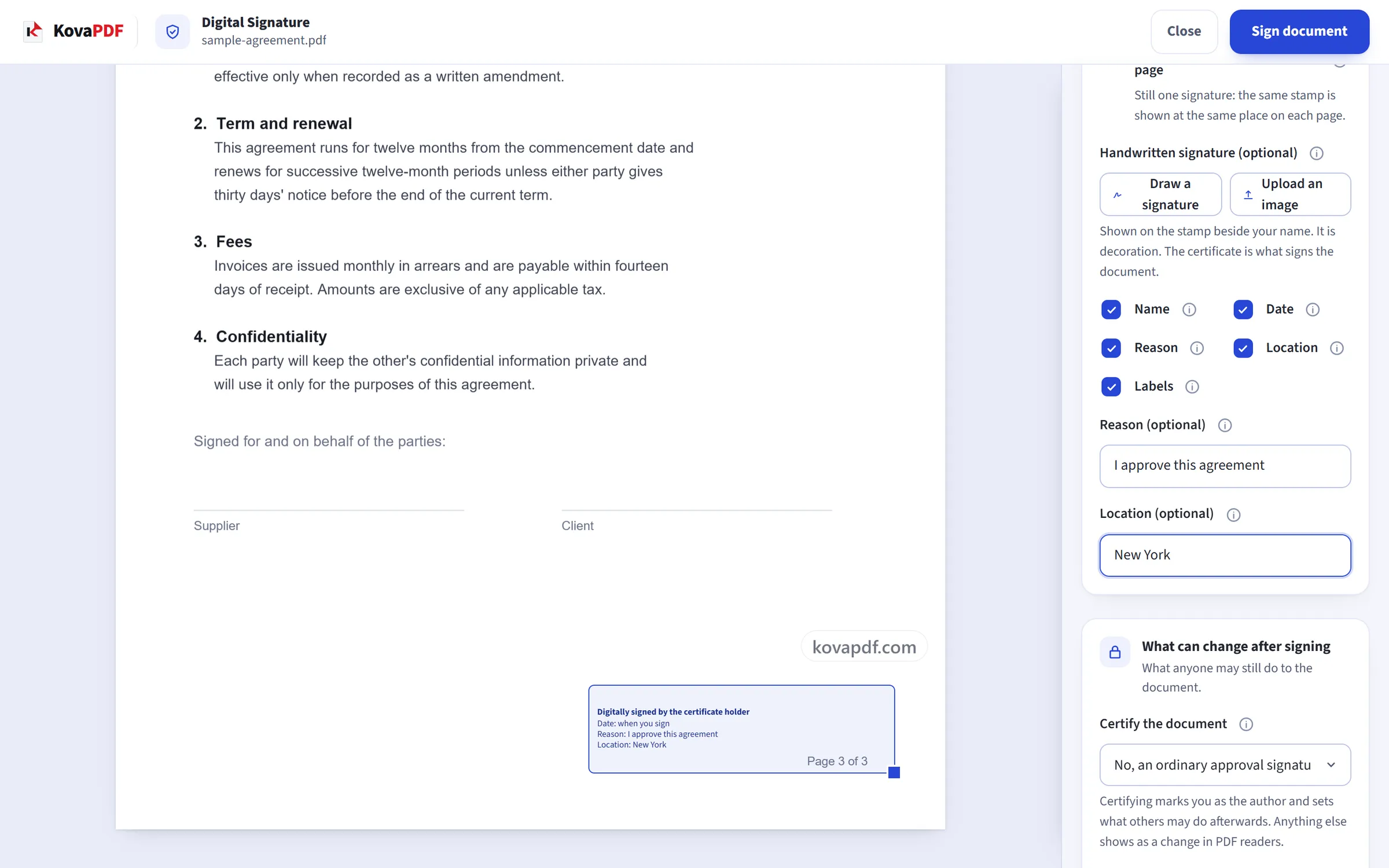
Add your certificate and place the stamp
Choose your .pfx or .p12 certificate file and type its password. Drag the signature stamp to where it belongs on any page, or click a signature field the document already has. Keep the trusted timestamp on so the signature can still be checked after your certificate expires; certify the document or add long-term validation if you need them.
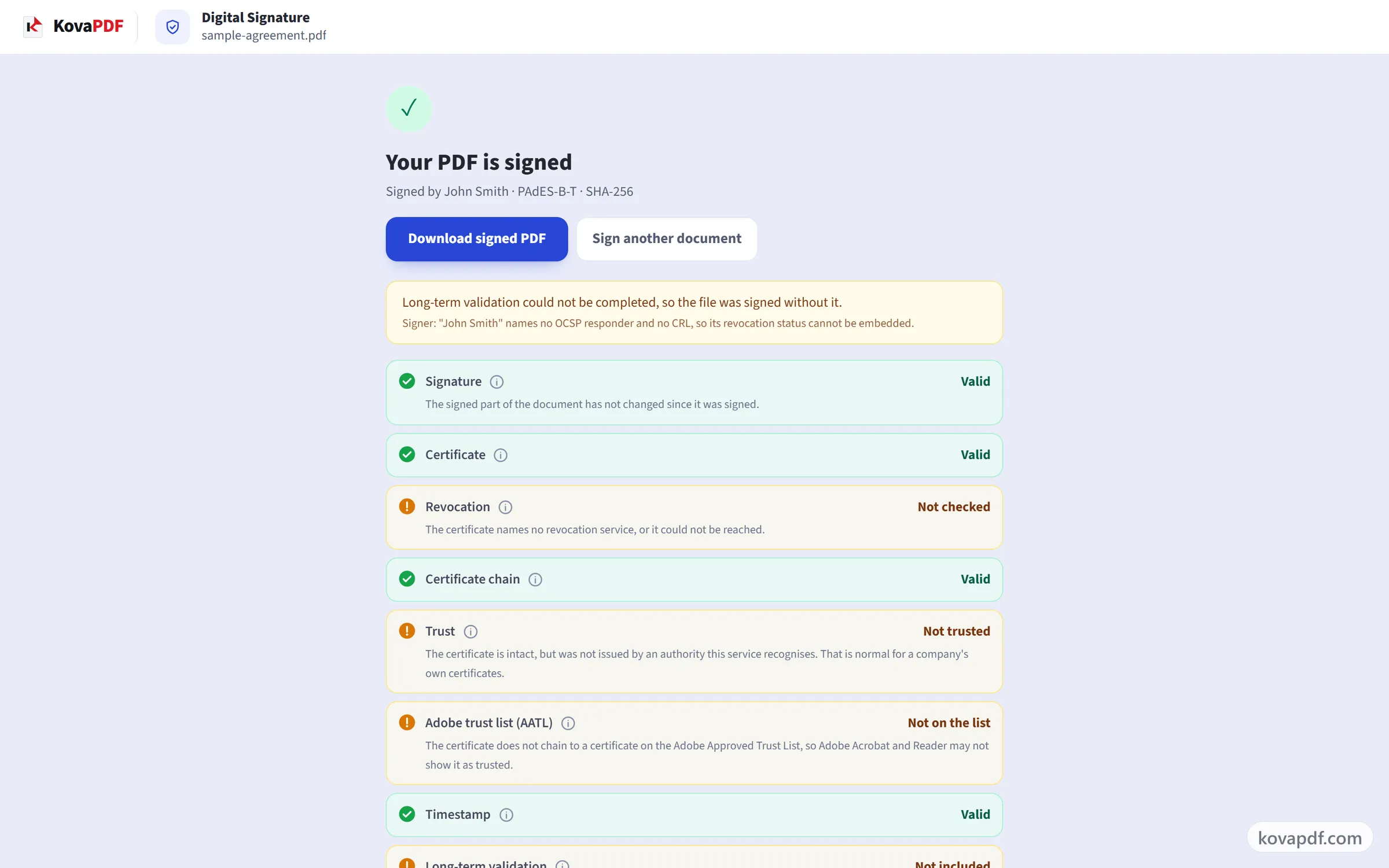
Download the signed PDF
Before you get the file, the signature is checked the way any validator would check it. The result lists each part separately (signature, certificate, chain, trust, timestamp) so "valid" is never mistaken for "trusted".
Digital Signature: a visual walkthrough
A certificate-based signature that shows who signed and whether anything changed afterwards.
Upload your PDF
Drag the .pdf onto the panel, or click it to pick one. The document and your certificate are used once and then deleted.
Add your certificate and place the stamp
Choose your .pfx or .p12 certificate file and type its password. Drag the signature stamp to where it belongs on any page, or click a signature field the document already has. Keep the trusted timestamp on so the signature can still be checked after your certificate expires; certify the document or add long-term validation if you need them.
Download the signed PDF
Before you get the file, the signature is checked the way any validator would check it. The result lists each part separately (signature, certificate, chain, trust, timestamp) so "valid" is never mistaken for "trusted".
Frequently asked questions about Digital Signature
How do I digitally sign a PDF?
Choose your PDF, add your certificate file (.pfx or .p12) and its password, and decide whether the signature should be visible on the page and where. A trusted timestamp is added by default. The signed PDF then shows who signed it, and that it has not changed since, in any PDF reader that checks signatures.
What is a digital signature?
Invisible proof inside the PDF, made with your certificate, that shows two things: who signed it, and that not one character has changed since. If anyone edits the document afterwards, the signature shows as invalid in every PDF reader.
What do I need to use this tool?
A certificate file, usually ending in .pfx or .p12, and its password. It is issued to you by an employer, a bank, a government office, or a certification authority that sells document-signing certificates. If you were never given one, you probably don't have one. Sign PDF works without it.
I don't have a certificate. Can I still sign my PDF?
Yes. Use Sign PDF to draw, type or upload your signature and place it on the page. That is an electronic signature and is fine for most everyday documents. It can't prove afterwards that the document wasn't changed.
Can I create my own digital ID?
Yes. "Create a free self-signed Digital ID" makes a certificate and a password-protected .pfx file in your browser, and nothing is sent to us. Signatures made with it prove the document has not changed since you signed, but readers show you as an unknown signer, because no certificate authority has confirmed who you are.
Will Adobe Acrobat show a green tick?
Only if your certificate comes from an authority on Adobe's own trust list. That depends on who issued the certificate, not on which website did the signing. With any other certificate, Acrobat shows the signature as valid and the signer as unknown. That is normal and not an error.
What does the trusted timestamp add?
An independent time service records when you signed. This keeps the signature checkable after your certificate expires, and proves the signing time did not come from your own computer's clock. Only a fingerprint of the signature is sent to the time service. The document is not sent.
Why was my certificate refused?
It was expired, not yet valid, cancelled by its issuer, or issued for something other than signing (for example encryption only). The message says which one. A certificate issued by your own company is accepted. Outside checkers may show it as "not trusted", which is normal.
The error says the certificate chain is missing. What do I do?
Your .pfx file contains your certificate but not the certificates of the authority that issued it. Export it again, and choose "Include all certificates in the certification path" when saving. Most export dialogs have this option.
Is my certificate or password kept?
No. Both are used once to make this signature and are then discarded. Your private key is never saved anywhere or sent to any other service.
Can more than one person digitally sign the same PDF?
Yes. Each new signature is added without changing what was already signed, so the first signature stays valid when the second person signs. Verify PDF Signature shows every signature separately.
Can I sign a password-protected PDF?
Not directly. Remove the password first with Unlock PDF, then sign. Signing an encrypted file correctly needs the password inside the signing step, which this tool does not yet support.
Is it free?
Yes. Every tool works without paying and without an account. Files can be up to 200 pages and 80 MB, and a run that fails costs you nothing.
Do I need to create an account?
No. All tools work without signing in. An account raises your hourly allowance and lets you see what you have processed.
What happens to my file?
Your file stays on our server only for a short time while it is processed, then it is deleted. It is sent over an encrypted connection. We keep a record that the tool was used, but not the file name or what is in the file.
Digital Signature guides and articles
Step-by-step
Related tools
All PDF tools · 15 step-by-step guides · How your files are handled