Image to Text
Upload one image and pull out every word it contains, ready to copy. Works on scans, screenshots and photos of printed documents. Handwriting is not read reliably.
- Free to use
- Works on any device
- Nothing to install
- Photos and screenshots
- Eight languages, auto-detected
- Copy or download the text
- No account needed
JPG · PNG · WebP
Drag & drop files here
or choose a file from your device
Upload an image to extract its text
JPG, PNG or WebP, up to 5 images
We'll work out the language from the document itself.
Everything Image to Text can do
Read the words out of a photo, a scan or a screenshot and get them back as text you can copy, edit and search. Free, online, no account needed.
What you can bring
- JPG, PNG and WebP images
- Photos of a page, camera shots and screenshots
- Several images read in one go
Reading the words
- The script worked out from the image itself
- Eight languages, from Bangla and Arabic to Chinese and Dutch
- Your script and English recognised on the same line
- A page shot at an angle straightened before it is read
Seeing what came back
- The image on screen beside the text taken from it
- A thumbnail rail to move between your images
- Copy one image's text from the image itself
- Each image's text kept as its own block
Copying it out
- Copy the text from every image at once
- Save every image's text to one .txt file
- Each block labelled Image 1, Image 2 and so on
- Every word as editable text rather than a picture of one
How it works
Image to Text in three steps
Upload up to five images
Drag your file onto the upload panel, or click it to pick one from your device. Nothing is sent anywhere until you start the job, and the working copy is deleted the moment it finishes.
Let it read them
The language is detected for you, or you can name it yourself if you already know. Each image is read separately and kept separate in the result.
Copy or download the text
Copy one image's text, copy everything at once, or download it all as a .txt file. Recognition is an estimate. Check anything that matters.
Image to Text: a visual walkthrough
Pull real, selectable text out of a photo or screenshot, in Bangla, English, Hindi, Arabic, Chinese, Russian, Spanish or Dutch.
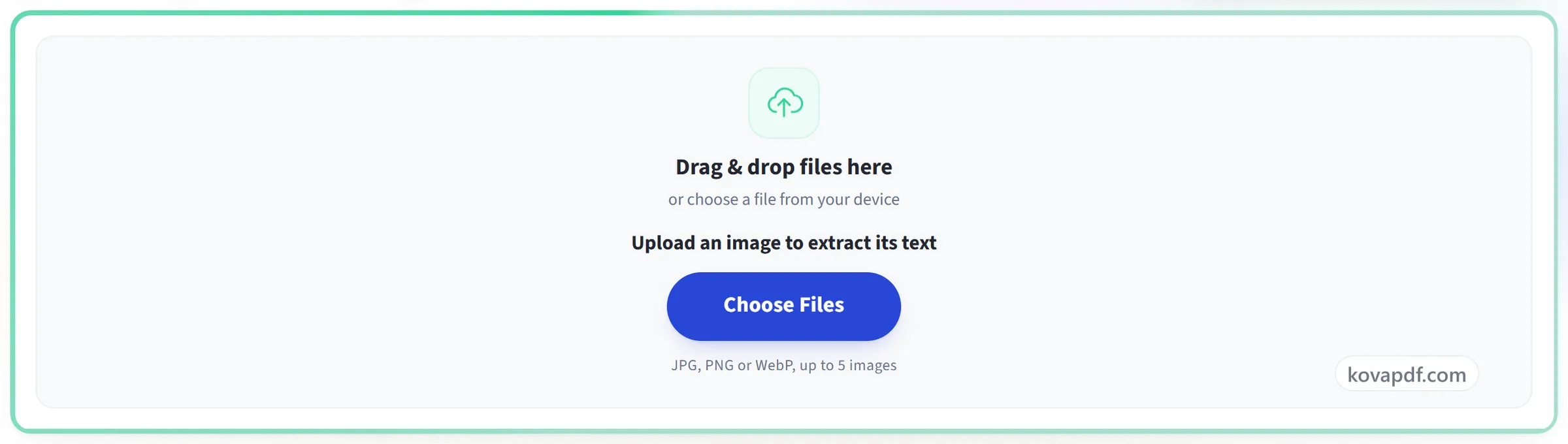
Upload up to five images
Drag your file onto the upload panel, or click it to pick one from your device. Nothing is sent anywhere until you start the job, and the working copy is deleted the moment it finishes.
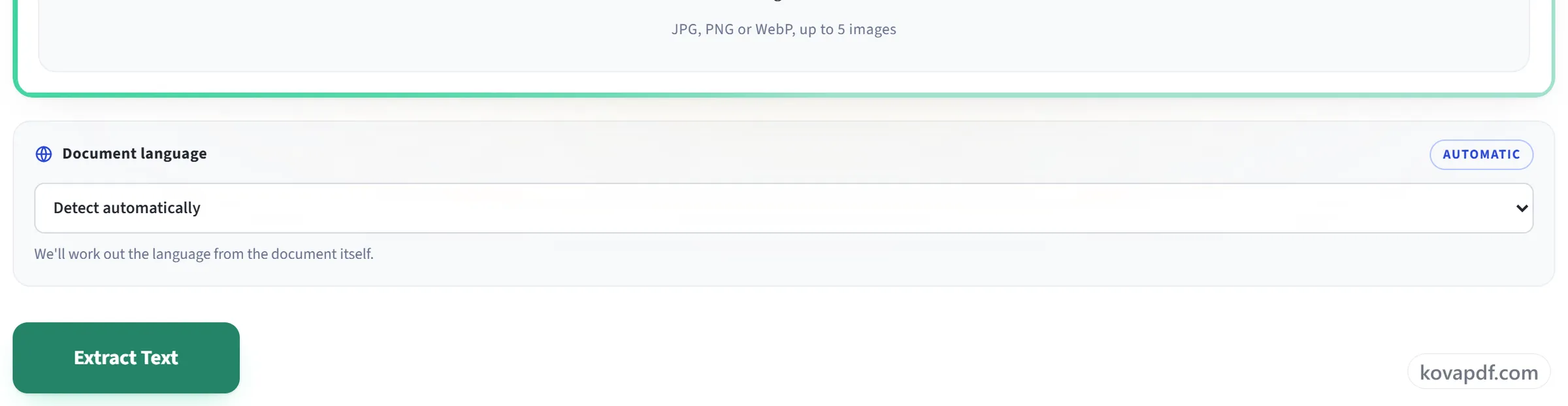
Let it read them
The language is detected for you, or you can name it yourself if you already know. Each image is read separately and kept separate in the result.
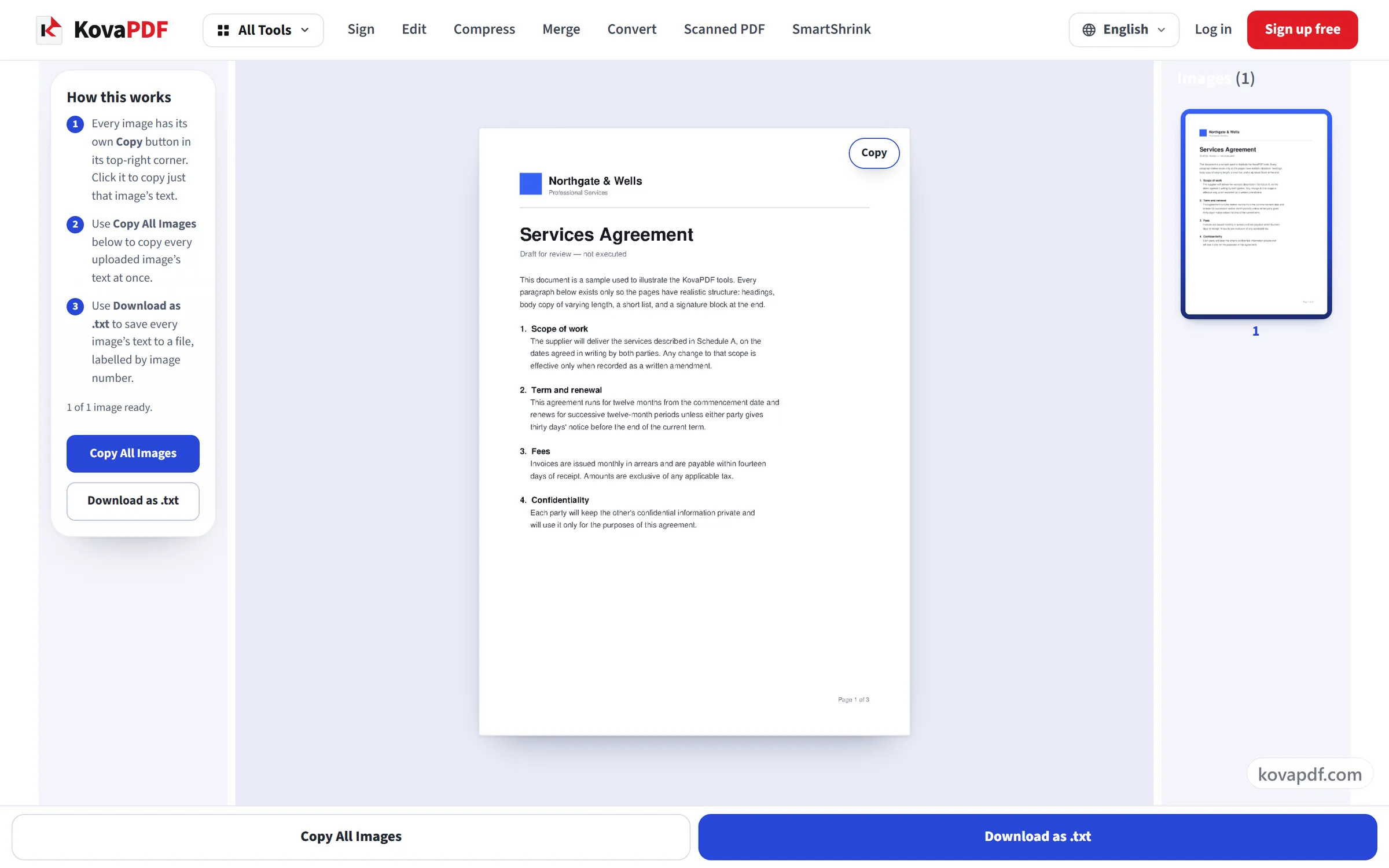
Copy or download the text
Copy one image's text, copy everything at once, or download it all as a .txt file. Recognition is an estimate. Check anything that matters.
Frequently asked questions about Image to Text
How do I copy text from an image?
Upload the image and the recognised text appears beside it. Copy one image's text, copy the text of every image at once, or download it all as a .txt file.
Can I get text from a photo I took on my phone?
Yes. Pick the photo from your gallery in the phone's browser. For the best result, hold the phone square to the page, fill the frame with the text and use even light without shadows.
Which languages are supported?
Bangla, English, Hindi, Spanish, Dutch, Arabic, Chinese and Russian. The language is detected automatically, or you can select it yourself.
How many images can I process at once?
Up to five, and each one's text is kept separate in the result.
How accurate is it?
Usually high on clear, well-lit images and lower on small text, photos taken at an angle, and handwriting. Check anything important before you rely on it.
Can it read handwriting?
Not reliably. Recognition is built for printed and typed text, and handwriting usually comes out with many errors or not at all. It is not a dependable way to transcribe handwritten notes.
Can I get text from a screenshot?
Yes. A screenshot is one of the easiest cases, because the text is sharp, straight and evenly lit, so it usually reads accurately. Upload it as a PNG or JPG.
Is it free?
Yes. Every tool works without paying and without an account. Files can be up to 200 pages and 80 MB, and a run that fails costs you nothing.
Do I need to create an account?
No. All tools work without signing in. An account raises your hourly allowance and lets you see what you have processed.
What happens to my file?
Your file stays on our server only for a short time while it is processed, then it is deleted. It is sent over an encrypted connection. We keep a record that the tool was used, but not the file name or what is in the file.
Image to Text guides and articles
Related tools
All PDF tools · 15 step-by-step guides · How your files are handled