Free PDF Editor
Add text, images, shapes, highlights and signatures, then rotate, delete, reorder or crop pages. Every edit is saved directly into your PDF.
- Free to use
- Works on any device
- Nothing to install
- Type straight onto the page
- Images, shapes and signatures
- Pages added or removed
- Saves a real PDF
Drag & drop file here
or choose a file from your device
Upload your PDF to start editing
PDF files only
Deleted after processing. Up to 200 pages and 80 MB per file.
Everything the PDF Editor can do
Change what is on the page: the words already printed there, images, shapes, signatures and the pages themselves.
Text on the page
- Click any line and retype it in place
- Keeps the document's own embedded font while you edit
- Start a new text box anywhere on the page
- Sixteen typefaces and twenty sizes, Bangla included
- Bold, italic, underline, text colour and highlight
- Left, centre or right alignment, plus case changes
Images and signatures
- Place a PNG or JPEG anywhere on a page
- Draw a signature and drop it where you want it
- Knock out a white background, or cut out a subject
- Halve opacity, duplicate, and change layer order
Drawing and marks
- Rectangle, circle, line, arrow, checkmark and crossmark
- A freehand pen and a highlighter
- Whiteout to cover anything already printed
- An eraser that removes text, shapes and drawings alike
Pages
- Reorder, rotate and duplicate pages from thumbnails
- Delete pages, or insert blank ones anywhere
- Watermark, header and footer on the same toolbar
While you work
- Undo and redo with Ctrl+Z
- Zoom from 50% to 300%
- Read every page in a preview before downloading
How it works
PDF Editor in three steps
Upload your PDF
Drag your file onto the upload panel, or click it to pick one from your device. Nothing is sent anywhere until you start the job, and the working copy is deleted the moment it finishes.
Edit it directly on the page
The document opens in the editor with your text already selectable. Click any line to retype it, or use the toolbar above the page to add text, images, shapes, highlights and signatures anywhere you like.
Save and download
Save Changes writes your edits into the document itself and gives you a preview before the download. Fonts stay embedded, so the file opens correctly everywhere.
PDF Editor: a visual walkthrough
Three steps, no installation, and a real PDF at the end.
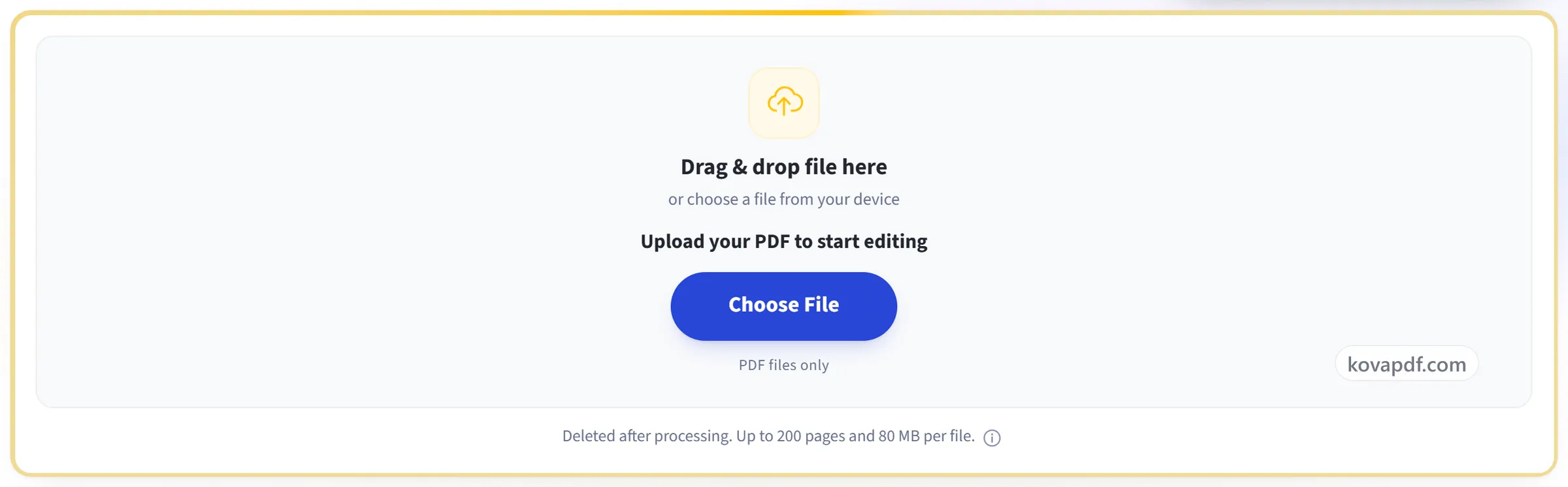
Upload your PDF
Drag your file onto the upload panel, or click it to pick one from your device. Nothing is sent anywhere until you start the job, and the working copy is deleted the moment it finishes.
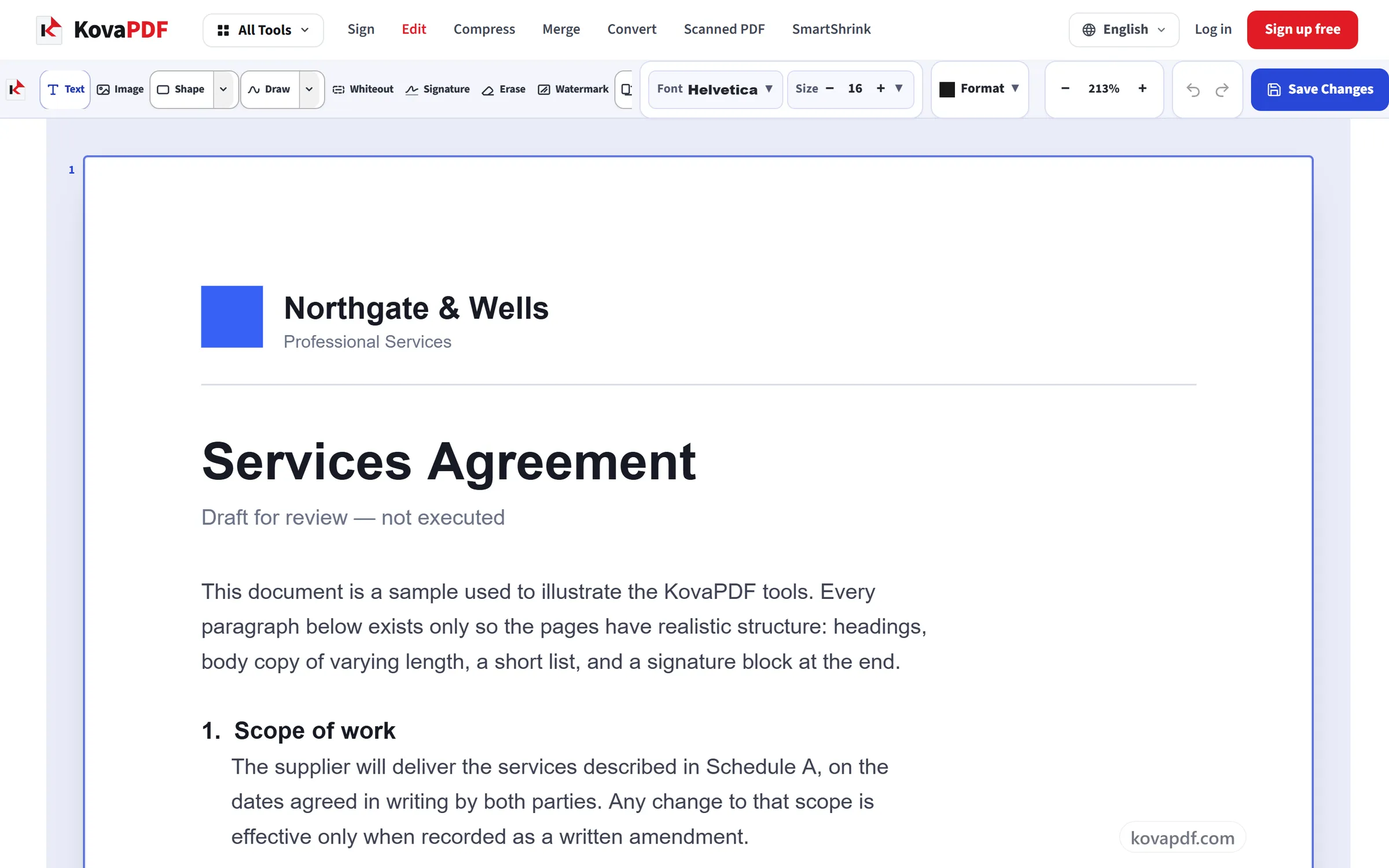
Edit it directly on the page
The document opens in the editor with your text already selectable. Click any line to retype it, or use the toolbar above the page to add text, images, shapes, highlights and signatures anywhere you like.
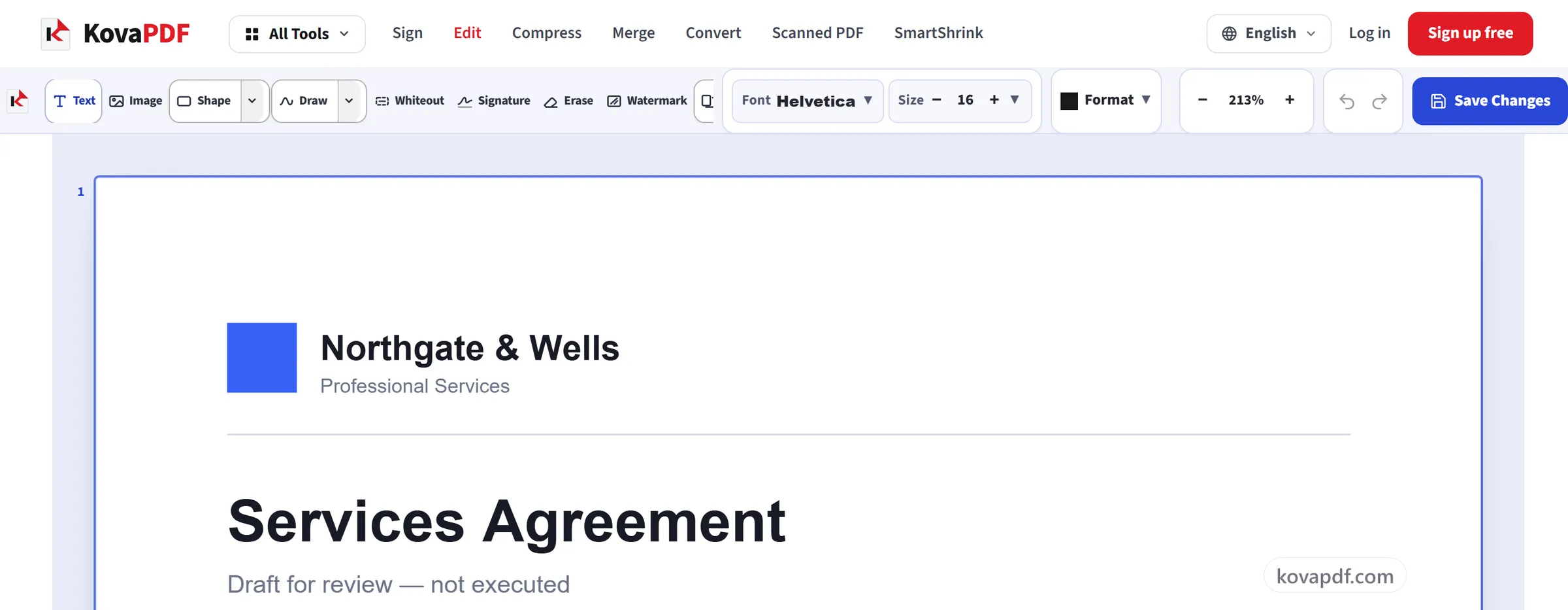
Save and download
Save Changes writes your edits into the document itself and gives you a preview before the download. Fonts stay embedded, so the file opens correctly everywhere.
Frequently asked questions about PDF Editor
How do I edit a PDF?
Open the PDF here, click a line of text to retype it, or use the toolbar to add text, images, shapes, highlights, whiteout or a signature. Then save and download the edited PDF. Nothing needs to be installed.
Can I edit the existing text in a PDF?
Yes. Click any line and retype it at the same size and position. If the PDF includes the font, the editor uses it, so the change blends in. If it doesn't, or you type a character the font doesn't have, the line uses a standard font instead. If clicking does nothing, the page is a scan. Use OCR PDF for that.
Can I change the font, size or colour of text?
Yes. Text you add or edit can use one of 16 fonts, including Times New Roman, Roboto, Open Sans and two Bangla faces, at sizes from 6 to 144 points, in any colour from the swatches or a hex code, with bold, italic, underline and alignment.
Can I white out or erase part of a PDF?
Yes. Whiteout draws a white box over anything on the page, and Erase removes a line of text or anything you added. Both hide the original rather than deleting it from the file, so it can still be found by selecting or searching. To remove confidential information for good, use Redact PDF.
Can I sign a PDF?
Yes. The Signature tool lets you draw a signature and place it anywhere on the page. It is a picture of your signature on the page. For a signature backed by a certificate, use Digital Signature.
Can I edit a PDF on my phone?
Yes. On a phone the editor switches to its own layout, with every tool in a bar along the bottom and pinch to zoom, so you can retype text, add a signature and save from the browser without installing an app.
Do my edits save into the PDF?
Yes. Changes are written into the file itself with fonts embedded, so the downloaded PDF opens correctly in Acrobat, Preview, Chrome and anywhere else.
Can I fill in a PDF form?
Not its form fields, because the editor can't fill those in. You can still complete a form by placing text, and checkmarks from the Shape menu, over the blanks. They are saved as part of the page.
Is it free?
Yes. Every tool works without paying and without an account. Files can be up to 200 pages and 80 MB, and a run that fails costs you nothing.
Do I need to create an account?
No. All tools work without signing in. An account raises your hourly allowance and lets you see what you have processed.
What happens to my file?
Your file stays on our server only for a short time while it is processed, then it is deleted. It is sent over an encrypted connection. We keep a record that the tool was used, but not the file name or what is in the file.
PDF Editor guides and articles
Step-by-step
Related tools
All PDF tools · 15 step-by-step guides · How your files are handled