Watermark PDF
Mark your document with text or an image, on every page or just the ones you choose. The watermark is drawn over the page, so your original content stays intact.
- Free to use
- Works on any device
- Deleted after processing
- Text or your own logo
- Drawn over the page
- The content is untouched
- Opacity, angle and position
Drag & drop file here
or choose a file from your device
Upload a PDF to add your watermark
PDF files only
Everything Watermark PDF can do
Lay a text or image mark over a document, exactly where and how you want it, on its own layer.
Content
- Text you type, or a PNG or JPEG you upload
- Sixteen typefaces, with bold and italic
- Any ink colour, and a panel behind it if you want one
- Trim each side of an image mark by percentage
Appearance
- Opacity anywhere between 5% and 100%
- Any angle, with Straight and Diagonal presets
- Sits behind the page content, or over the top of it
- Repeat it across the whole sheet as a tile
Placement
- A nine-point grid of preset positions
- Or drag the mark wherever you like on the page
- Corner handles resize it, a round grip turns it
- One position, size and angle shared by every page
Pages
- Every page, or a list such as 1, 3-5, 9
- A plain sentence states what Apply is about to do
- Update or lift the whole mark in one action
- Your page content is never rewritten underneath it
How it works
Watermark in three steps
Upload your PDF
Drag your file onto the upload panel, or click it to pick one from your device. Nothing is sent anywhere until you start the job, and the working copy is deleted the moment it finishes.
Place and style the watermark
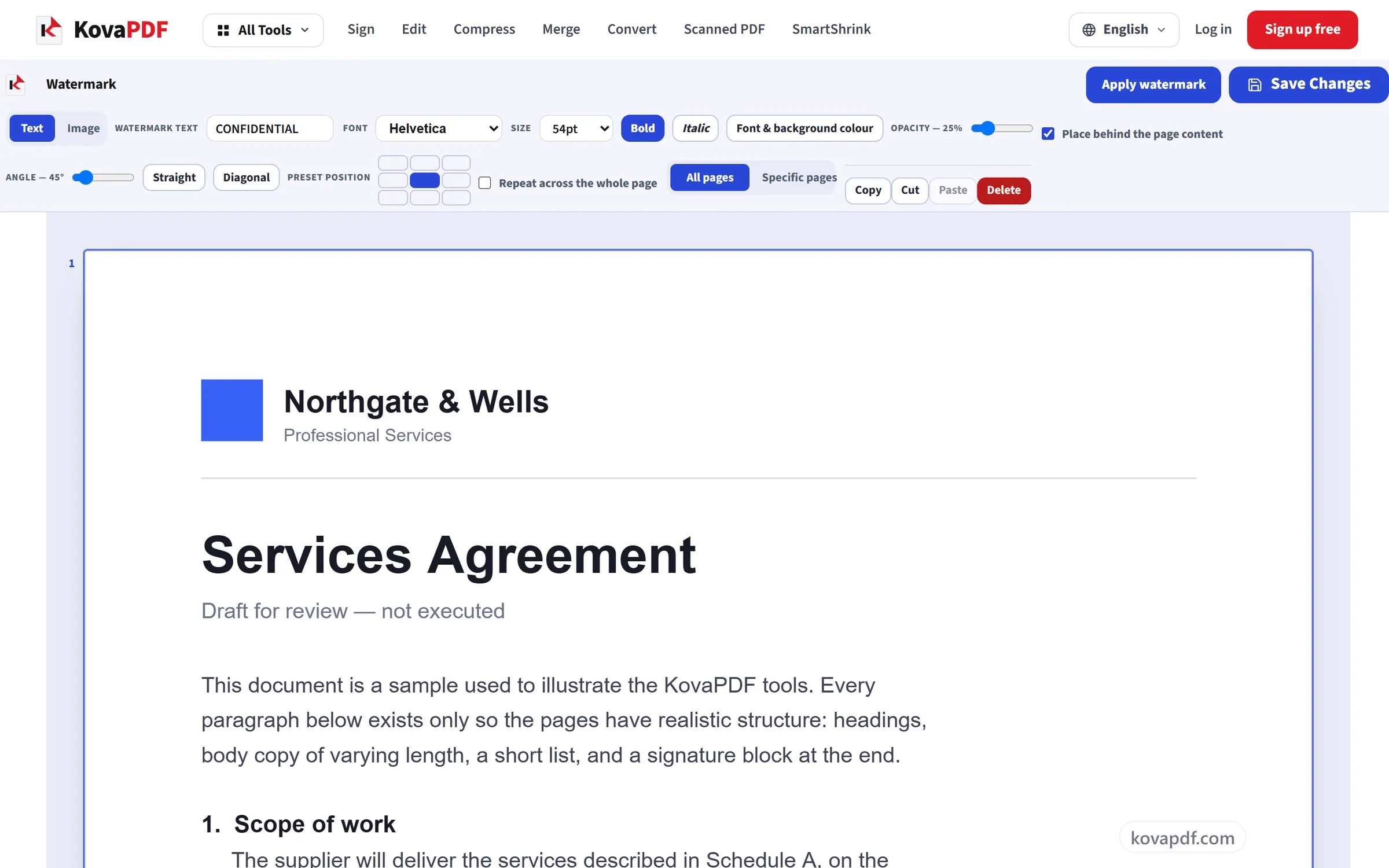
Type your text or drop in a logo, then set the size, angle, opacity and position. Choose every page or just the ones you name.
Save and download
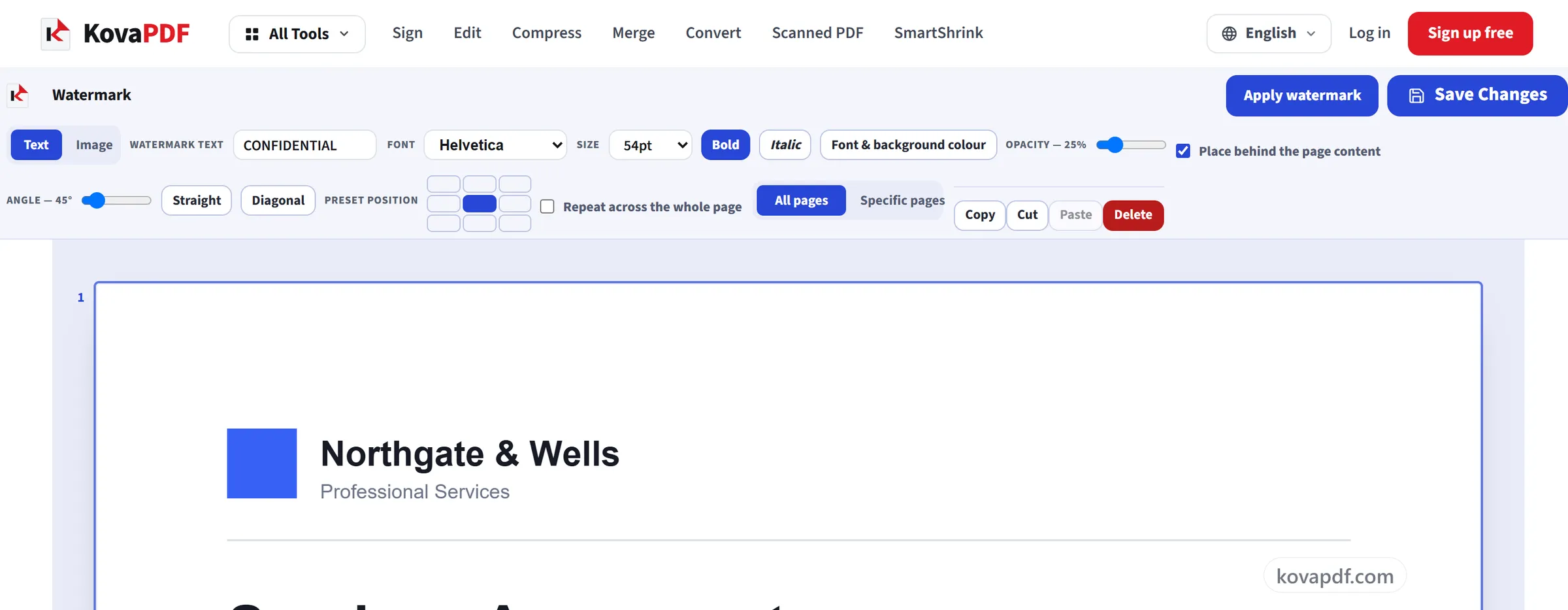
The watermark is drawn on top of your pages, so the original text and images underneath stay exactly as they were.
Watermark: a visual walkthrough
Stamp text or an image across your pages without touching the content underneath.
Upload your PDF
Drag your file onto the upload panel, or click it to pick one from your device. Nothing is sent anywhere until you start the job, and the working copy is deleted the moment it finishes.

Place and style the watermark
Type your text or drop in a logo, then set the size, angle, opacity and position. Choose every page or just the ones you name.
Save and download
The watermark is drawn on top of your pages, so the original text and images underneath stay exactly as they were.
Frequently asked questions about Watermark
How do I add a watermark to a PDF?
Choose Text or Image, type the words (for example CONFIDENTIAL or DRAFT) or pick a PNG or JPG logo, then set the angle, opacity and position. Apply it to every page or a range such as 1, 3-5, and save to download the watermarked PDF.
Does the watermark damage the original content?
No. The watermark is added on top of the existing page, and the text and images underneath are not changed or re-compressed.
Can I use an image or logo?
Yes. Both text and image watermarks are supported, with control over size, angle, opacity and position.
Can I watermark only some pages?
Yes. Apply it to every page or to a range you choose.
Can I repeat the watermark across the whole page?
Yes. Switch on "Repeat across the whole page" and the mark is tiled over each page instead of appearing once, which makes it much harder to crop out of a screenshot.
Can someone remove my watermark?
Not easily. It is part of the page, so a viewer can't hide it. It isn't locked, though. A text watermark stays real text, and someone with PDF editing software can delete it. A watermark discourages copying but can't prevent it.
Is it free?
Yes. Every tool works without paying and without an account. Files can be up to 200 pages and 80 MB, and a run that fails costs you nothing.
Do I need to create an account?
No. All tools work without signing in. An account raises your hourly allowance and lets you see what you have processed.
What happens to my file?
Your file stays on our server only for a short time while it is processed, then it is deleted. It is sent over an encrypted connection. We keep a record that the tool was used, but not the file name or what is in the file.
Watermark guides and articles
Related tools
All PDF tools · 15 step-by-step guides · How your files are handled