Sign PDF
Draw, type or upload your signature and place it anywhere on the page. Resize it, move it, and sign as many pages as you need. No account and no certificate needed.
- Free to use
- Works on any device
- Nothing to install
- Draw, type or upload it
- Place it anywhere, any page
- Resize and move it freely
- No certificate needed
PDF · Word · JPG · PNG · WebP
Drag & drop file here
or choose a file from your device
Upload the PDF you want to sign
PDF, Word or image files
Everything Sign PDF can do
Put your signature, your initials and the rest of what a form asks for onto a document, and drag each one into place. Free, in your browser, no account or certificate needed.
Making your signature
- Draw it with a mouse, a finger or a pen
- Type it in three handwriting styles
- Upload a photo of a sheet you signed
- Photographed paper is cleared away to transparent
- Blue or black ink
Initials and fields
- Initials, drawn, typed or uploaded the same way
- Your name, typed once and placed as often as needed
- A date from a calendar, in four formats
- Any other line of text a form asks for
- Check and cross marks
Placing what you add
- Drag to move it, drag a corner to resize it
- Copy the selected item onto every page
- Place a signature you made earlier again
What you get back
- Name, date and text saved as real, selectable text
- Signatures stay sharp transparent images on the page
- Start from a PDF, a Word file, an ODT or a photo
- Open the full editor once the signing is done
How it works
Sign PDF in three steps
Upload your PDF
Drag the .pdf onto the panel, or click it to pick one. A Word document or a photo of a page works too; it is turned into a PDF first. It opens with the signing tools beside the page.
Make your signature and place it
Draw it with your mouse or finger, type your name and pick a handwriting style, or upload a photo of your signature on paper. The paper is removed automatically. Add initials, your name, the date, a line of text or a tick in the same way. Drag each one into place, drag a corner to resize it, and use "Copy to all pages" for initials on every page.
Save and download
Save Changes writes everything into the PDF itself; the name and date are saved as real text. This is a visible signature; for proof that the document was not changed afterwards, use Digital Signature with a certificate.
Sign PDF: a visual walkthrough
Draw, type or upload your signature and put it anywhere on the page. No account and no certificate needed.
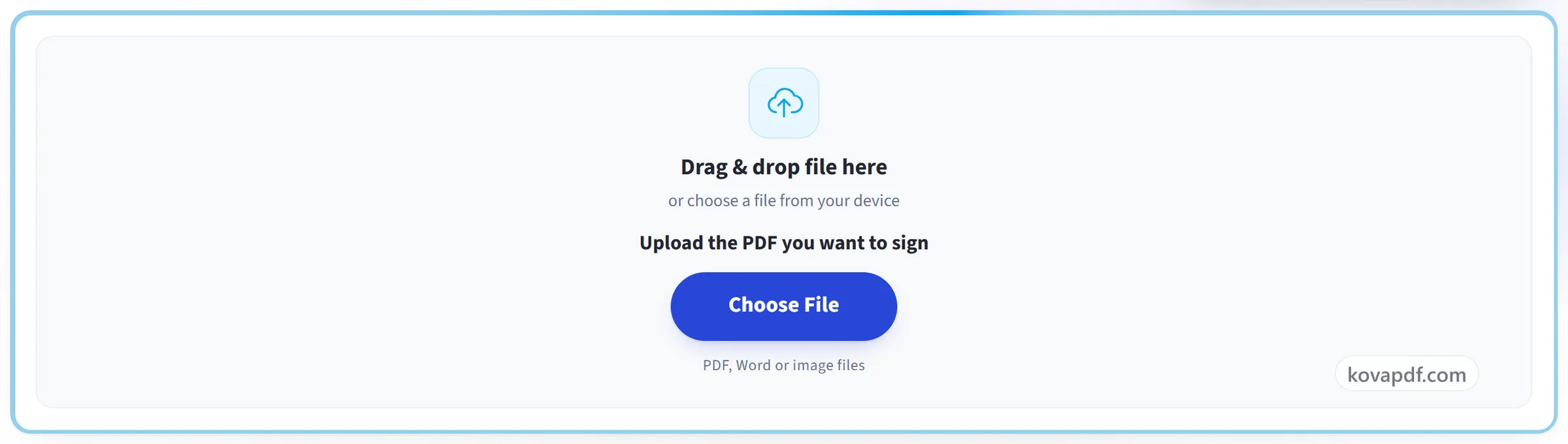
Upload your PDF
Drag the .pdf onto the panel, or click it to pick one. A Word document or a photo of a page works too; it is turned into a PDF first. It opens with the signing tools beside the page.
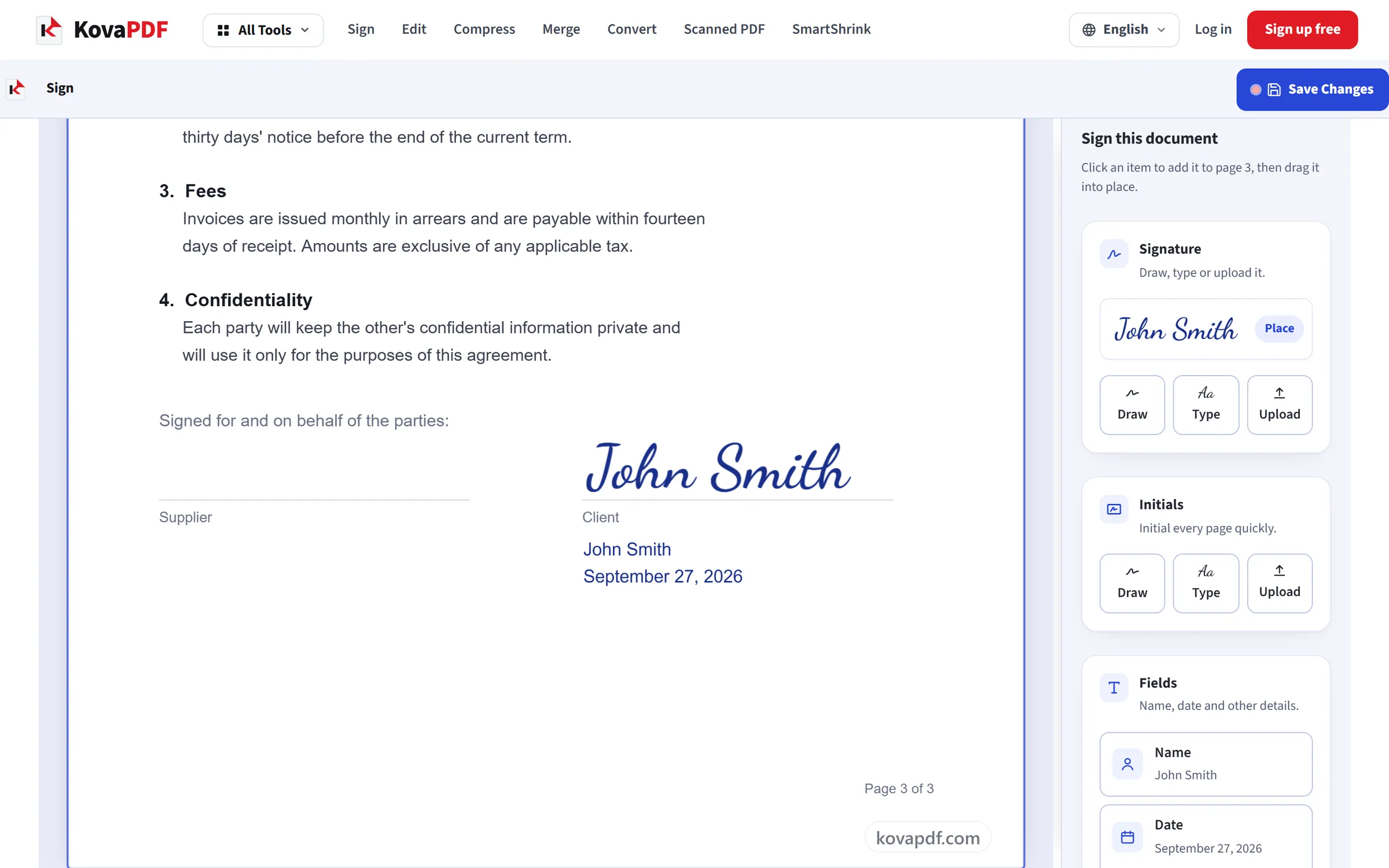
Make your signature and place it
Draw it with your mouse or finger, type your name and pick a handwriting style, or upload a photo of your signature on paper. The paper is removed automatically. Add initials, your name, the date, a line of text or a tick in the same way. Drag each one into place, drag a corner to resize it, and use "Copy to all pages" for initials on every page.
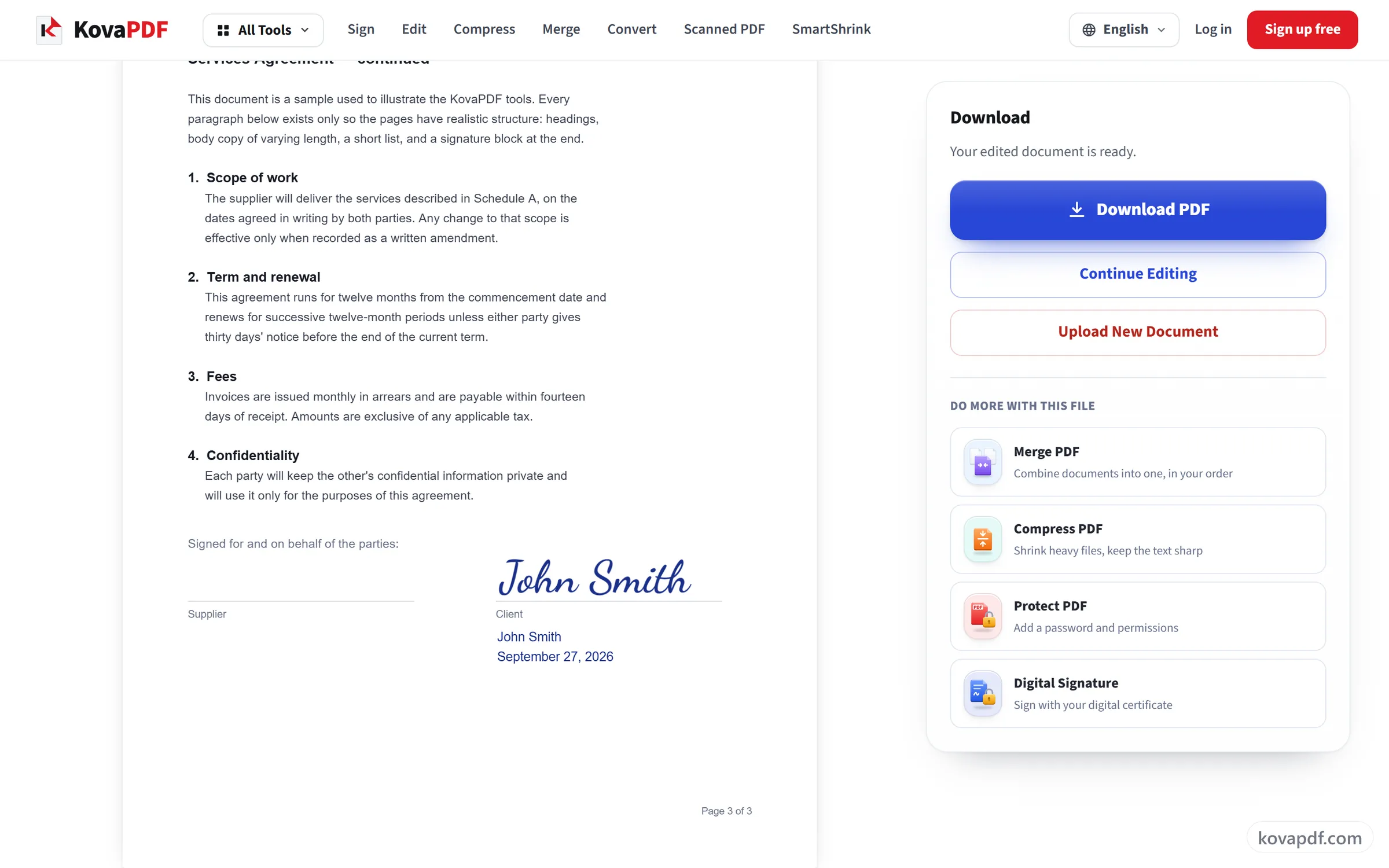
Save and download
Save Changes writes everything into the PDF itself; the name and date are saved as real text. This is a visible signature; for proof that the document was not changed afterwards, use Digital Signature with a certificate.
Frequently asked questions about Sign PDF
How do I sign a PDF?
Open your PDF and create your signature: draw it, type your name in a handwriting style, or upload a photo of it. Place it on the page and drag it where it belongs, add your initials, name, the date or a tick if the form needs them, and download the signed PDF.
Do I need a certificate or an account to sign?
No. Draw your signature with a mouse or finger, type your name and pick a handwriting style, or upload a photo of your signature on paper. It appears on the page, and you drag it to where it belongs. No account and no certificate are needed.
Can I use a photo of my signature on paper?
Yes. Upload the photo and the white paper around the ink is removed automatically, so only the signature itself is placed on the page, and it looks like ink rather than a pasted rectangle. This happens in your browser.
Can I add my initials, my name and the date as well?
Yes. Initials have their own card: draw, type or upload them, and they are placed smaller than a full signature. Name and Date add your typed name and a date as text. The date is today unless you pick another day, and you can choose how it is written, for example September 22, 2026 or 2026-09-22.
Can I fill in other details, or tick a box?
Yes. Text adds any other line you need, such as a job title or a reference number. Check and Cross place a tick or a cross that you can drag onto a box on the form.
How do I put my initials on every page?
Place them once, click them, and press "Copy to all pages" (the button shows how many pages your document has). They are added in the same spot on every page. Pressing it a second time does not add a second copy.
How do I move or resize something after placing it?
Click it. Drag it to move it, and drag a corner handle to make it larger or smaller. "Remove" takes it off again. Everything stays exactly where you put it when the PDF is saved.
Can I sign in blue ink?
Yes. Pick blue or black under Ink colour before you draw, type or place a name, date or mark. An uploaded photo of your signature keeps its own colour.
Are the name and date saved as text or as a picture?
As real text, so they stay sharp and can be searched and copied from the saved PDF. Text in a script that the standard PDF font cannot show, such as Arabic, Bengali or Chinese, is saved as an image instead so that it still looks right.
Can I sign a Word document or a photo of a page?
Yes. Word (.docx, .doc), OpenDocument text (.odt) and JPG, PNG or WebP images are turned into a PDF first and then open for signing. What you download is a signed PDF.
Does it work on a phone?
Yes. The signing tools sit in a panel at the bottom of the screen that you can fold away. Draw with your finger, then drag the signature into place with your finger too.
Is a signature made this way legally valid?
For many everyday documents, such as forms, approvals and agreements between people who know each other, it is what people expect. But it can't prove later that nobody changed the document, because it is a picture on the page. For contracts that might be disputed, or official filings that require it, use Digital Signature with a certificate.
Why does a signature checker say my signed PDF has no digital signature?
Because Sign PDF places a visible signature, which is an image. A signature checker looks for a digital signature made with a certificate. Both are real signatures, but only the digital kind can be checked. Our article "What is a digital signature in a PDF" explains the difference.
What is the difference between Sign PDF and Digital Signature?
Sign PDF puts your signature on the page for people to see, with no certificate needed. Digital Signature uses a certificate (a digital ID file) to lock the document, so any later change shows up and the signer can be identified. Use Sign PDF for everyday signing, and Digital Signature when you must be able to prove the document hasn't changed.
How do I get someone else to sign a PDF?
Use Request Signatures. You place the fields each person has to fill in, and each of them gets a private link by email to sign in their browser. You need a free account to send the request; the people signing do not. Sign PDF is for adding your own signature.
Is my signature stored anywhere?
No. Your drawn or typed signature exists only in this browser tab while you work. When you save, it is written into your PDF and the working copy is deleted as soon as the file is built.
Is it free?
Yes. Every tool works without paying and without an account. Files can be up to 200 pages and 80 MB, and a run that fails costs you nothing.
Do I need to create an account?
No. All tools work without signing in. An account raises your hourly allowance and lets you see what you have processed.
What happens to my file?
Your file stays on our server only for a short time while it is processed, then it is deleted. It is sent over an encrypted connection. We keep a record that the tool was used, but not the file name or what is in the file.
Sign PDF guides and articles
Step-by-step
Related tools
All PDF tools · 15 step-by-step guides · How your files are handled