JPG & Image to PDF Converter
Turn photos and scans into a single polished PDF document, arranged in the order you choose.
- Keeps your layout
- Works on any device
- Deleted after processing
- Many photos, one document
- Properly paginated
- JPG, PNG and WebP
- The order is yours to set
JPG · PNG · WebP
Turn photos and scans into one PDF
JPG, PNG or WebP · one image per page, in the order you set. Your uploads are deleted as soon as the PDF is built
Drag & drop files here
or choose a file from your device
Everything Image to PDF can do
Turn JPG and PNG photos or scans into one PDF, a picture per page, in the order you set. Free, in your browser.
Your pictures, your order
- JPG and PNG photos and scans, one per page
- Move any picture earlier or later before building the file
- Add more pictures to the set at any point
- Take a picture back out of the set
- Each one shown as a thumbnail, numbered in page order
Page setup
- A4, A3, A5 or Letter pages
- Match the image: each page made exactly the size of its picture
- Portrait or landscape
How each picture sits
- Fit the whole image, keeping its proportions inside an even margin
- Fill the page, spreading the image across the full page area
- Every picture centred on its own page
The finished document
- One PDF holding every picture, in the order you set
- Each image embedded at its own resolution
- The result screen names the page size and orientation you chose
- A single PDF to download, ready to share
How it works
Image to PDF in three steps
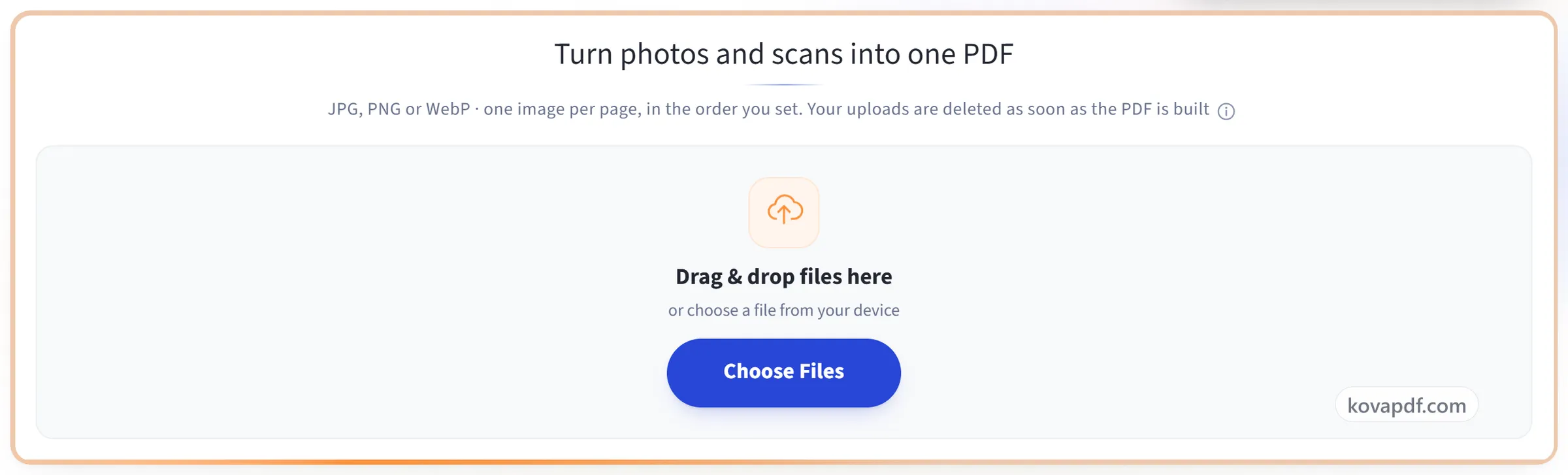
Upload your images
Drag your file onto the upload panel, or click it to pick one from your device. Nothing is sent anywhere until you start the job, and the working copy is deleted the moment it finishes.
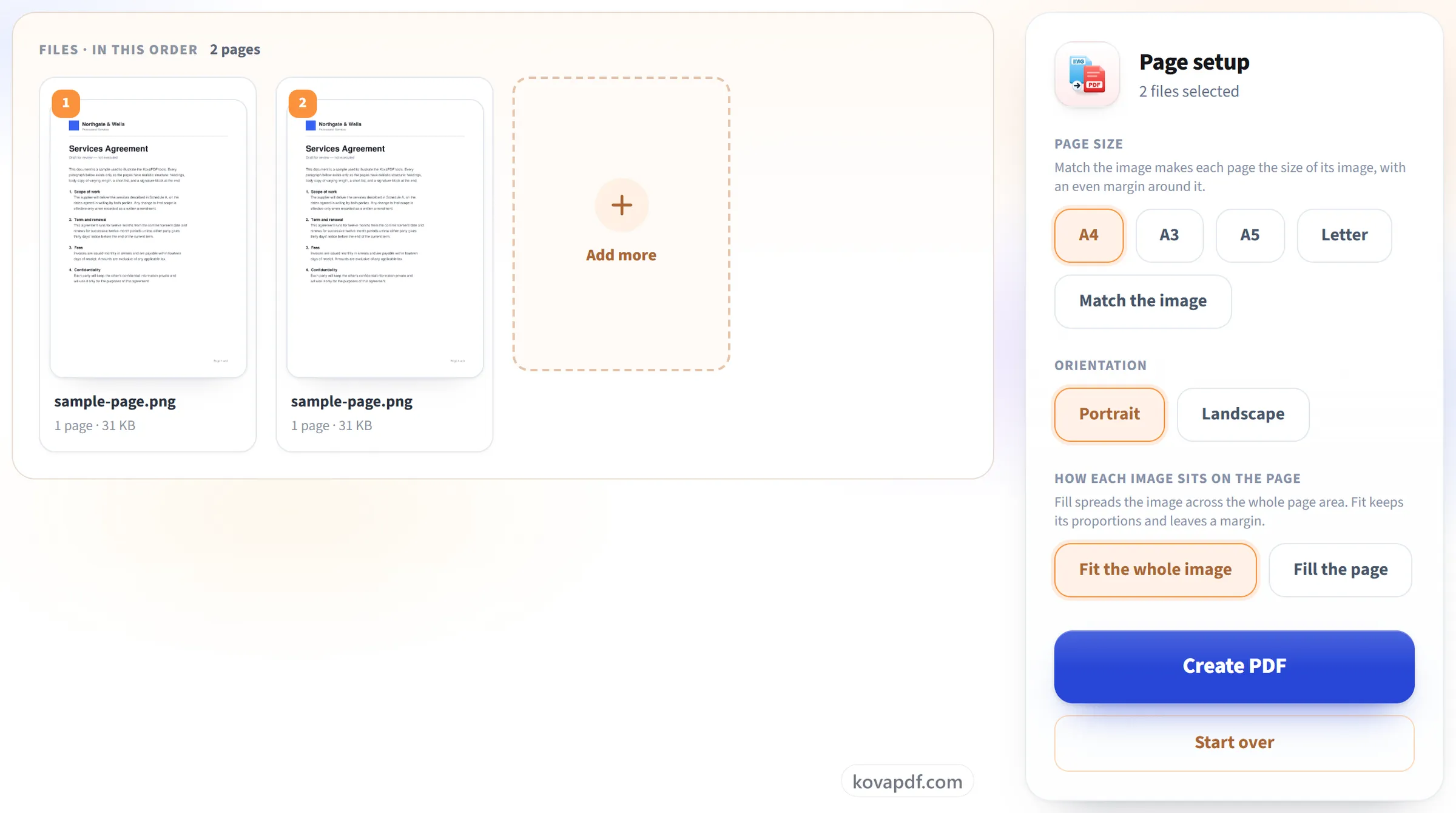
Arrange them
Add as many JPG, PNG or WebP files as you need and put them in order. Each becomes its own page, sized to fit without distortion.
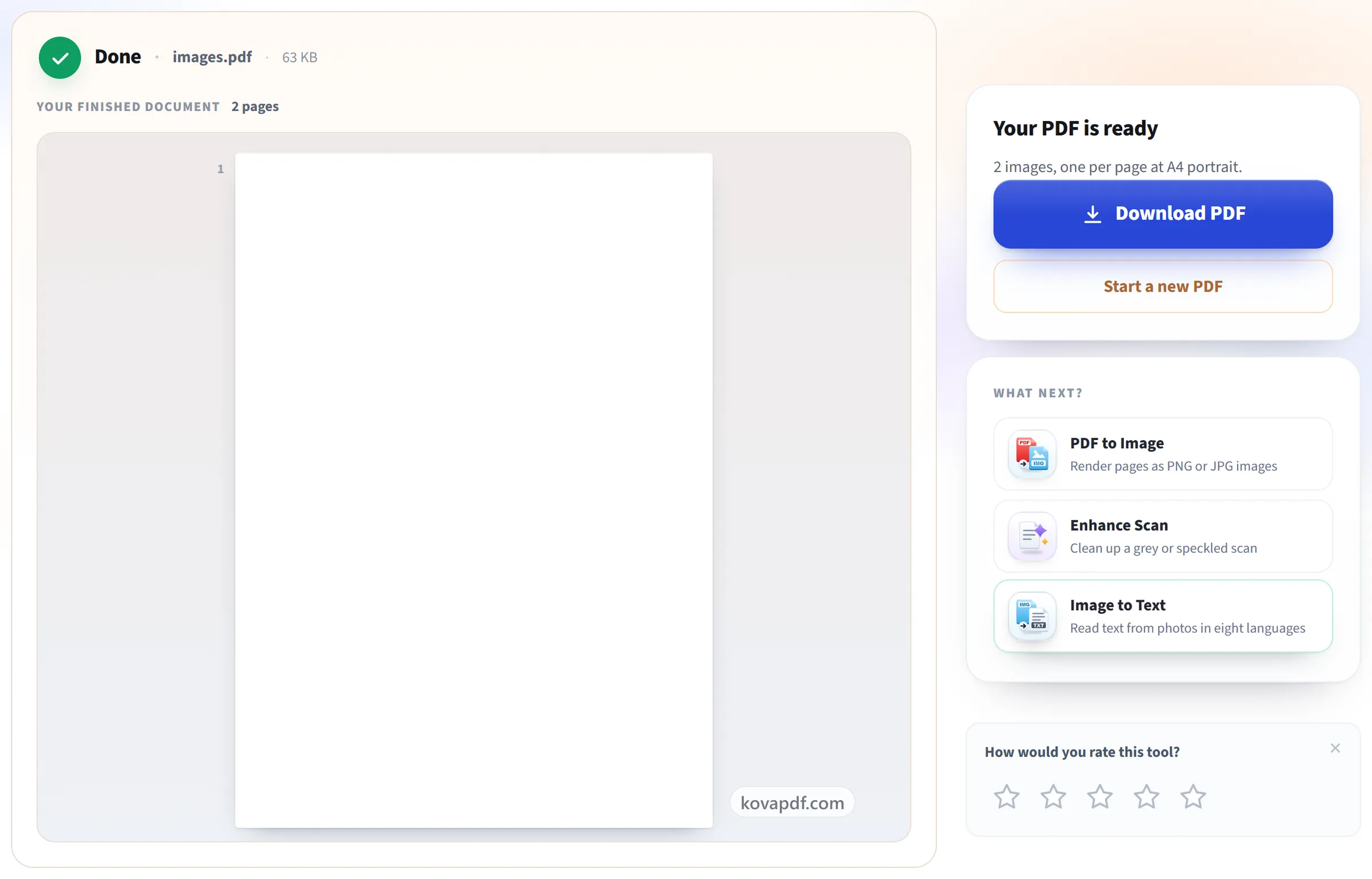
Convert and download
You get a single PDF that opens, prints and emails like any other, rather than a folder of loose pictures.
Image to PDF: a visual walkthrough
Turn photos and scans into one properly paginated document.
Upload your images
Drag your file onto the upload panel, or click it to pick one from your device. Nothing is sent anywhere until you start the job, and the working copy is deleted the moment it finishes.
Arrange them
Add as many JPG, PNG or WebP files as you need and put them in order. Each becomes its own page, sized to fit without distortion.
Convert and download
You get a single PDF that opens, prints and emails like any other, rather than a folder of loose pictures.
Frequently asked questions about Image to PDF
How do I combine several photos into one PDF?
Add the images, up to 30 at a time, put them in order with the arrows on each card, choose a page size and press Create PDF. Each image becomes one page of a single PDF, in the order you set.
Which image formats are supported?
JPG, PNG and WebP.
Can I convert iPhone HEIC photos to PDF?
Not directly. HEIC is not accepted, only JPG, PNG and WebP. If a photo is refused as HEIC, save or export it as JPG first. On an iPhone, Settings > Camera > Formats > Most Compatible makes the camera save new photos as JPG.
Can I make a PDF from photos on my phone?
Yes. Open the page in your phone's browser and pick the photos from your gallery or files. A photo the phone recorded as taken sideways is turned upright automatically, using the orientation the camera saved with it.
What page size will the PDF have?
A4 portrait unless you change it. You can pick A4, A3, A5 or Letter in either orientation, or "Match the image" to give each page the shape of its own picture. "Fit the whole image" keeps its proportions with a margin around it; "Fill the page" stretches it across the page, which changes its proportions if the shapes differ.
Will my photos lose quality?
No. Every image keeps its original pixel size. JPG and PNG files are placed in the PDF exactly as they are. A WebP, or a phone photo that has to be turned upright, is re-saved first as a high-quality JPG, or as a PNG if it has transparency, which is not a visible change.
Can I get selectable text from the result?
Not from this tool, because the PDF contains pictures of words. Use Image to Text or OCR PDF to get the text.
Is it free?
Yes. Every tool works without paying and without an account. Files can be up to 200 pages and 80 MB, and a run that fails costs you nothing.
Do I need to create an account?
No. All tools work without signing in. An account raises your hourly allowance and lets you see what you have processed.
What happens to my file?
Your file stays on our server only for a short time while it is processed, then it is deleted. It is sent over an encrypted connection. We keep a record that the tool was used, but not the file name or what is in the file.
Image to PDF guides and articles
Step-by-step
Related tools
All PDF tools · 15 step-by-step guides · How your files are handled