OCR PDF: Edit Scanned PDFs
Edit scanned and photographed PDFs, not only ordinary ones. Pages without real text are read with OCR and rebuilt as editable text you can click into, while the original page stays underneath.
- Free to use
- Works on any device
- Nothing to install
- A scan becomes real text
- Edit it like any PDF
- Eight languages
- The page underneath is kept
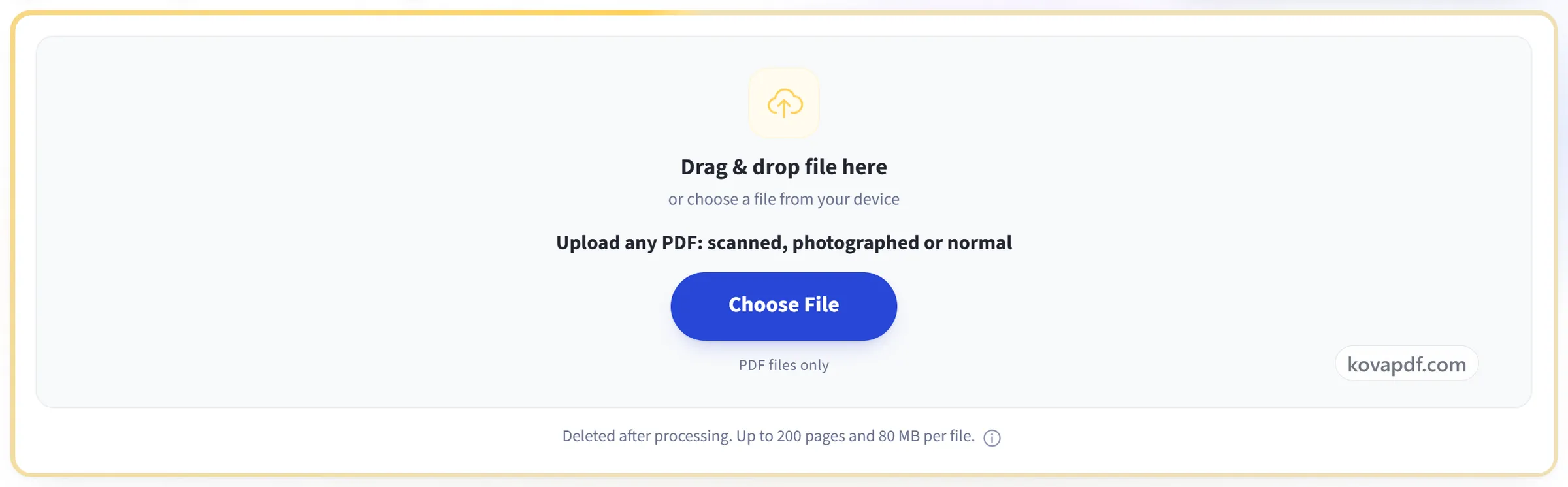
Drag & drop file here
or choose a file from your device
Upload any PDF: scanned, photographed or normal
PDF files only
Deleted after processing. Up to 200 pages and 80 MB per file.
We'll work out the language from the document itself.
Everything OCR PDF can do
Open a scan or a photographed document and work on its words as though they had always been real text. Free, in your browser, with nothing to install.
Reading a scan
- Reads the pages that carry no text layer
- Recognised words become editable lines you can click into
- The scanned page stays underneath, untouched
- Pages with real text keep their exact characters
Languages
- Works out the document's language on its own
- Bangla, Hindi, Arabic, Chinese, Russian, Spanish and Dutch
- Each language is read together with English
- Bengali is rebuilt in a Bengali typeface
What the saved file holds
- A text layer you can search and select
- Words you can copy straight out of the scan
- Lines you changed are redrawn in real ink
Editing what was recognised
- Click a recovered line and retype it
- Give it a different font, size, colour or weight
- Every other editor tool works on the same document
- Undo and redo right across the session
How it works
OCR PDF in three steps
Upload any PDF
Drag your file onto the upload panel, or click it to pick one from your device. Pages with no text layer are sent for recognition as soon as the file opens, and each working copy is deleted once it has been read.
Scanned pages are rebuilt as editable text
Pages with no text layer are recognised and turned into real, clickable lines while the original page stays underneath as the visual. Click a line and retype it exactly as you would in a normal PDF.
Save and download
Your edits are written into the file itself. Recognition is an estimate, not a transcription. Read the recovered text before you rely on it.
OCR PDF: a visual walkthrough
Scans and photographed documents have no text to click on. OCR PDF rebuilds it, so they behave like an ordinary PDF.
Upload any PDF
Drag your file onto the upload panel, or click it to pick one from your device. Pages with no text layer are sent for recognition as soon as the file opens, and each working copy is deleted once it has been read.
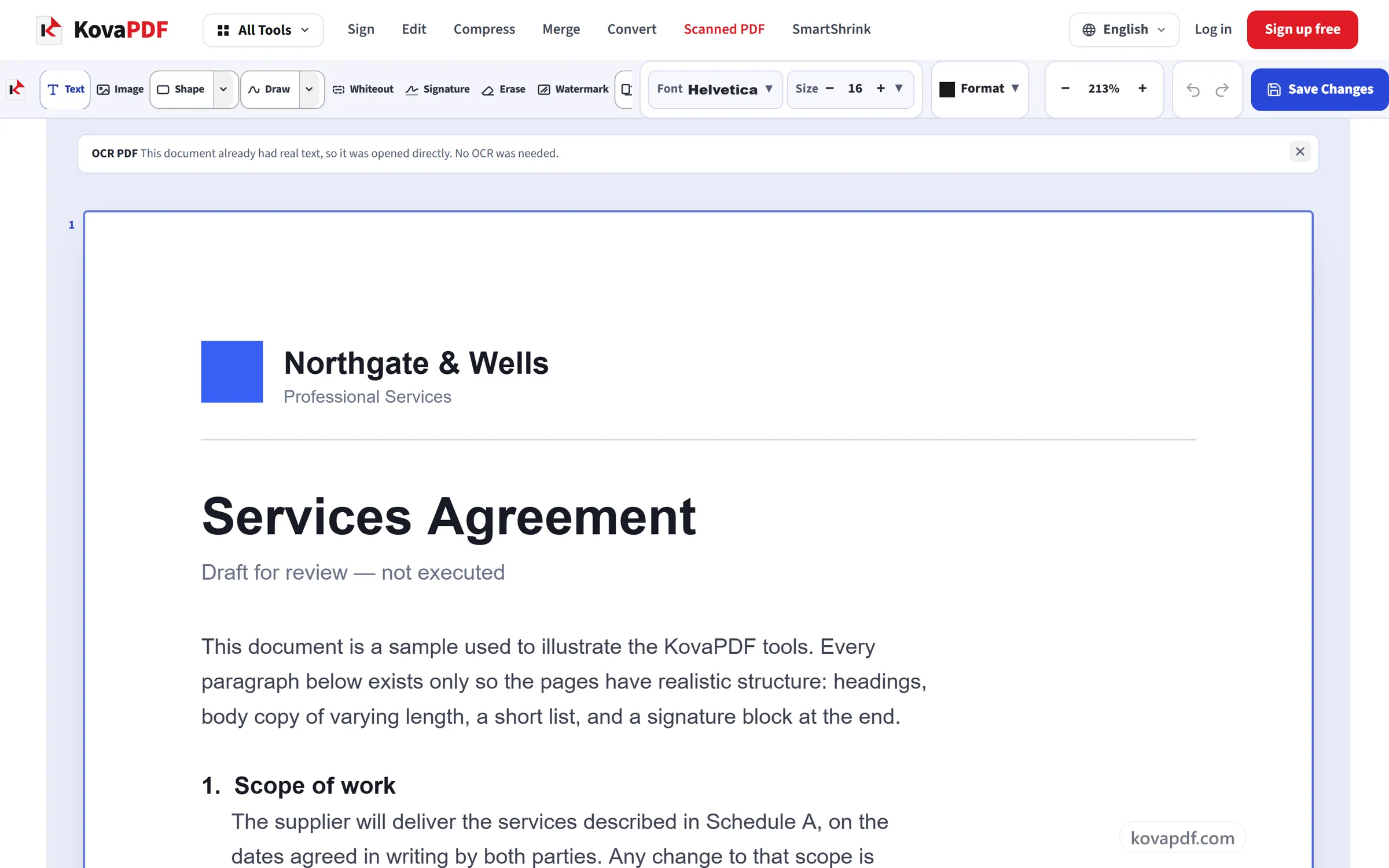
Scanned pages are rebuilt as editable text
Pages with no text layer are recognised and turned into real, clickable lines while the original page stays underneath as the visual. Click a line and retype it exactly as you would in a normal PDF.
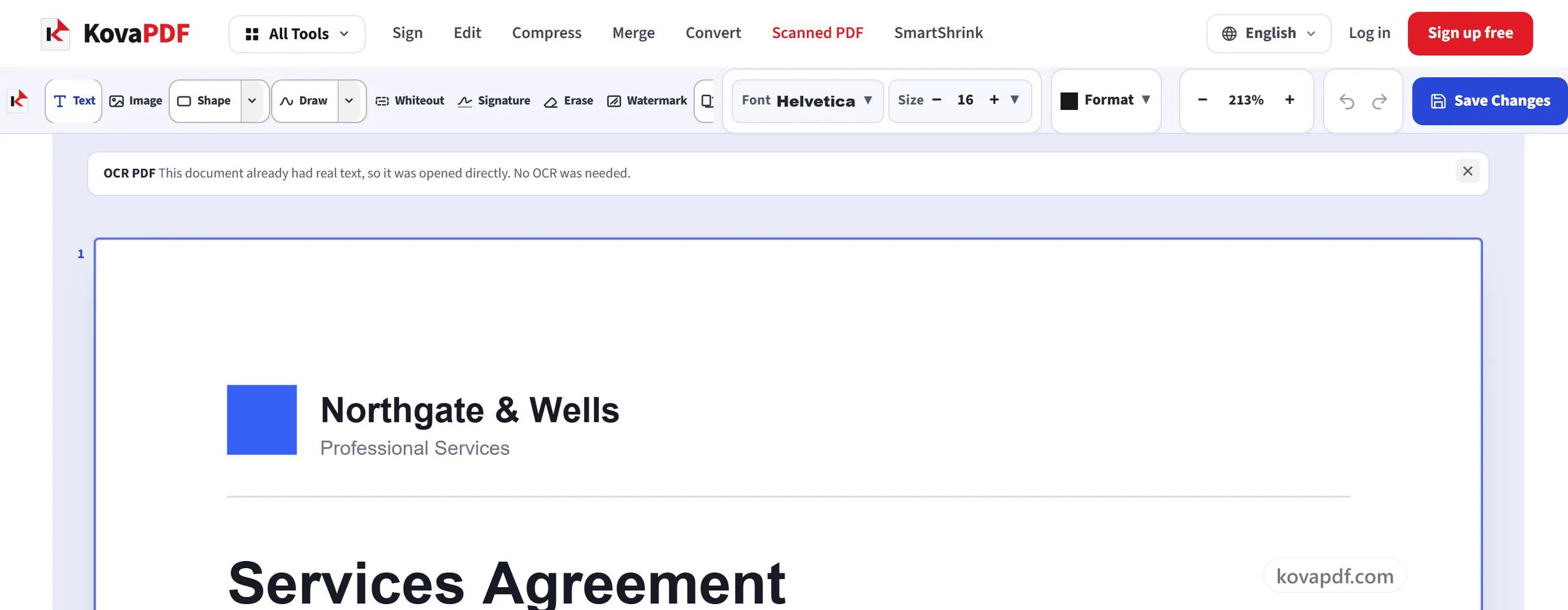
Save and download
Your edits are written into the file itself. Recognition is an estimate, not a transcription. Read the recovered text before you rely on it.
Frequently asked questions about OCR PDF
How do I edit a scanned PDF?
Open it here and the scanned pages are recognised automatically. Each line of words becomes an editable line over the original page, so you can click it and retype it like normal text. Then save and download the PDF.
How do I make a scanned PDF searchable?
Open it here, let the pages be recognised, then save and download. Lines you did not change are saved as invisible text over the original scan, so the PDF looks exactly the same but its words can now be searched, selected and copied.
How is this different from the normal PDF Editor?
A scanned or photographed page is a picture, so there is no text to click. OCR PDF reads the words in the picture and turns them into lines you can edit. The original page stays underneath.
How accurate is the recognition?
Accuracy is usually high on clean scans. It drops on low-resolution images, photos, unusual fonts and handwriting. Mistakes can look correct, so check anything that matters, especially numbers.
Will the edit be invisible?
Not completely. The original font is unknown and a scan has its own texture, so a close look can show which line was edited.
Which languages does it recognise?
Eight: Bangla, English, Hindi, Spanish, Dutch, Arabic, Chinese and Russian. The language is detected automatically, or you can name it yourself before uploading.
How many pages can it recognise?
The first 30 scanned pages of a document are recognised in one go, and you are told if there are more; pages after that keep their image without editable text. The document itself can have up to 200 pages and be up to 80 MB.
How do I convert a scanned PDF to Word?
PDF to Word carries a scanned page across as a picture, so its words cannot be edited in Word. To work with the words, edit them here directly, or use PDF to Text to copy the recognised text out and paste it into your document.
Is it free?
Yes. Every tool works without paying and without an account. Files can be up to 200 pages and 80 MB, and a run that fails costs you nothing.
Do I need to create an account?
No. All tools work without signing in. An account raises your hourly allowance and lets you see what you have processed.
What happens to my file?
Your file stays on our server only for a short time while it is processed, then it is deleted. It is sent over an encrypted connection. We keep a record that the tool was used, but not the file name or what is in the file.
OCR PDF guides and articles
Step-by-step
Related tools
All PDF tools · 15 step-by-step guides · How your files are handled