Enhance a Scan or Photo
Sharpen, denoise and lift the contrast on a scanned page or a blurry photo. Takes a scanned PDF or a JPG, PNG or WebP image. To make a scanned PDF searchable instead, use OCR PDF.
- Free to use
- Works on any device
- Nothing to install
- Contrast lifted
- Background speckle cleared
- Takes a PDF or an image
- Page sizes kept
PDF · JPG · PNG · WebP
Clean up a scan or a photo of a page
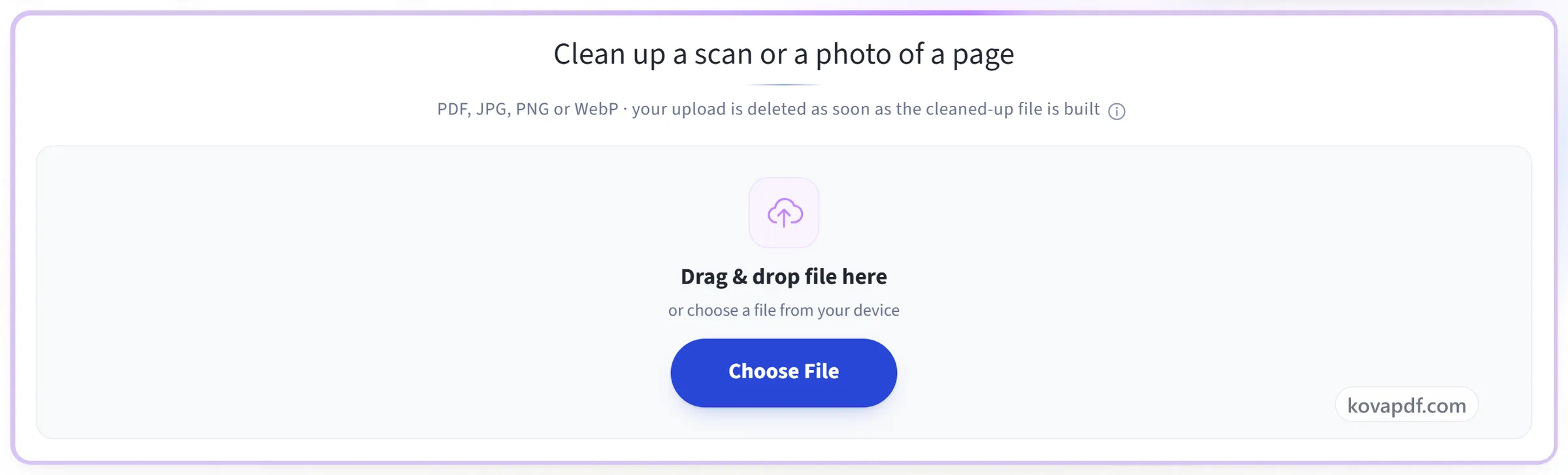
PDF, JPG, PNG or WebP · your upload is deleted as soon as the cleaned-up file is built
Drag & drop file here
or choose a file from your device
Everything Enhance Scan can do
Clean up a grey, speckled or washed-out scan (a scanned PDF or a photo of a page) so the words come off the page clearly.
What it takes
- A scanned PDF, or a JPG, PNG or WebP photo
- A PDF comes back as a PDF, ready to share or print
- An image comes back as a PNG
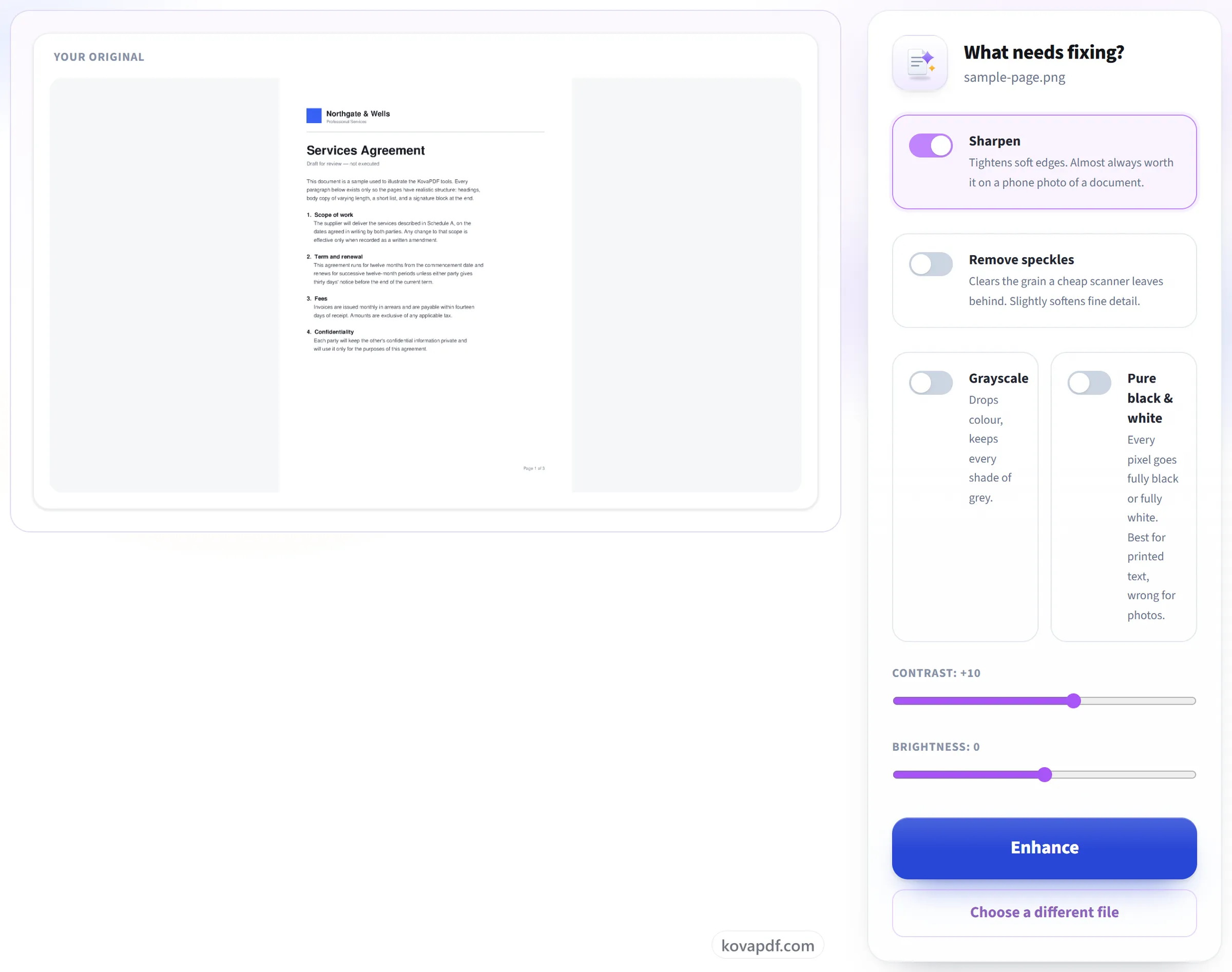
What needs fixing
- Sharpen, to tighten the soft edges of a phone photo
- Remove speckles, to clear the grain a scanner leaves
- Grayscale, to drop colour and keep every shade of grey
- Pure black & white, so printed text sits crisp on white
Dialling it in
- Contrast anywhere from -50 to +50
- Brightness anywhere from -50 to +50
- Your original shown beside the controls while you choose
- The page count of the file read before you start
What comes back
- Every page of the document cleaned the same way
- Each page keeping its own paper size and orientation
- A phone photo turned upright from its own orientation data
- The result naming exactly which adjustments were applied
How it works
Enhance Scan in three steps
Upload your scan
Drag your file onto the upload panel, or click it to pick one from your device. Nothing is sent anywhere until you start the job, and the working copy is deleted the moment it finishes.
Let it clean the pages
Choose what to fix: sharpening, speckle removal, contrast, brightness, grayscale or pure black & white. A cleaner page also makes text recognition more accurate afterwards.
Download the clean copy
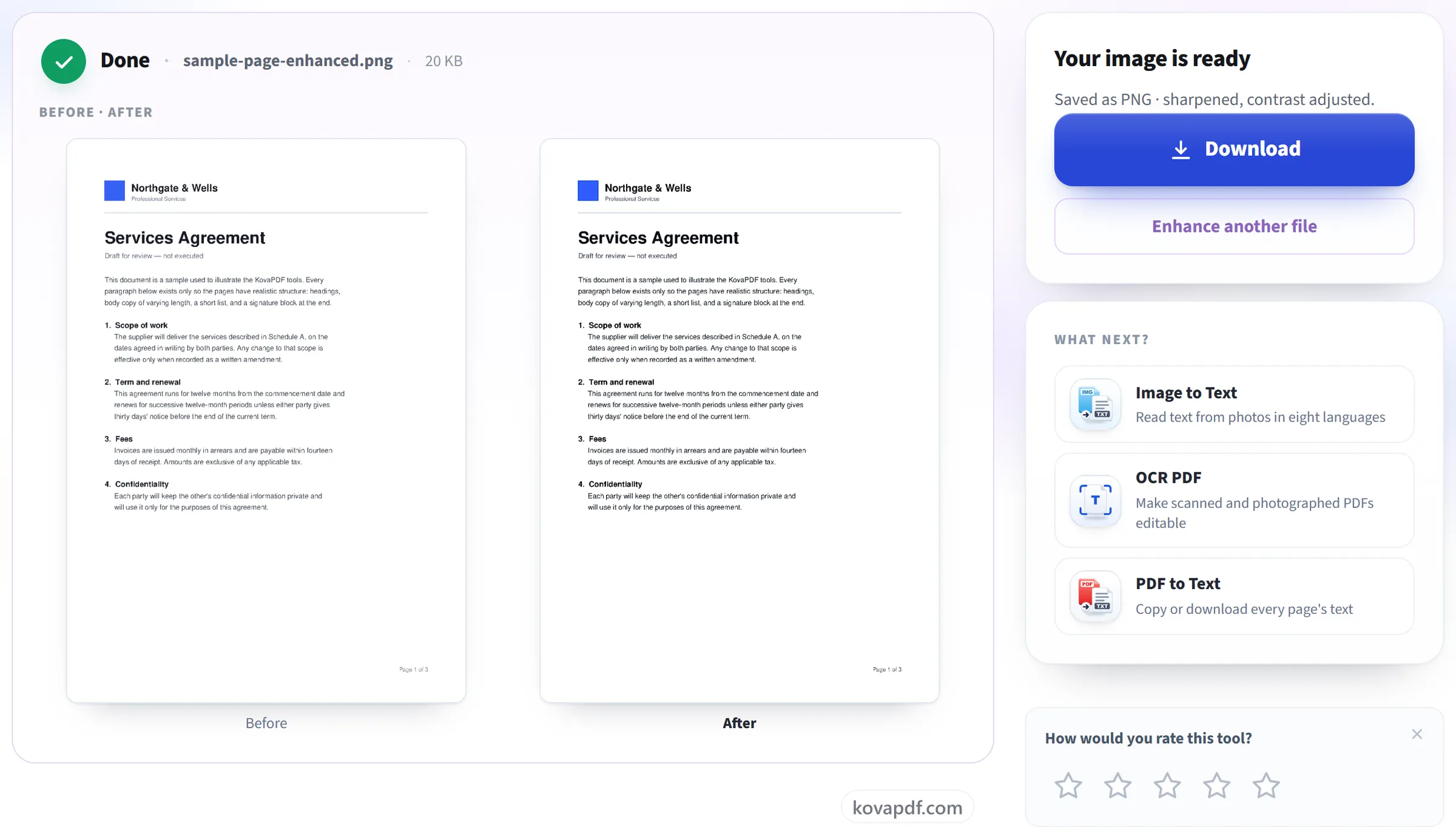
You keep both: the enhanced document downloads as a new file and your original is untouched.
Enhance Scan: a visual walkthrough
Clean up a grey, speckled or faint scan so it is easier to read and to recognise.
Upload your scan
Drag your file onto the upload panel, or click it to pick one from your device. Nothing is sent anywhere until you start the job, and the working copy is deleted the moment it finishes.
Let it clean the pages
Choose what to fix: sharpening, speckle removal, contrast, brightness, grayscale or pure black & white. A cleaner page also makes text recognition more accurate afterwards.
Download the clean copy
You keep both: the enhanced document downloads as a new file and your original is untouched.
Frequently asked questions about Enhance Scan
What does enhancing change?
It lifts contrast, clears background speckle and sharpens faint text, which makes a grey or unevenly lit scan easier to read.
Does it help text recognition?
Yes. Cleaning up a scan before OCR usually makes the recognised text more accurate.
Can I enhance a scanned PDF, or only an image?
Both. Upload a scanned PDF and every page is cleaned and returned as a PDF with the same page sizes. Upload a photo or a JPG, PNG or WebP scan and you get a cleaned image back.
What happens to a PDF that already has selectable text?
Cleaning a page means redrawing it, so text that was selectable becomes part of the picture. The words are still there to read but can no longer be selected or searched, and you are told when that applies to your file. Your original upload is never changed.
Can it fix a blurry photo of a document?
It can help, within limits. Sharpen tightens soft edges and extra contrast darkens faint text, which is often enough to make a phone photo readable. It cannot recover detail the camera never captured, and it does not straighten a crooked page or remove shadows.
How do I make a scan black and white?
Switch on "Pure black & white". Every pixel becomes fully black or fully white, which makes printed text crisp and clean to print. For pages with photos or shading, choose Grayscale instead, which drops the colour but keeps every shade of grey.
Why is the enhanced PDF bigger than my original?
Each page is redrawn as a 200 DPI image so it can be cleaned, and those images usually take more space than the original scan. If the size matters, run the result through Compress PDF afterwards.
Is it free?
Yes. Every tool works without paying and without an account. Files can be up to 200 pages and 80 MB, and a run that fails costs you nothing.
Do I need to create an account?
No. All tools work without signing in. An account raises your hourly allowance and lets you see what you have processed.
What happens to my file?
Your file stays on our server only for a short time while it is processed, then it is deleted. It is sent over an encrypted connection. We keep a record that the tool was used, but not the file name or what is in the file.
Enhance Scan guides and articles
Related tools
All PDF tools · 15 step-by-step guides · How your files are handled