Verify Digital Signatures in a PDF
Check the digital signatures in a PDF: see whether it is intact, who signed it, and whether their certificate is valid. Each answer is shown on its own line.
- Secure & private
- Works on any device
- Nothing to install
- Every signature in the file
- Intact, or changed since signing
- Who signed, and when
- Trust reported separately
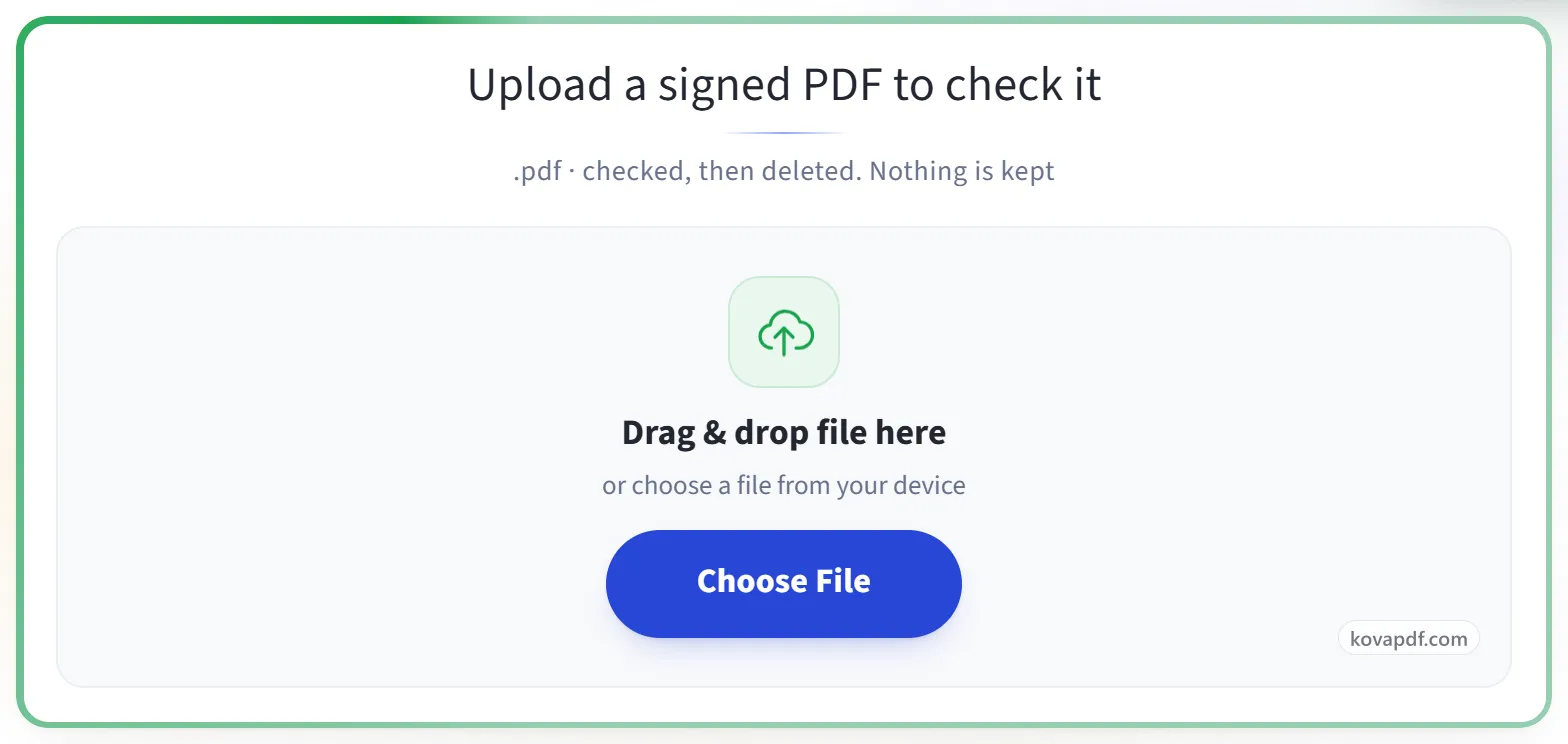
Upload a signed PDF to check it
.pdf · checked, then deleted. Nothing is kept
Drag & drop file here
or choose a file from your device
Trust your own certificate (optional)
Add a root or intermediate certificate (.cer, .crt, .pem, .p7b) to treat it as trusted for this check only. It is not stored.
Everything Verify Digital Signatures can do
Check every digital signature in a PDF: whether it still matches the document, who signed it, and whether their certificate can be trusted. Free, online, nothing kept.
Is the document intact
- Tells you plainly whether the document changed after signing
- Shows what changed, page by page, against the signed version
- Download the exact version that was signed
- Every signature in the file reported separately, in order
- Flags a signature image that has no real digital signature behind it
Who signed, and can they be trusted
- Full certificate details and the chain up to the root
- Revocation checked live by OCSP and CRL
- EU Trusted Lists: says whether it is a qualified signature or seal under eIDAS
- AATL: says whether Adobe trusts the issuer
- Add your own root certificate for a check we could not otherwise make
Time and long-term validity
- Timestamp checked, with the authority that issued it
- LTV and DSS data detected, so you know the signature survives certificate expiry
- Certification and permission rules (DocMDP) reported as the signer set them
Proof you can keep
- Download a PDF report of the whole check
- Download an ETSI TS 119 102-2 validation report in XML
- One plain-language verdict, with every fact shown on its own line
How it works
Verify Signature in three steps
Upload the signed PDF
Drag the .pdf onto the panel, or click it to pick one. The check starts at once; nothing is kept afterwards.
Read the result
Each signature starts with one plain sentence: green if the document is unchanged since that person signed it. Below it, every check has its own line, and "Certificate details" shows who the certificate belongs to, who issued it and its fingerprint. "Not trusted" only means the issuer is not one we recognise. Normal for a company's own certificates.
If the file was changed after signing
The sentence turns amber and the changes are listed page by page. In this example, a comment was added on page 2. "Download the version that was signed" gives you the file exactly as it was signed. If there is no digital signature at all, the page says so and points out any signature picture it found. "Download report (PDF)" saves the whole result.
Verify Signature: a visual walkthrough
See whether a signed PDF is intact, who signed it and when, each answered on its own line.
Upload the signed PDF
Drag the .pdf onto the panel, or click it to pick one. The check starts at once; nothing is kept afterwards.
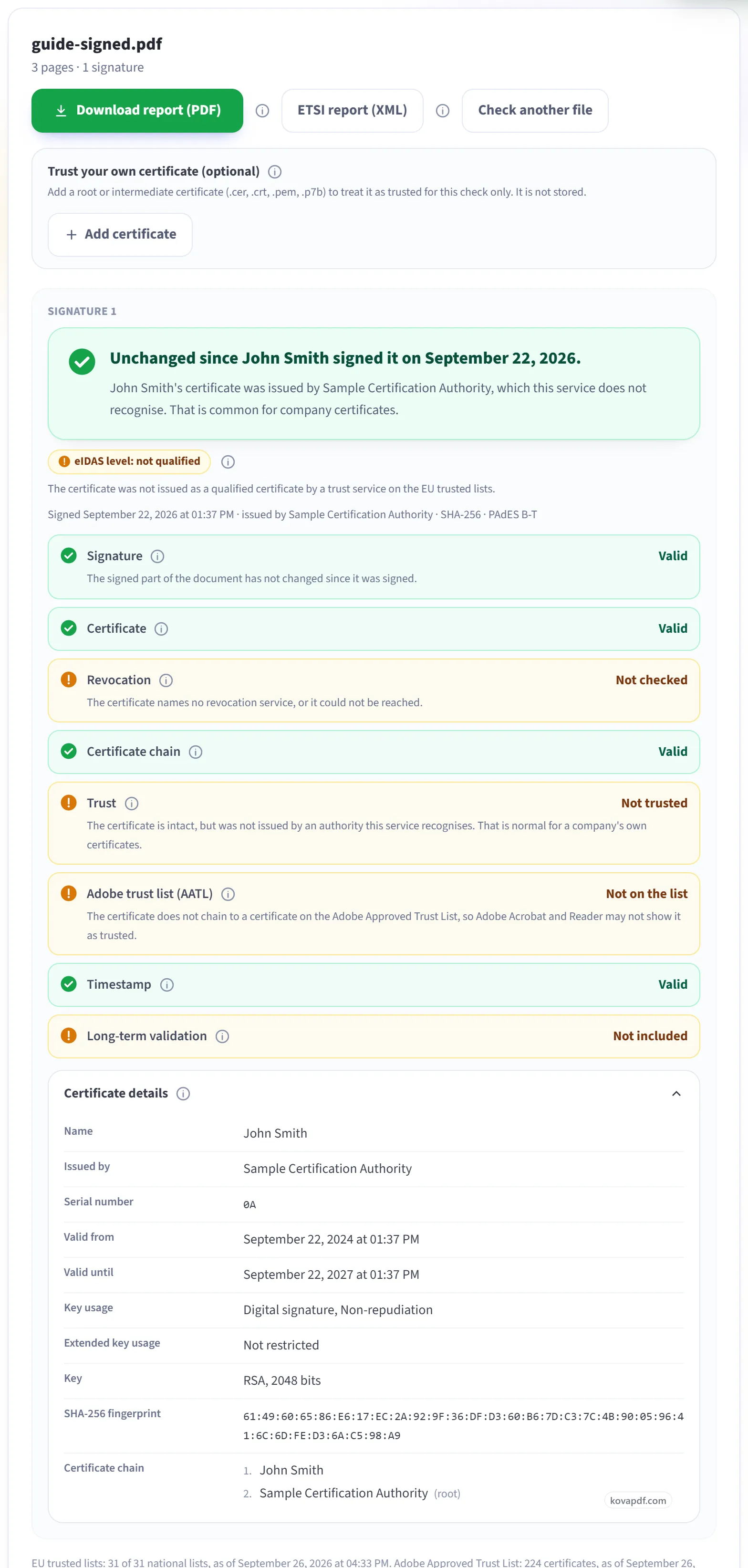
Read the result
Each signature starts with one plain sentence: green if the document is unchanged since that person signed it. Below it, every check has its own line, and "Certificate details" shows who the certificate belongs to, who issued it and its fingerprint. "Not trusted" only means the issuer is not one we recognise. Normal for a company's own certificates.
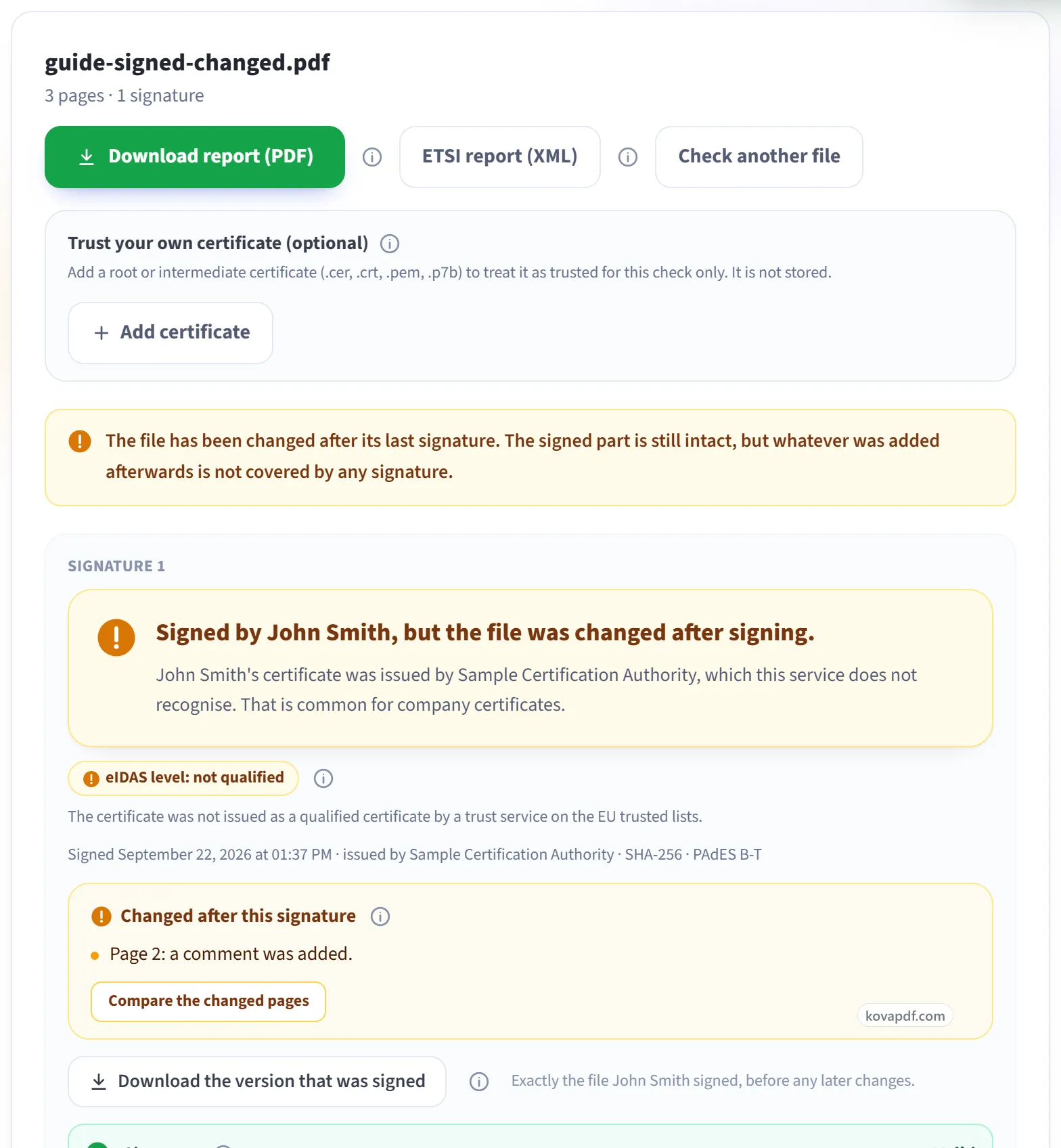
If the file was changed after signing
The sentence turns amber and the changes are listed page by page. In this example, a comment was added on page 2. "Download the version that was signed" gives you the file exactly as it was signed. If there is no digital signature at all, the page says so and points out any signature picture it found. "Download report (PDF)" saves the whole result.
Frequently asked questions about Verify Signature
How do I check if a digital signature in a PDF is valid?
Choose the signed PDF. Every digital signature in it is listed with a coloured verdict saying whether the document has changed since that person signed, along with who the certificate belongs to, who issued it, whether it has been revoked and when it was signed. You can download the result as a PDF report.
My PDF clearly has a signature on it. Why does it say there is no digital signature?
What you see is a picture of a signature, drawn, typed, scanned or stamped onto the page. This tool checks for a different kind: a digital signature made with a certificate and stored inside the file. A PDF can show a signature and contain none. Our article "What is a digital signature in a PDF" explains the difference.
It says there may be a signature image on one of my pages. What does that mean?
We looked for things that look like a signature but are not a digital one: pictures shaped like a signature, hand-drawn marks, stamps, and signature fields that were prepared but never signed. We name the page so you know what we mean. It is only a hint. We can't tell whose signature a picture shows.
What does the coloured message above each signature mean?
It is the short answer. Green means the document is unchanged since that person signed it; if it adds "only permitted additions", someone later filled in a form field or added another signature, which the first signature allows. Amber means the file was changed after signing. Red means the signature is broken, or the certificate used for it has been revoked. The lines below give the detail.
How do I see what was changed after signing?
When the file was changed, the result lists each change, for example "Page 1: the page content was changed" or "Page 2: a comment was added". "Compare the changed pages" then shows each of those pages as it was signed and as it is now, side by side. The pictures are drawn in your browser.
Can I get the version that was signed?
Yes, when something was added after a signature. "Download the version that was signed" gives you the file exactly as that person signed it, before any later changes. It is taken from the file you chose, in your browser, and nothing extra is uploaded.
What is in the certificate details?
Who the certificate was issued to, who issued it, its serial number, the dates it is valid between, what it may be used for, its SHA-256 fingerprint and the chain of certificates above it. To be sure a certificate belongs to someone, ask them for its fingerprint and compare the two.
Can I save or share the result?
Yes. "Download report (PDF)" saves everything on the screen: each signature's result, every check, the changes after signing and the certificate details, with the file's name, size and SHA-256 fingerprint. The report describes what the check found. It is not a signature itself and doesn't certify the document.
The file was digitally signed, but now no signature is found. What happened?
It was probably printed to PDF, flattened, re-saved or edited after signing. Those steps rebuild the file and can keep the picture of the signature while removing the digital signature itself. Ask the sender for the original signed file.
What does "Signature: Valid" mean?
It means the document hasn't changed at all since it was signed. This is the most important line in the report.
What does "Signature: Invalid" mean?
That the document was changed after it was signed, or the signature itself is damaged. Do not rely on its contents without checking with the sender.
Does "Not trusted" mean the signature is fake?
No. It means this checker doesn't recognise who issued the certificate. That is very common for certificates a company gives its own staff. If Signature says Valid, the document hasn't changed since signing. Trust is a separate question about who vouches for the signer.
What is the Adobe trust list line?
Whether Adobe Acrobat would show a green tick for this signer. Only Adobe can say that for certain, because it depends on Adobe's own list of approved certificate authorities, so this tool reports it as not verified rather than guessing.
What does "Revocation" mean?
Whether the certificate's issuer has cancelled it, usually because it was lost, stolen or issued by mistake. The check asks the issuer directly. "Not checked" means the certificate names no such service, or it couldn't be reached. It is not a failure.
Why does the report say the file was changed after the last signature?
Something was added to the file after it was signed, for example a comment, a form entry or a later edit. The signed part is still intact, but whatever was added afterwards is not covered by any signature. The list under that signature says what was added, and on which page.
Can it check signatures made in Adobe Acrobat or other apps?
Yes. Any standard PDF digital signature can be checked, whichever program made it. Every signature in the file is listed separately, with who signed and when.
Is it free?
Yes. Every tool works without paying and without an account. Files can be up to 200 pages and 80 MB, and a run that fails costs you nothing.
Do I need to create an account?
No. All tools work without signing in. An account raises your hourly allowance and lets you see what you have processed.
What happens to my file?
Your file stays on our server only for a short time while it is processed, then it is deleted. It is sent over an encrypted connection. We keep a record that the tool was used, but not the file name or what is in the file.
Verify Signature guides and articles
Related tools
All PDF tools · 15 step-by-step guides · How your files are handled