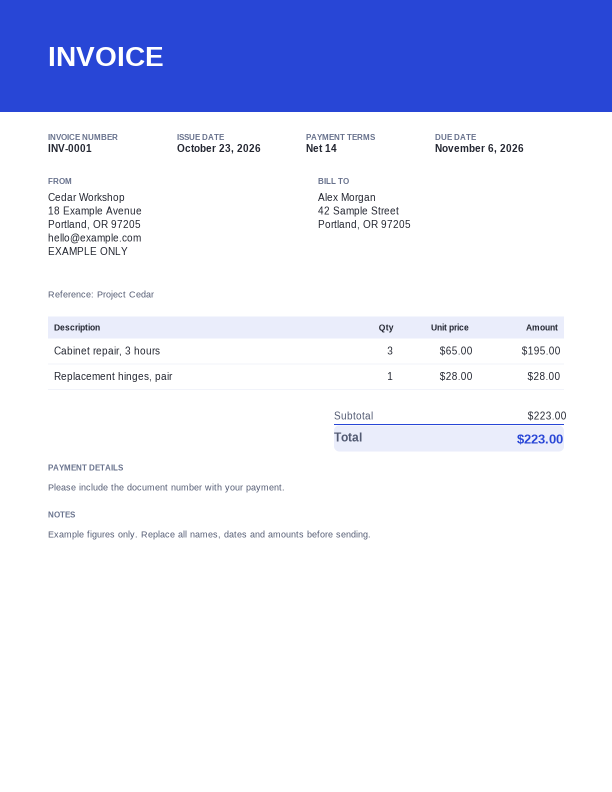
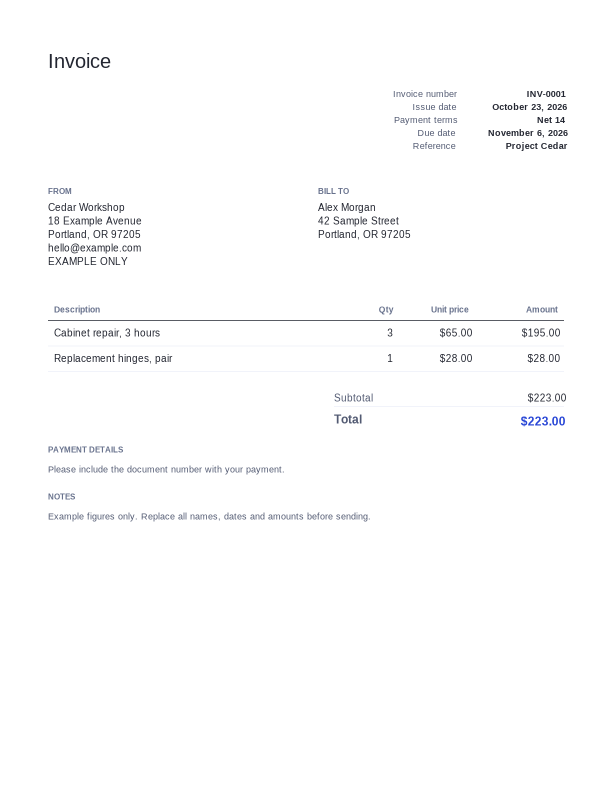
Preview every page
Read the document as you fill in the form.
Write an invoice, check the page preview and download your PDF. Add your business details once and reuse them in this browser.
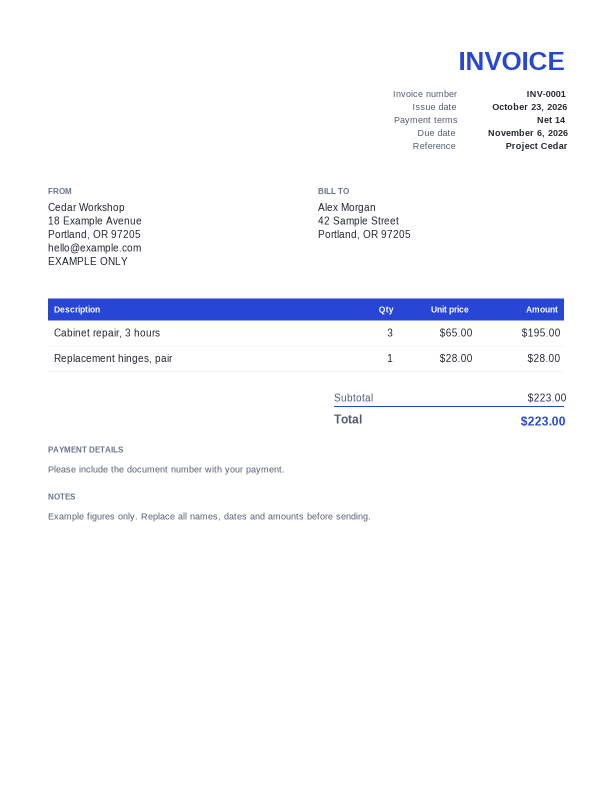 Example document. Edit every detail.
4 things missing
Invoice rules in the US depend on your state. This tool helps you lay out an invoice; it is not tax advice.
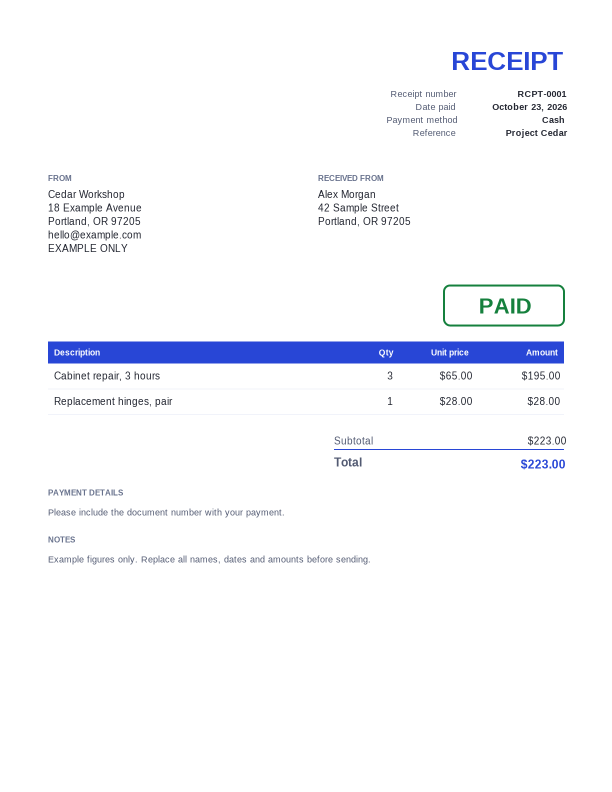
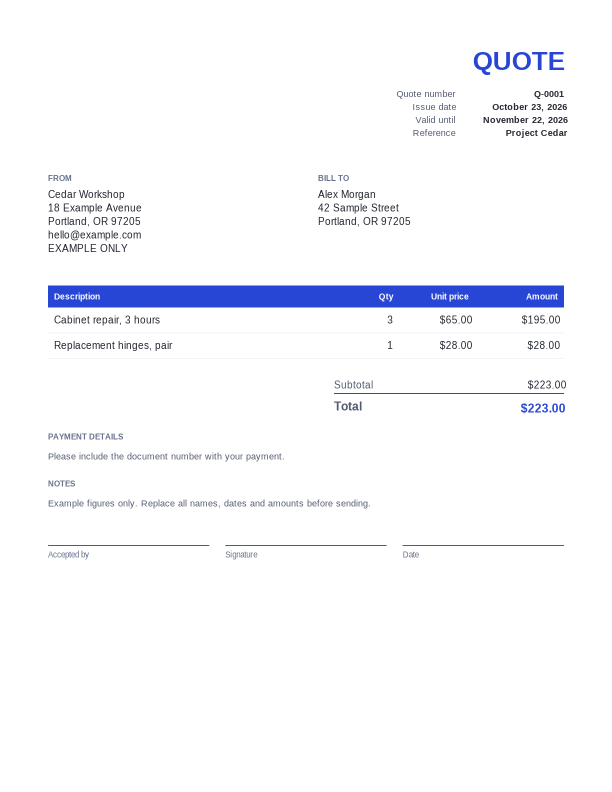
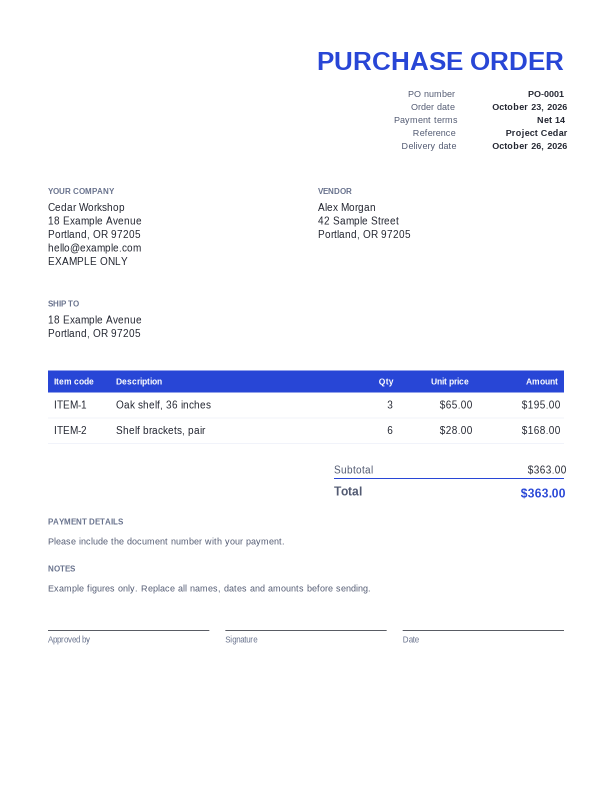
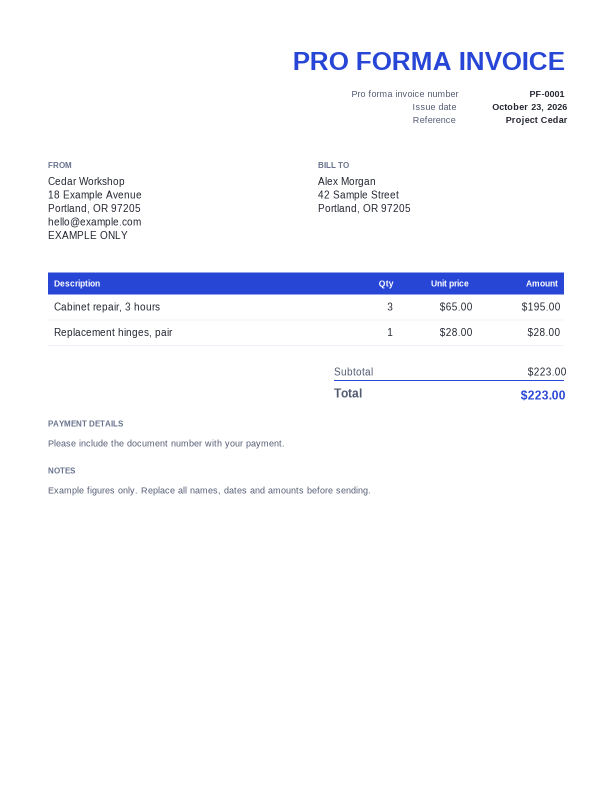
These pictures show the same document generator with fictional example details.
Replace the example names and contact details in the form. Keep only information that belongs in this document.
Check the page preview after changing the text. Read the amounts, dates and page breaks before exporting.
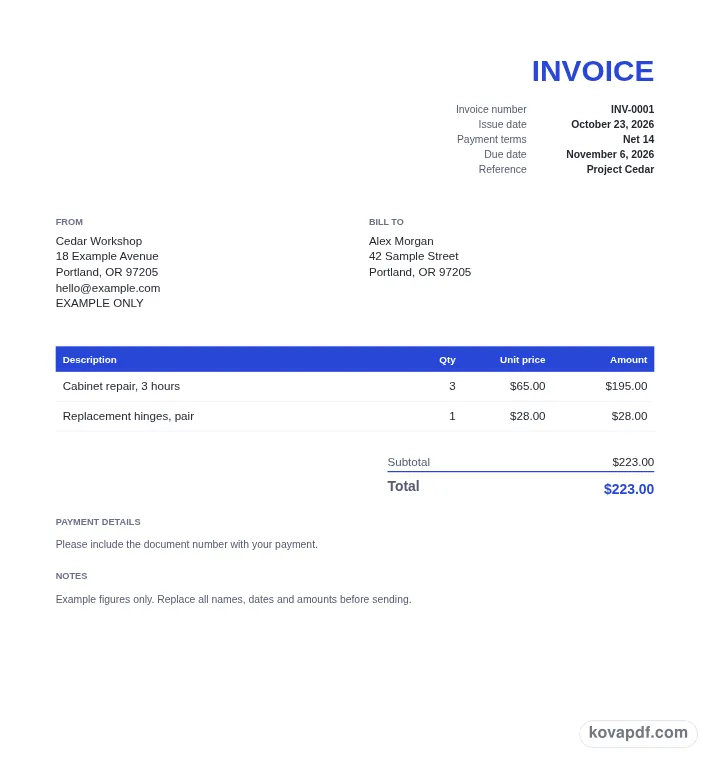
Use the download controls above the preview. Open the saved file and give it one final read before sharing.

Read the document as you fill in the form.
Compare Classic, Modern and Minimal layouts.
Save a copy when the names and figures are right.
The generator works on this device.
Use A4 or Letter and check the page breaks.
Return to the form to correct a detail before sharing.
These are fictional details. Choose an example, then replace them with your own.
Start with your business name and the customer's name. Add addresses and contact details that help identify the job. Give the invoice a number, choose its issue date, and set a payment term or a due date the customer can read.
Write a description for each item, then enter quantity and unit price. Review the calculated amount for each row. Use a separate line for a credit, and add any discount in the totals section so its effect is visible.
Choose your design and paper size, then read the invoice from top to bottom. Check names, figures and payment instructions. Use Download PDF to save it, or open the generated file in the PDF Editor for the next step.
An invoice is a request for payment for goods or work. It gives the customer a document they can match to the purchase, read for the amount owed, and use to find the payment instructions. A clear invoice answers a few practical questions without a separate message: who is charging, who is being charged, what was supplied, how much it costs, and when payment is expected.
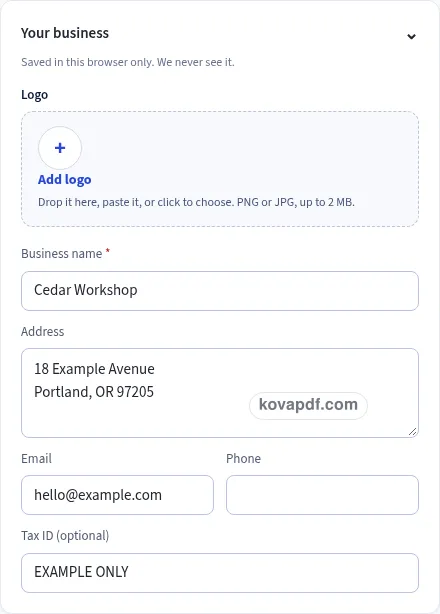
Begin with the business name that the customer knows. An address, email and phone number can make it easier to recognise the sender or ask about a line. Put the customer in the Bill to block. Check the spelling against the job record, particularly when several people at one company have been involved. The person arranging payment may be seeing your details for the first time.
Give each item a description that connects it to the agreed work. Quantity is not limited to whole numbers, so you can enter a fraction when that matches your pricing. The amount is calculated from quantity and unit price, leaving you free to check those two inputs instead of typing the same multiplication again. Keep longer explanations in Notes and account instructions in Payment details, where they follow the totals.
Payment terms tell the recipient when you expect the invoice to be paid. Due on receipt uses the issue date. Net 7, Net 14, Net 30 and Net 60 set a due date that many days after the issue date. For example, Net 30 means payment is due 30 days after the invoice date in this form. If a different day has been agreed, choose Custom date and enter it directly.
Use the preview to compare the issue date, terms and due date as one group. A copied date can be easy to miss even when the amount is correct. If part of the invoice has already been paid, enter it in Amount already paid. The totals then show the original total, the amount paid and the balance due, giving the customer a clear figure to act on.
A readable numbering pattern makes your own records easier to search. The starting example is INV-0001. After a download, the next number is saved for another invoice, keeping the prefix and leading zeros. You can type your own pattern before exporting. Keep the invoice number with the job and with your downloaded file so you can refer to the same document when discussing a question or payment.
An invoice asks for payment. A receipt records a payment that has been made. If the customer has paid and wants a record showing the payment method and date, use the receipt generator. It has a PAID mark option and a Received from block. Keeping these documents distinct helps the recipient understand what you are asking them to do next.
A quote is a fixed price offer, while an estimate gives an approximate price. Use the quote and estimate generator when you are setting out a proposed job before making an invoice. It includes a valid-until date and an optional acceptance block. A purchase order records an order from the buyer's side, with a vendor, shipping address and approval space. Each generator keeps the details for its purpose together.
Your invoice is created in the browser. A saved draft can help you continue on this device, but it is not a substitute for keeping the finished PDF where you manage your business records. On a shared browser, clear saved details after use. Before sending any document, inspect the last page as well as the first: payment text and terms follow the totals and can continue onto another page when there is a lot to say.
Make a receipt · Write a quote or estimate · Create a purchase order
Billing a client for a fixed project or a monthly retainer? The Freelance Invoice Generator adds a project reference and records any amount already paid, so the invoice shows the balance left to pay.
Yes. You can make and download invoices without an account. Fill out the business, customer and document details, check the preview and save the PDF. The form does not ask you to register before making that download.
No. The invoice is built in your browser and never uploaded by this generator. Your browser can save business details and the current draft on this device. Use Clear saved details to remove those entries when you no longer want them stored here.
Choose a PNG or JPG image no larger than 2 MB in Your business. You will see a thumbnail and a Remove button. The logo is fitted within its document box while keeping its proportions, so check the preview before exporting.
Enter the invoice items first and check the total. Add the amount already paid in Tax & totals. When it is greater than zero, the PDF shows Amount paid and Balance due below the total, separating the original charge from the remaining amount.
Use Make another after finishing a document. It keeps the seller and design, clears the items and advances the number. The next draft can then have a different customer and item list without asking you to upload the same logo again.
Open in PDF Editor passes the generated file to the editor in the same tab. You can also download the PDF and open your saved copy later. Review changes before sharing so the final file still matches the invoice you intended to send.