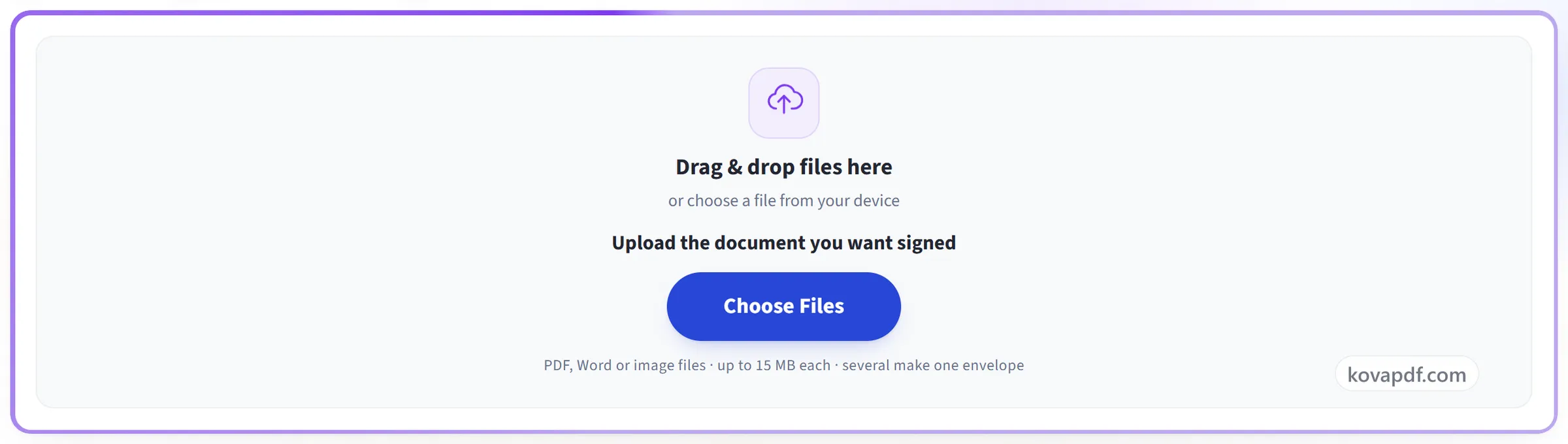
Drag the .pdf onto the panel or click it to pick one; you sign in only when you send. A Word file or a photo works too. It is turned into a PDF first.
iLovePDF Sign alternative
Drop your PDFs here
PDFs · up to 50 MB · up to 200 pages · up to 30 files
PDF, Word or image files · up to 15 MB each · several make one envelope
On your computer? Get the Windows appOn your phone? Get the phone app
Choose a PDF and prepare a request for other people to sign. For your own signature, use Sign PDF. Upload the document you want signed.
- Free to use
- Works on any device
- Nothing to install
- One or many signers
- In order or all at once
- See who opened and signed
- Certificate of completion
Why send it for signature instead of emailing the PDF?
What iLovePDF Sign PDF says
iLovePDF Sign PDF's own pages, in three facts
Prices checked: October 2026.
Product name
iLovePDF calls its tool Sign PDF. It offers signing yourself or requesting signatures from others.
Source: ilovepdf.com/sign-pdf, Sign PDF tool page
Recipient controls
The request interface exposes signing order, reminders, validator and witness roles.
Source: ilovepdf.com/sign-pdf, Sign PDF tool page
Evidence options
The tool describes digital signatures, timestamp evidence and audit trail verification options.
Source: ilovepdf.com/sign-pdf, Sign PDF tool page
Step by step
Request Signatures: a visual walkthrough
One or many signers, in order or all at once, and a signed copy with a certificate of completion for everyone.
Type each signer's name and email, and choose whether they sign in order. Then pick a signer and click Signature, Initials, Name, Date signed, Text or Checkbox to put that field on the page, and drag it into place. Every signer needs at least one signature field.
Add a message, choose when the link expires and whether to send reminders, and send. Each signer gets a private link by email; you can see who has opened and signed it under Sent for signature, and everyone receives the signed PDF when the last person signs.
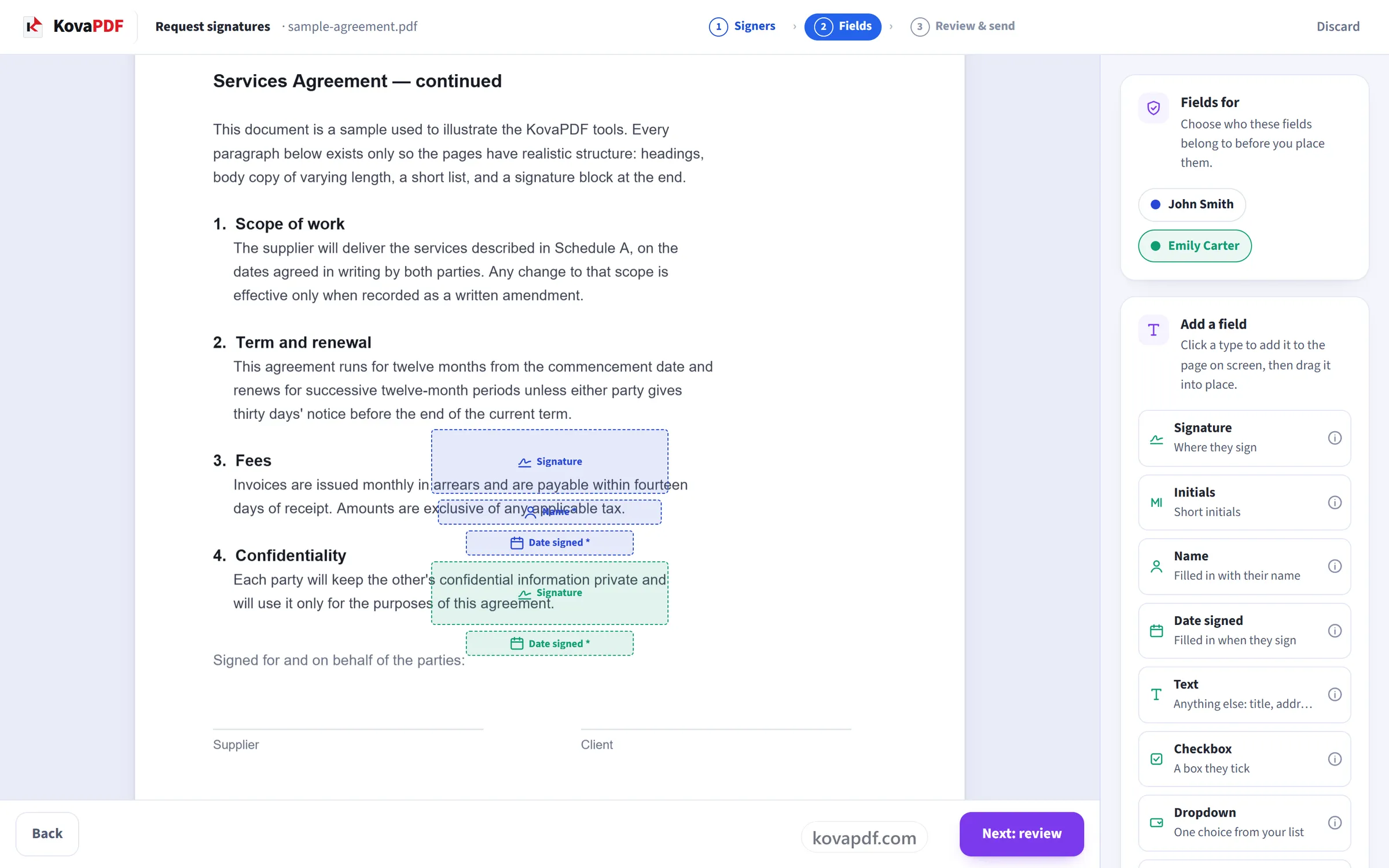
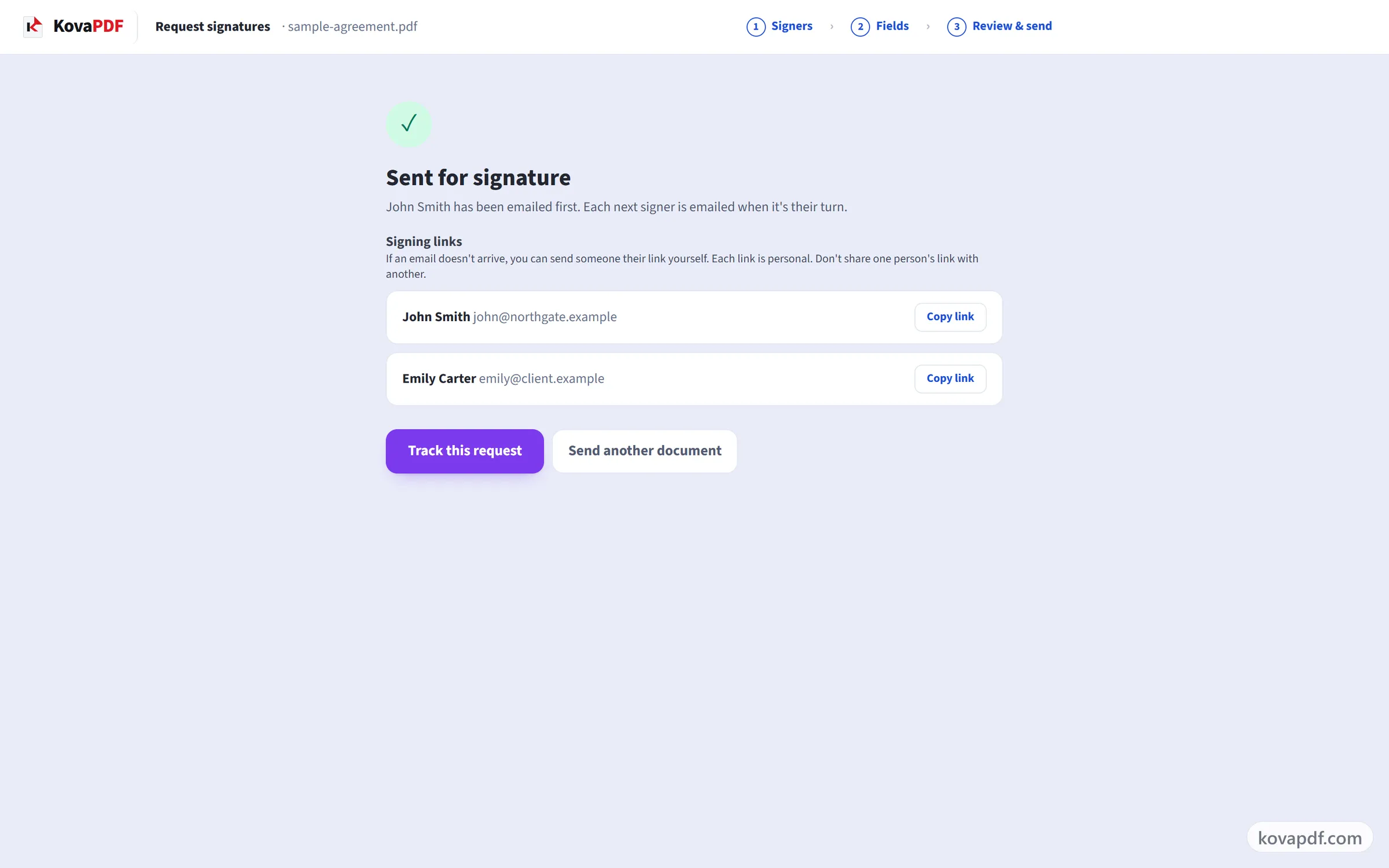
Everything Request Signatures can do
Send a document to other people to sign, free, with no account needed for them, and get back a signed copy sealed with a trusted timestamp and a certificate of completion.
Who signs, and in what order
- Several recipients, one after another or all at once
- Roles: signer, approver, witness, and people who only get a copy
- A signer can hand their turn to someone else, with the reason recorded
- Host a signer in person on your own device
- Signers need no account and install nothing
What they fill in
- Signature, initials, name, date, text and checkbox fields
- Dropdown lists and radio buttons, with the choices you write
- Ask a signer to attach a file, hashed into the certificate of completion
- Calculated fields worked out from the numbers they type
- Show a field only when an earlier answer calls for it
- Place fields anywhere, for any recipient, on any page
- Send a PDF, or a Word file or photo that is converted first
- Anyone who cannot sign can decline, with a reason
Staying in control
- Access code per recipient
- Automatic and manual reminders
- An expiry date, after which the link stops working
- See who opened and who signed, and cancel or delete at any time
- Your own name, logo and colour on the signing page and the emails
Proof at the end
- Certificate of completion with times, IP addresses and devices
- The finished file is sealed with a trusted timestamp, so later changes show
- Everyone gets the signed copy
- Check the result yourself with our free Verify tool
Compare the work you need to do
| Question | KovaPDF | iLovePDF Sign PDF |
|---|---|---|
| Who signs | KovaPDFRequest others to sign here. Use Sign PDF separately for your own signature. | iLovePDF Sign PDFChoose signing yourself or requesting others inside Sign PDF. |
| Recipient roles | KovaPDFSigner, approver, witness and copy roles, with signing order. | iLovePDF Sign PDFSigners, validators and witnesses, with an optional order. |
| Checking the record | KovaPDFUse Verify Signature to inspect the original digitally signed PDF. | iLovePDF Sign PDFThe tool describes digital signatures and printed audit trail verification. |
Prices checked: October 2026.
The honest answer
Which one should you use?
 Where KovaPDF is better
- Other people must sign this file. The tool at the top opens directly into a request for recipients.
- You want to prepare before registering. Add fields first. Use a free KovaPDF account to send, while signers never need one.
- You need to inspect a completed PDF later. Verify Signature is available as a separate check of embedded digital signatures.
Choose iLovePDF Sign PDF if…
- You use both signing routes in one familiar tool. iLovePDF Sign PDF offers signing yourself and requesting other people's signatures.
- Your process uses its recipient roles. The interface includes validators and witnesses alongside signers.
- Printed record verification is important. Its tool describes checking a printed document through an audit trail QR code and password.
Prices checked: October 2026.
The product is called Sign PDF
The official iLovePDF tool is named Sign PDF. It offers two starting points: sign a document yourself or send a signature request to somebody else. A search for an iLovePDF Sign alternative should begin by choosing which of those jobs you need.
The tool above is the second route. It collects other people's signatures. If you simply need to add your own visible signature and return a form, Sign PDF opens the appropriate editor. Sending yourself a request adds work that may not be necessary.
A request with a reviewer and a signer
Suppose fictional Moss Bridge Workshops has an approved venue agreement. Leila needs the organizer to sign it. She uploads the PDF here, adds the organizer and checks each field assignment before sending. Leila needs a free account; the organizer never does.
If the existing iLovePDF process also includes a validator or witness, examine the role before recreating it. A person who receives a copy is not automatically a witness. A role label should reflect what that participant actually does in the agreement.
Compare the evidence you intend to keep
iLovePDF's interface describes simple and digital signature options, timestamp evidence and audit trail verification. Do not decide from the appearance of the signature alone. A drawn mark, an embedded digital signature and a printed record answer different checking questions.
Use Request Signatures to prepare a recipient flow, or read how to get someone to sign a PDF for the handoff. Save the completed PDF and completion certificate with your own records.
When somebody sends back a file, preserve the original download. Avoid printing and scanning it before a digital signature check, because the scan is a new file. The received document verification guide explains that difference and how to approach an unclear result.
Prices checked: October 2026.
Questions
iLovePDF Sign alternative: common questions
What is iLovePDF's signature product called?
Its official tool page calls it Sign PDF. The page offers signing yourself and sending signature requests to others.
Which signing route is on this page?
Request Signatures. It is for collecting other people's signatures. Use KovaPDF Sign PDF when only your own signature is needed.
Do I need to register before choosing the PDF?
No. Prepare the request first. Sending requires a free KovaPDF account, and recipients never need accounts.
Does a scanned signed PDF keep its digital evidence?
A scan is a new file containing page images. Preserve the original signed download if you need to check embedded digital signatures.
Why might I keep using iLovePDF Sign PDF?
Its combined self signing and request routes, recipient roles or printed audit trail verification may fit your existing process. Test those requirements before moving.
Prices checked: October 2026.
Keep going
Related tools and pages
Request SignaturesSend a PDF to others to signSend a PDF for signatureUpload, add signers, place fields, send: the three steps, with the tool on top.How to read a signature check result: intact, who signed, and trustedA signature check result has several lines because each one means something different. What every line tells you, and which one decides whether to accept.
iLovePDF Sign PDF, iLovePDF are trademarks of their owners. KovaPDF is not connected with, or endorsed by, any of them. The facts above come from each service's own public pages. This page compares products; it is not legal advice.