Getting the most out of PDFs
Why won't my fillable PDF form save what I typed?
In short
Save the form to your device before filling it in, then save and reopen that copy to check the answers. If another app shows blank fields, check the file in a second viewer before typing everything again. If you built the form in PDF Forms, answers typed in Preview are only a test and are not saved.

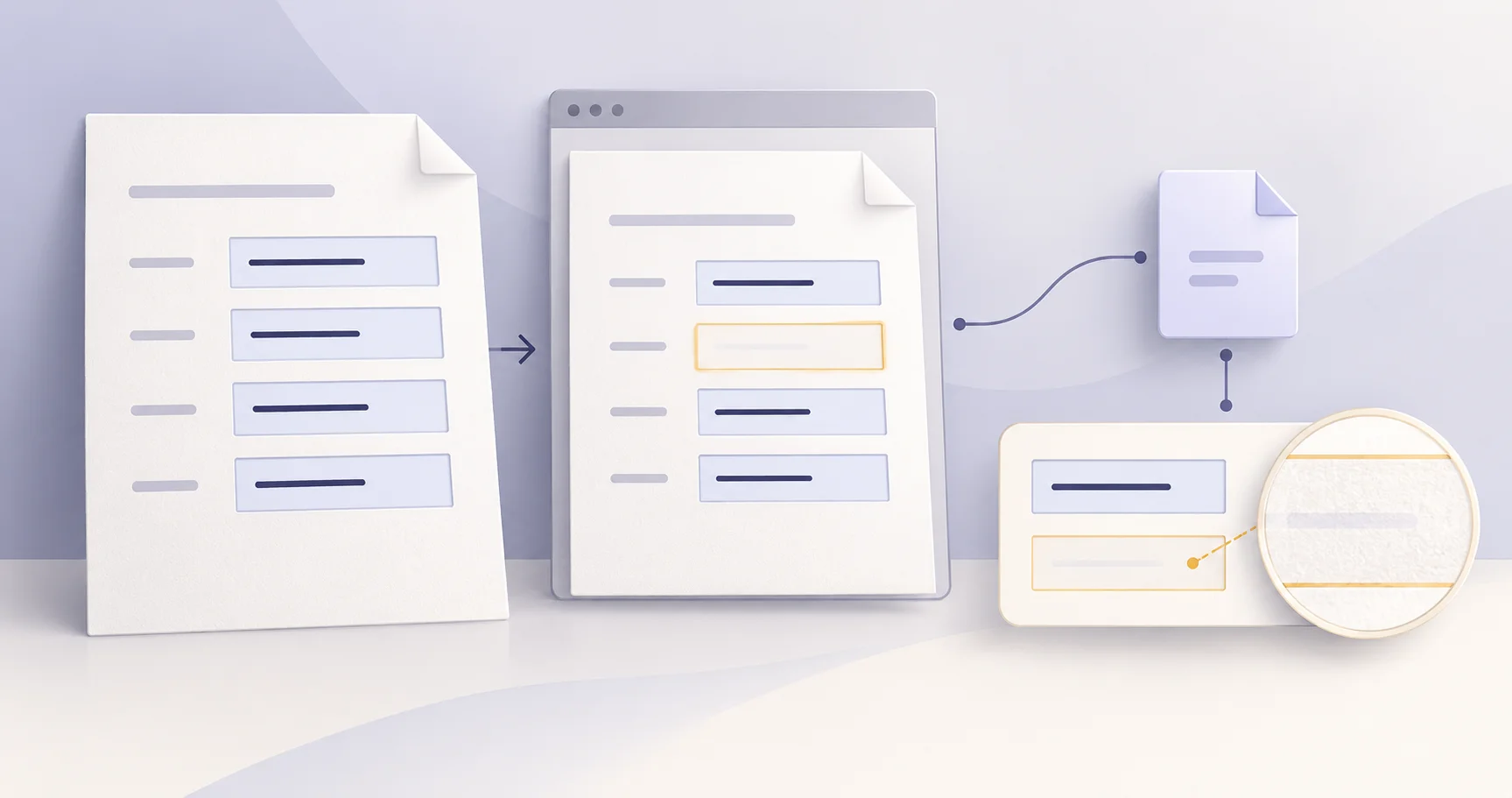
You spent twenty minutes typing into a PDF form, saved it, and when you opened it again the boxes were empty. Or it looked fine on your screen and the person you sent it to says it arrived blank. Both happen a lot. The cause is nearly always one of a handful of things, and you can usually find which one in a couple of minutes without typing anything again.
First, check what kind of form it is
Open the PDF and click or tap in one of the blanks.
- A cursor appears and you can type. It is a fillable form with real fields. Read on.
- Nothing happens. It is a flat form: lines and boxes drawn on the page, meant for a pen. Nothing was saved because there are no fields to save into. Skip to "Filling in a form that will not cooperate" below.
- You see "Please wait..." and no form at all. It is a type of form built for Adobe software. See cause 3.
A scanned application usually falls in the second group. It looks exactly like a form, but the whole page is one picture.
Cause 1: the answers went into a copy you never saw again
This is the most common one by a distance.
When you open an attachment straight from an email, many mail programs open a temporary copy. You type, press Save, and the answers go into that temporary file. The attachment in the email is unchanged, so the next time you open it from the email you get the blank original.
Browser viewers have a similar trap. You can type into a form in Chrome, Edge or Safari, but nothing is kept until you save or download it, and closing the tab throws the answers away. Some viewers also ask, when you download, whether you want the original or the edited version. The original is the blank form.
Fix: save the attachment to your computer or phone first, open that saved file, fill it in, and use Save, or Save As with a new name. Then close it, open it again from the folder, and check your answers are there before you send it. If you end up with several downloads with similar names, open each one and pick the copy by what it contains, not by which name looks newest.
Cause 2: the answers are saved, but the other person's app does not show them
A form field stores two things: the value you typed, and an appearance that draws it on the page. Most apps write both. Some write only the value and leave the drawing to the next app, and not every app does it. The result is a form that looks full in the app you used and empty somewhere else.
This happens most often when a form is filled in one app and opened in another: filled in Preview on a Mac and opened in an office on Windows, for example, or filled on a phone and opened on a desktop. It is also more likely with scripts whose letters join or need special shaping, such as Arabic or Bangla. A viewer that cannot shape them may show a blank or broken field even though the text is stored. A test with a short English name proves nothing about how a name in another script will look.
Fix: fill it in with Adobe Acrobat Reader, which is free and draws every field it saves. Or, once the form is filled in, make a flat copy by printing it to PDF: Save as PDF in the Print dialog on a Mac, Microsoft Print to PDF on Windows. Printing to PDF makes the answers part of the page, so every reader shows them. Check the printed copy, though: if your viewer was not drawing the answers in the first place, the printout will be blank too.
Before you retype anything, open the file in a second viewer. If the answers appear there, they were saved all along, and overwriting the fields because one app did not draw them only loses work.
Cause 3: the form only works in Adobe software
Some forms, often long government and insurance forms, are built in an older Adobe format that only Adobe Acrobat and Acrobat Reader fully understand. In other viewers they open as a single page saying "Please wait..." and that your viewer may not be able to display this type of document. Sometimes the fields appear but do not save properly.
Fix: download the form and open it in Adobe Acrobat Reader on a computer. A browser or phone viewer will not fill these properly, however long you wait, and downloading the file again does not change that. If the form has a button to validate or submit it, use that button in Reader.
Cause 4: the form is restricted
A PDF can carry restrictions that block changes, including filling in fields. Your reader usually says so, or the fields simply refuse to take typing.
Very old versions of Adobe Reader also refused to save typed answers unless the form's author had switched that on, and said so in a message. Current versions of Acrobat Reader save any form, so updating fixes that one.
Fix: ask the sender for a copy without restrictions. If it is a form you are entitled to fill in, and it opens without a password but blocks changes, Unlock PDF removes the restriction without asking for one. The unlocked copy keeps every page as it was but loses the working form fields, so it becomes a flat form, which you can fill in as described below.
Cause 5: you typed into Preview while building the form
This one only applies if you were making the form yourself in PDF Forms. Its Preview lets you try the form the way your readers will: type into fields, tick boxes, pick options and press Tab to check the order. Nothing typed in Preview is saved into the PDF. The screen says so, but it is easy to miss when you are testing a long form.
So if you fill every field in Preview and then choose Create fillable PDF, the download is an empty form. Nothing was deleted. The test answers were never part of what gets exported.
If you want a field to start with an answer already in it, go back to editing, select the field and set its Starting value. For a check box or a list, set the option it should start with. Then create the PDF, open the download and check the value is there.
A small test makes the difference clear. Build a form with Name, Email and a newsletter check box. Give Name a starting value, leave Email empty, then go into Preview and type a different name and an email address. Create the PDF and open it: you will see the starting name you set, and none of the Preview typing. Use made up details for this, and check every starting value before you send a form out, especially if you built it from a copy someone had already filled in.
Filling in a form that will not cooperate
When the fields will not behave, or the form is flat, put your answers on the page itself instead of in the fields. Answers written onto the page show in every reader, on every device, and print exactly as you see them.
Sign PDF does this from one panel, on a phone as well as a computer:
- Open the form in Sign PDF.
- Under Fields, choose Text for each answer, type it, and drag it onto the blank. Drag a corner to match the size of the form's printed text.
- Use Check or Cross for tick boxes, Name for your name, and Date for the date in the format the form asks for.
- Add your signature if the form needs one.
- Choose Review & download (on a phone, Save), then Download PDF.
For a long form with many blanks, the PDF Editor works the same way with more control over fonts and sizes. The guide linked below walks through it.
Two things to know about this approach. First, the answers sit on the page, not inside the fields, so a system that reads a form's field data automatically will not see them. That matters for a few online submission systems; it does not matter for a form a person will read or print. Second, the empty fields are still in the file, on top of the page. If a field has a white or coloured background, it can hide what you placed, so open the downloaded file and check every answer is visible before you send it.
Fillable copy or flat copy?
A fillable PDF keeps the fields, so someone can still edit the answers or read them into a system. A flat copy, such as one printed to PDF, makes the answers part of the page so they look the same everywhere, but nobody can edit them.
If the person receiving it needs to process the answers or change them, send the fillable version. If they only need to read a completed form, a flat copy is often safer. When you are not sure, ask. If you make a flat copy, keep the fillable one too, because turning drawn text back into fields means rebuilding the form.
Check more than the name field
Text boxes are only part of a form. After reopening, look at check boxes, choices in a list, dates and any long answers. A file that keeps the name but lost the selected option is not ready to send.
Long answers can be stored but cut off because the box is too small. If you made the form, make the field bigger and export again. If it is someone else's form, follow their instructions rather than changing its layout.
A typed name in a signature field is not a digital signature. If the form has to be signed by several people, Request Signatures sends it out for signing. If you received a signed form and want to know whether the signature is intact, Verify Signature checks it.
A quick check before you send any form
- Close the file after saving.
- Open the saved copy from where it is stored, not from the email.
- Look at every page, including check boxes and choices.
- If you can, open it in a second app as well: a browser and Acrobat Reader, for example.
If your answers show in both, they will show for the person you send it to. If you need to ask someone for help, describe what you did: which file you opened, whether you were building or filling the form, how you saved it and where it looks blank. A copy with made up answers is safer to share than your real form.
If you made the form
When people tell you your form arrives blank, the fix is often on your side. Fields that carry their own appearance show their answers everywhere. PDF Forms builds standard fields that way. How to make a PDF fillable covers building the form, and Preview is the place to test it, as long as you remember that what you type there stays there.
Common questions
Why is my filled PDF form blank when I open it again?
Most often the answers were saved into a temporary copy opened from an email, or the browser tab was closed before saving. Save the attachment first, fill in that saved copy, save it, then close and reopen it to check.
Why does the person I sent the form to see empty boxes?
Some apps save the typed value without drawing it on the page, and the other person's app does not draw it either. Fill the form in Adobe Acrobat Reader, or print it to PDF so the answers become part of the page.
What does "Please wait..." mean when I open a PDF form?
The form is built in an older Adobe format that most viewers cannot show. Download it and open it in Adobe Acrobat Reader on a computer.
Can I type answers onto a form that will not let me fill it in?
Yes. Sign PDF and the PDF Editor place your text, ticks, name and date on the page itself, where every reader shows them. They are not inside the form's fields, so check the result before sending it to a system that reads field data automatically.
Does typing into PDF Forms Preview save those answers?
No. Preview is for testing the form. To put an answer in a field before you send the form out, set the field's Starting value while editing, then create the PDF and check it.
KovaPDF on your computer and phone
Use KovaPDF on your computer, where many tools work with no internet, and on your phone. The same account works in both.